
Your work at a glance
- Vehicle arrives: search its number and check the papers.
- Gate-in: take the vehicle in and give the Trip ID to the driver.
- Inside the plant: weighing, loading, approval and billing are done by others. You only watch the status.
- Gate Out: go through the 4-point check and gate out the vehicle.
- Dispatch: the trip starts and the vehicle leaves your list.
1. Sign in
- Open ibidlogistics.com/login on the computer, or the iBidLogistics app on the phone.
- Enter your registered mobile number and press Request OTP.
- Enter the OTP that comes by SMS and press Login.
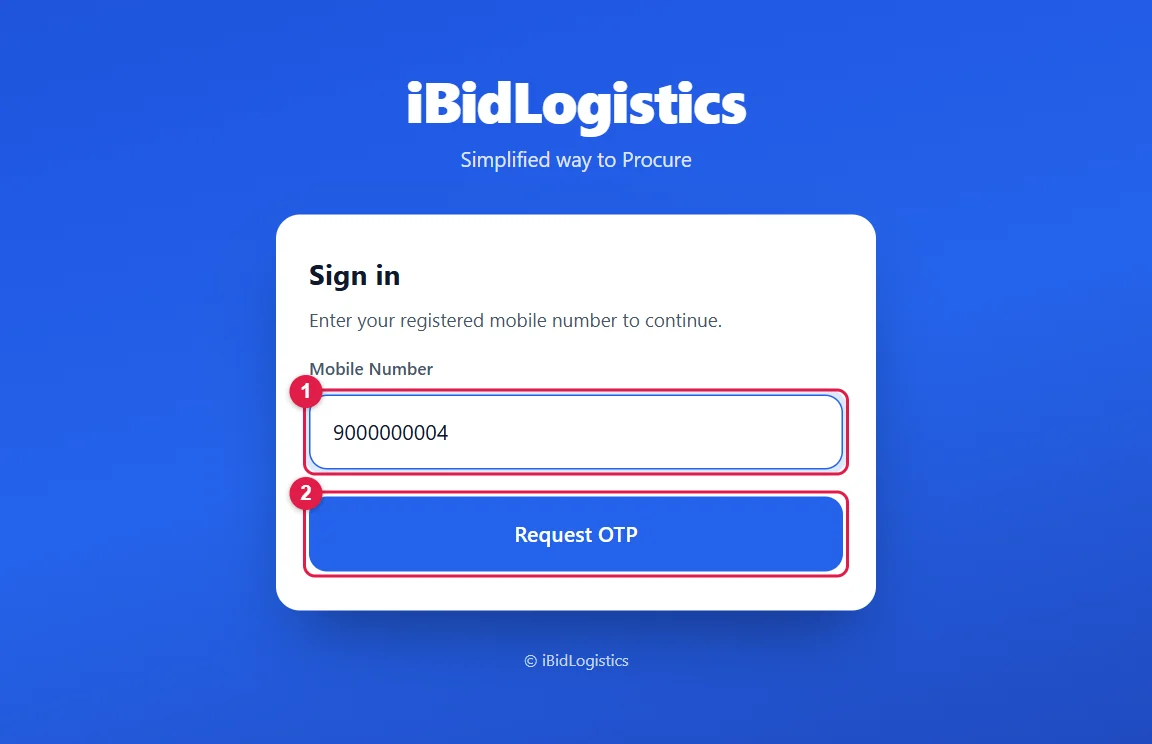
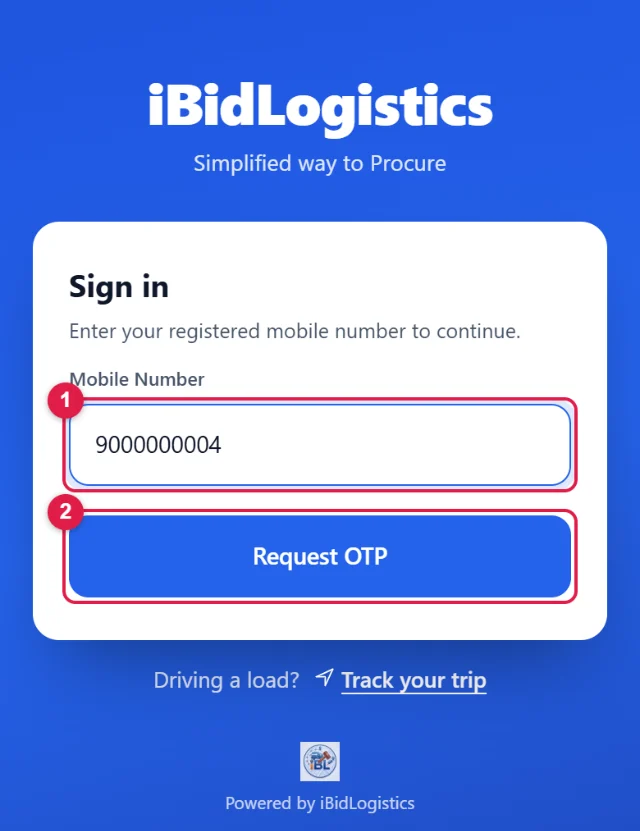
You stay signed in. Do not share your OTP with anyone.
2. Your screen
After sign-in you see In Plant: the vehicles that are inside your plant now.
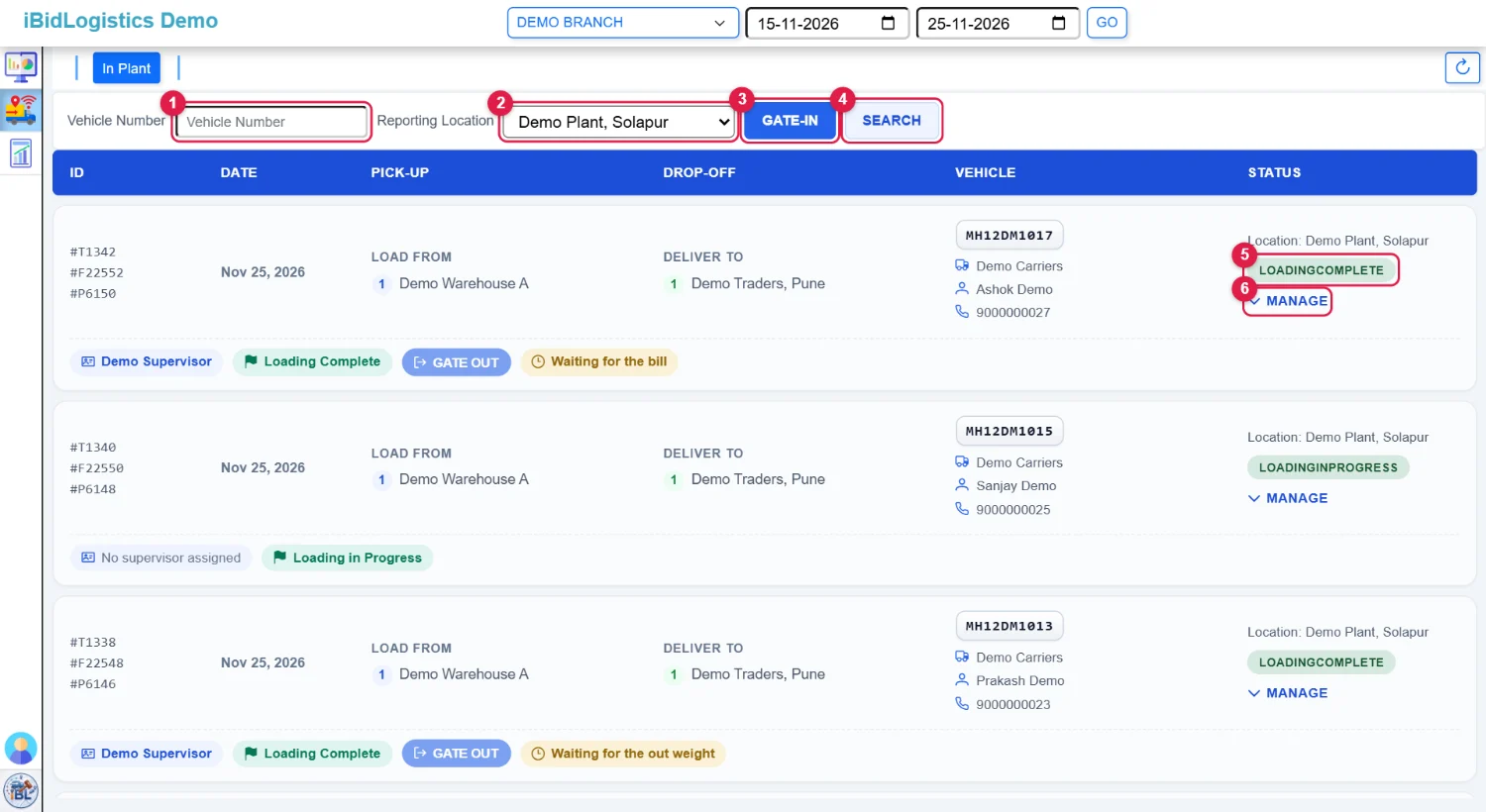
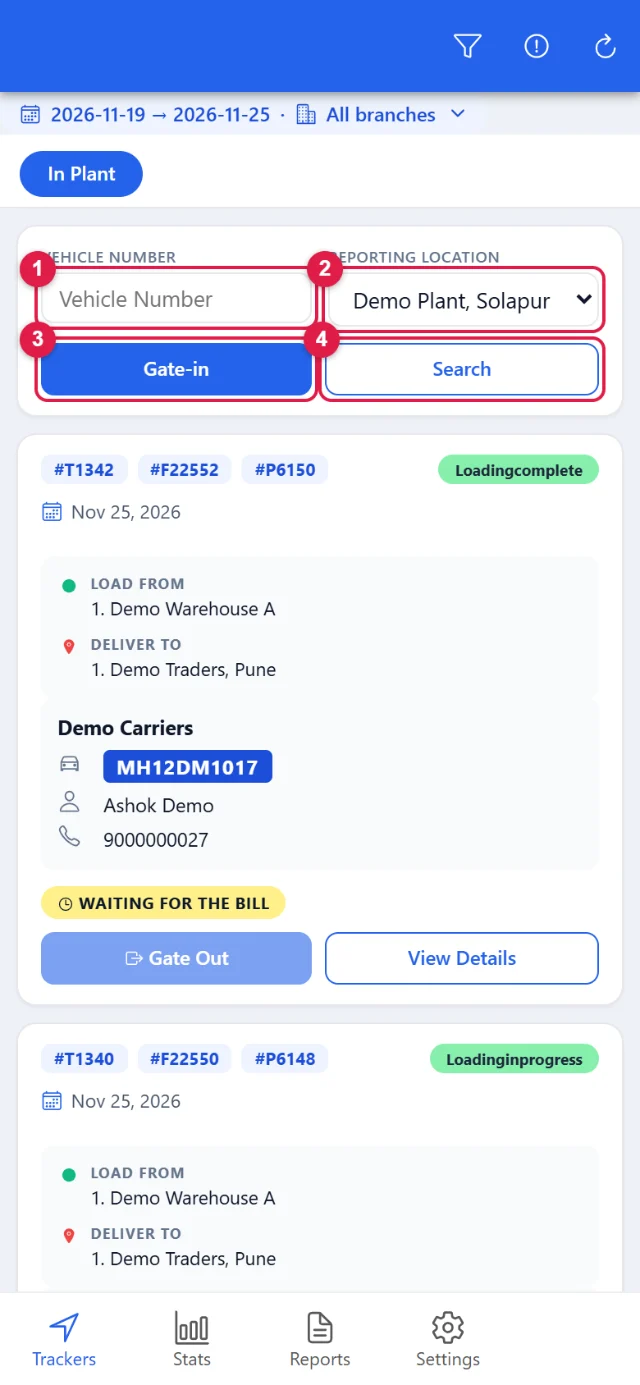
- (1) Vehicle Number: type the number here.
- (2) Reporting Location: the plant you work at.
- (3) Gate-in: takes the vehicle in. (4) Search: only looks, changes nothing.
- (5) the status of the vehicle. (6) Manage opens the trip.
3. A vehicle arrives: check it
- Type the vehicle number, for example MH12DM1007.
- Press Search. You see the freight, the transporter and the driver.
- Look at the papers box. Green Verified means all 7 checks pass. Yellow means something is missing.
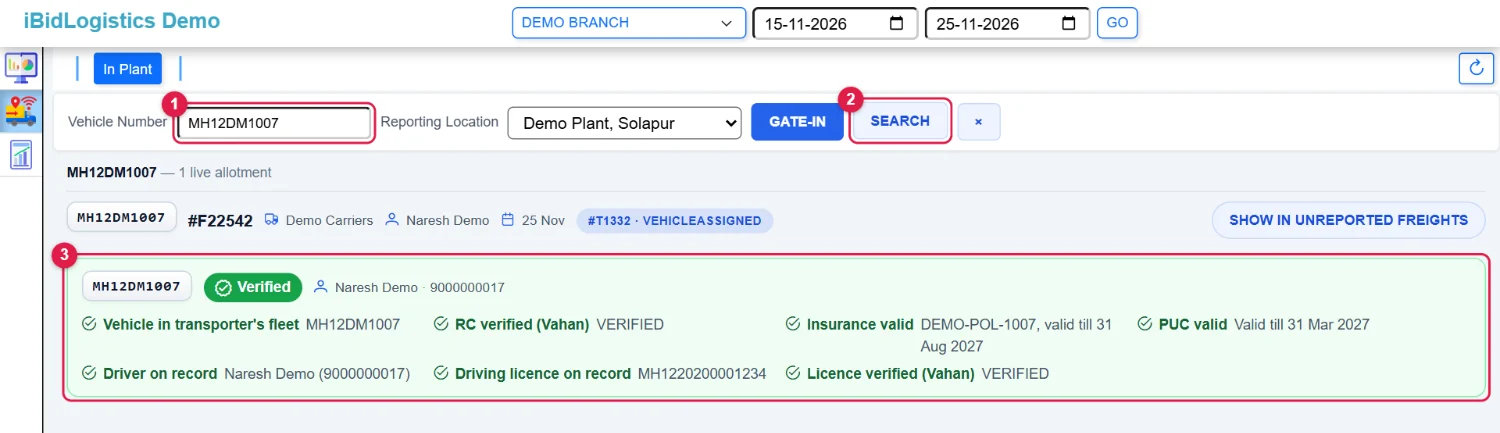
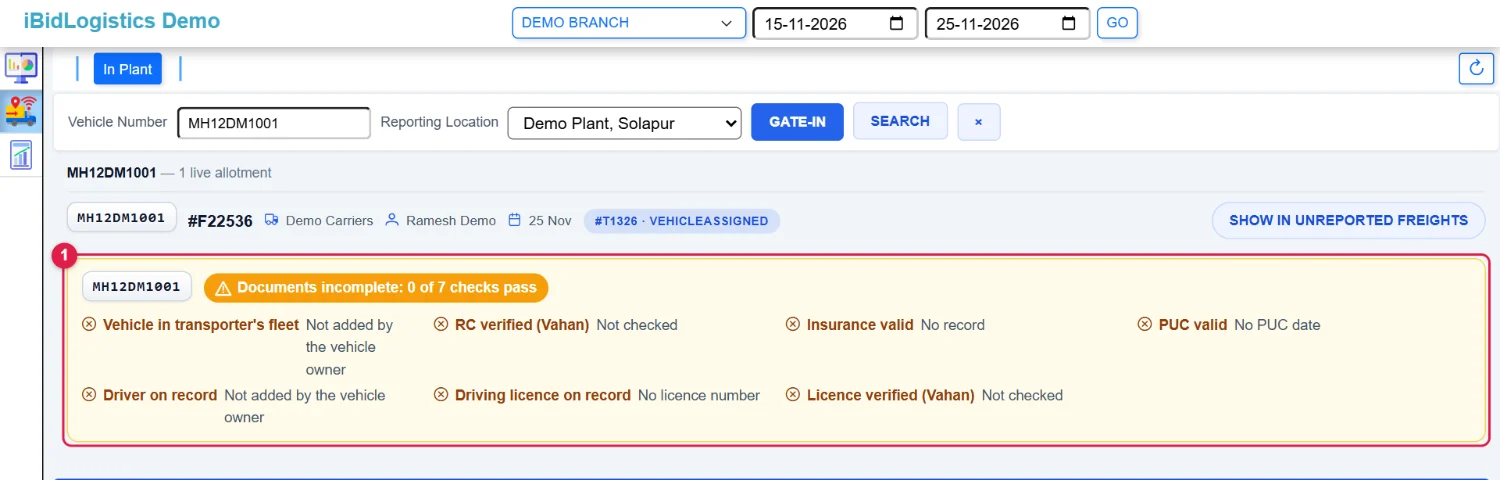
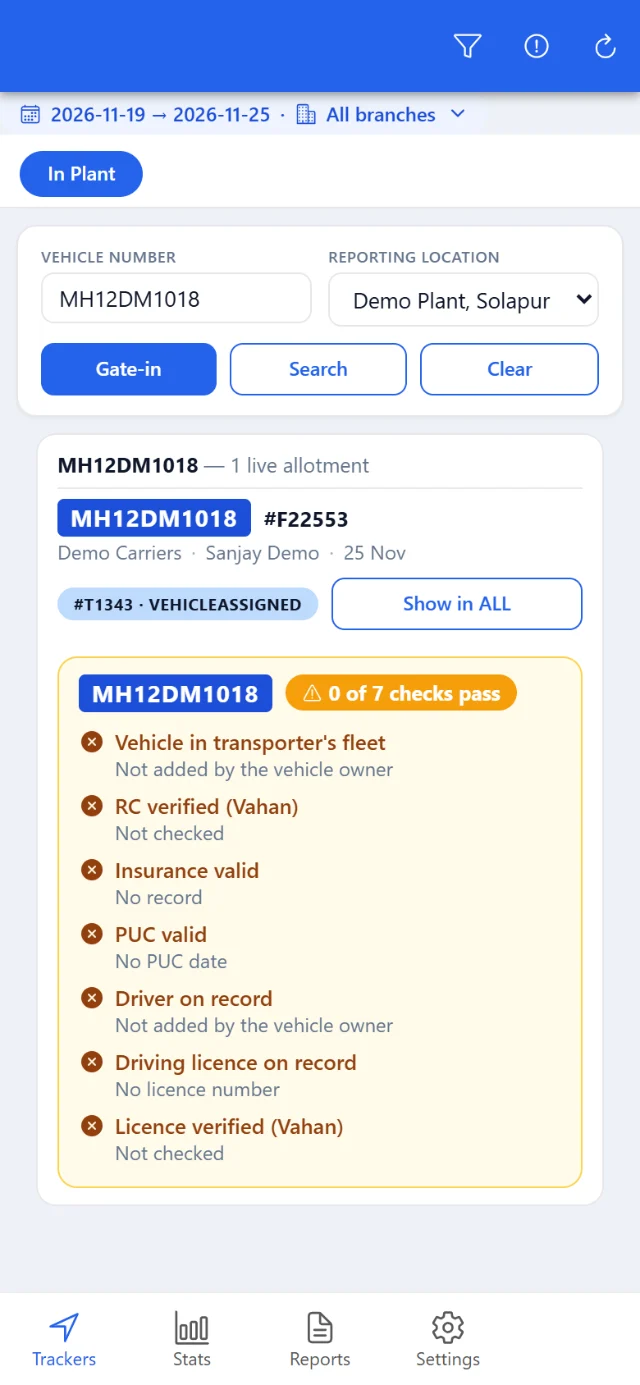
A yellow box does not stop gate-in. Follow your plant's rule: ask the driver for the paper, or tell your manager.
4. Gate-in and the Trip ID
- Check that the number and the Reporting Location are right.
- Press Gate-in. The vehicle is now inside.
- A green box shows the Trip ID. Give it to the driver: Copy, WhatsApp or SMS.
- Ask the driver to open the iBidLogistics app, tap Track your trip and enter the Trip ID.
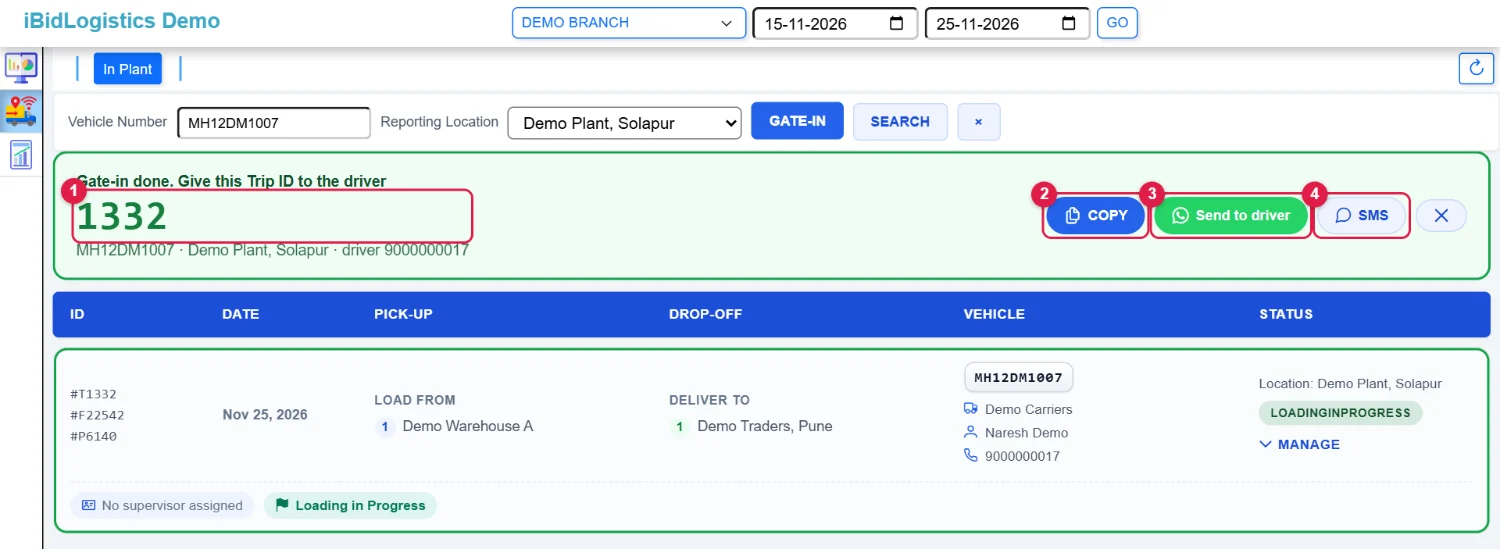
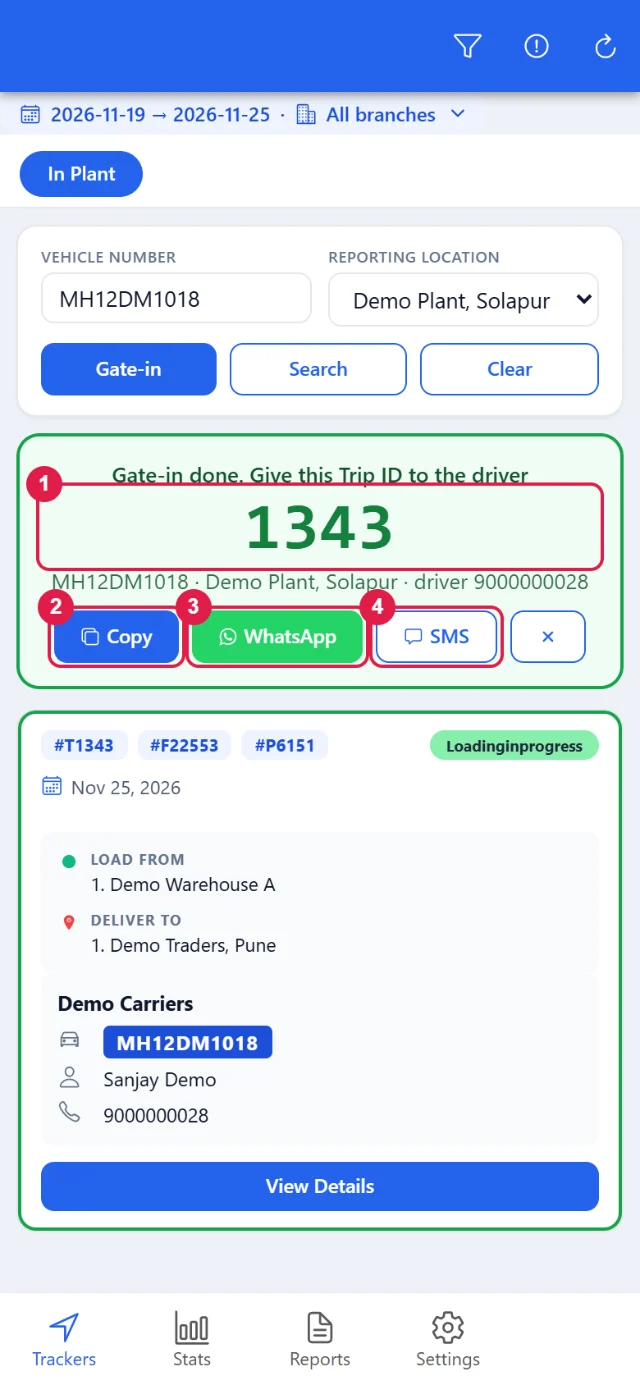
Forgot the Trip ID? It is the number after #T on the vehicle's card.
5. While the vehicle is inside
You do nothing here except watch the status on the card.
| Status on the card | What it means |
|---|---|
| Loading in Progress | The vehicle is in. Weighing and loading are next. |
| Checked In | The supervisor has started loading. |
| Checked Out | Loading at one pick-up point is finished. |
| Loading Complete | The vehicle is sent to the gate. Gate Out appears on the card. |
No supervisor assigned means the Head Supervisor has not named a loading supervisor yet. Tell the Head Supervisor if the vehicle waits long.
6. Gate Out: the 4-point check
When loading is complete, Gate Out is on the card. If something is still missing, the card says what.
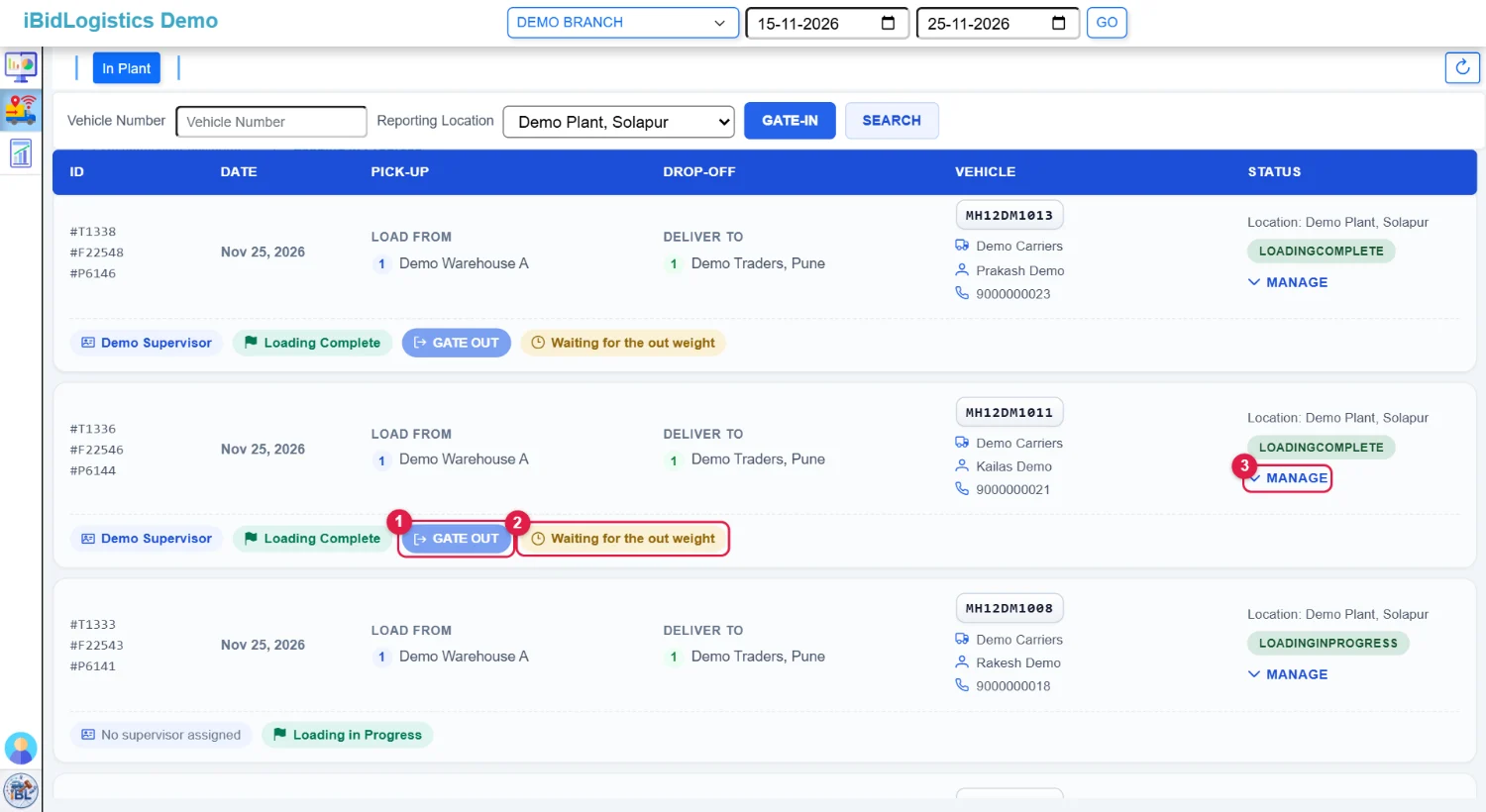
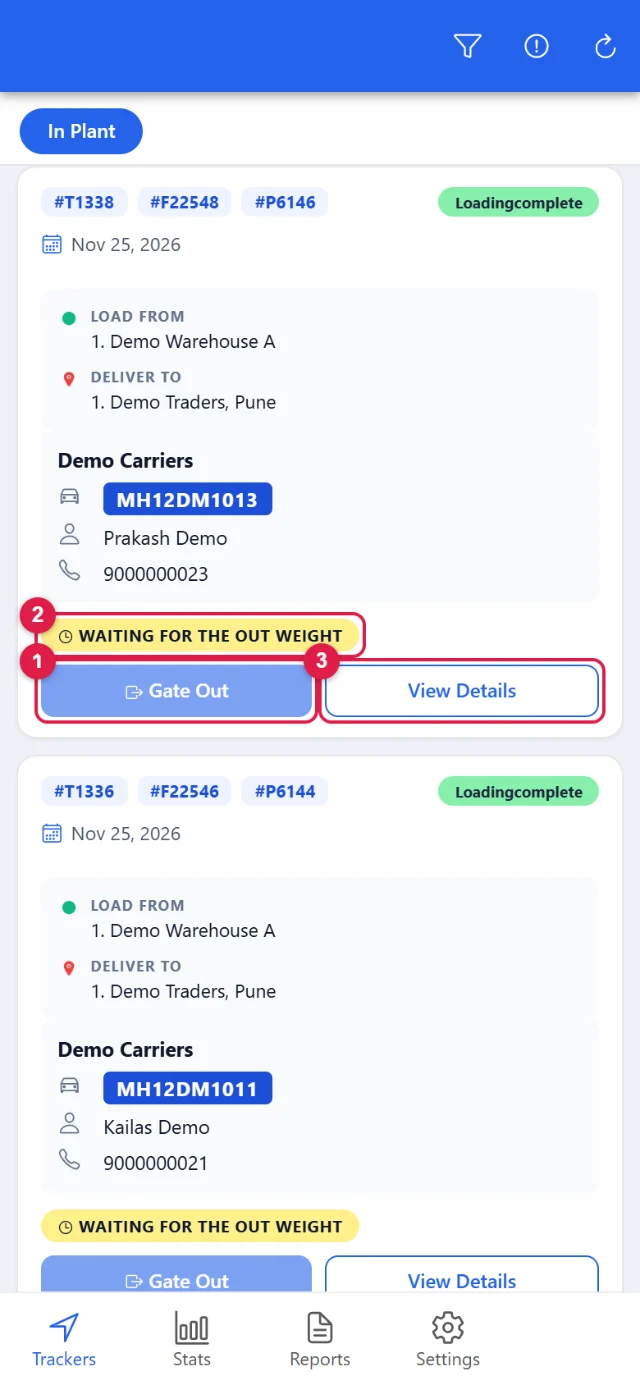
- Press Gate Out. A window shows 4 checks.
- Red cross: the vehicle cannot go yet. Green tick: done.
- Hand the invoice, e-way bill and LR copy to the driver, then tick Bills are given to the driver.
- Press Gate Out in the window.
| Check | If it is not green |
|---|---|
| 1. Loading completed and approved | Ask the Head Supervisor to approve the load. |
| 2. Out weight recorded | Send the vehicle to the weighbridge for the loaded weight. |
| 3. Bills created and given to the driver | Ask the billing desk to make the bill. The window names the customer. |
| 4. Driver's app is tracking this trip | Help the driver start the Trip ID in the app, then press Check again. If the driver has no smartphone, tick Let the vehicle go without tracking. |
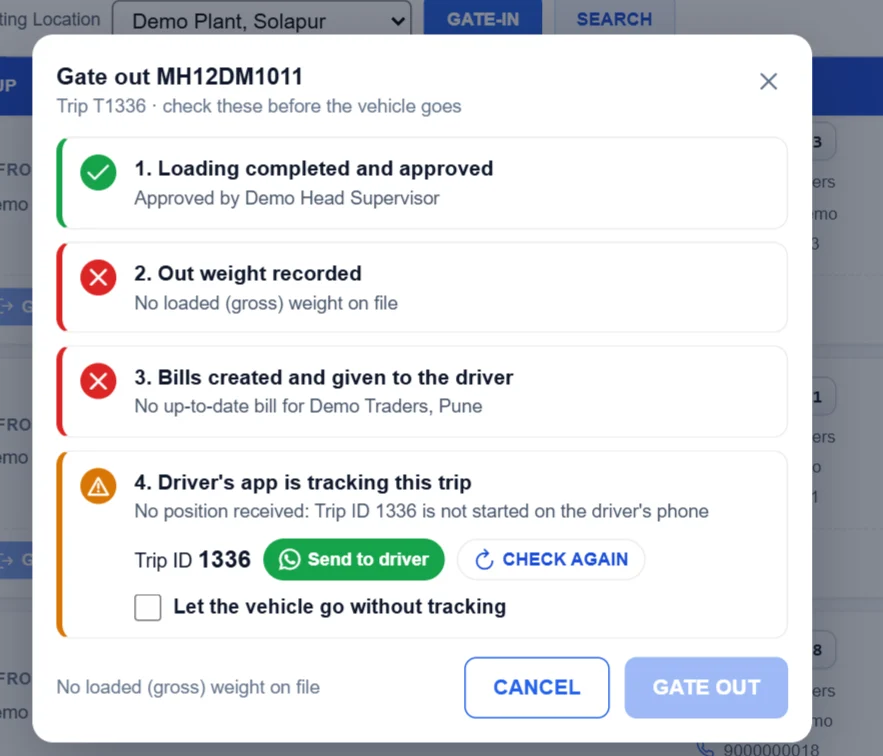
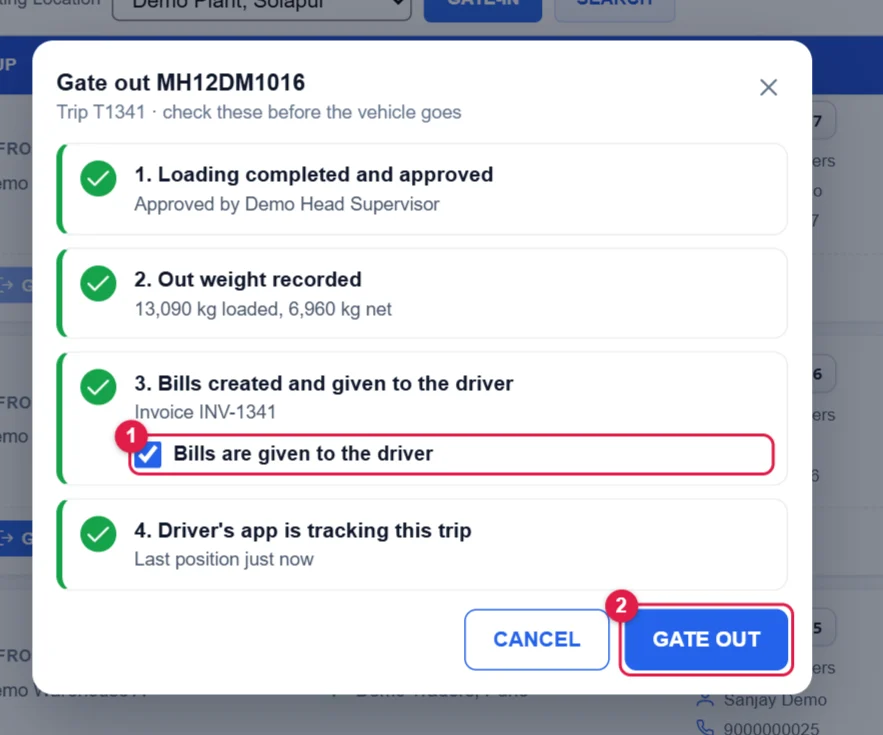
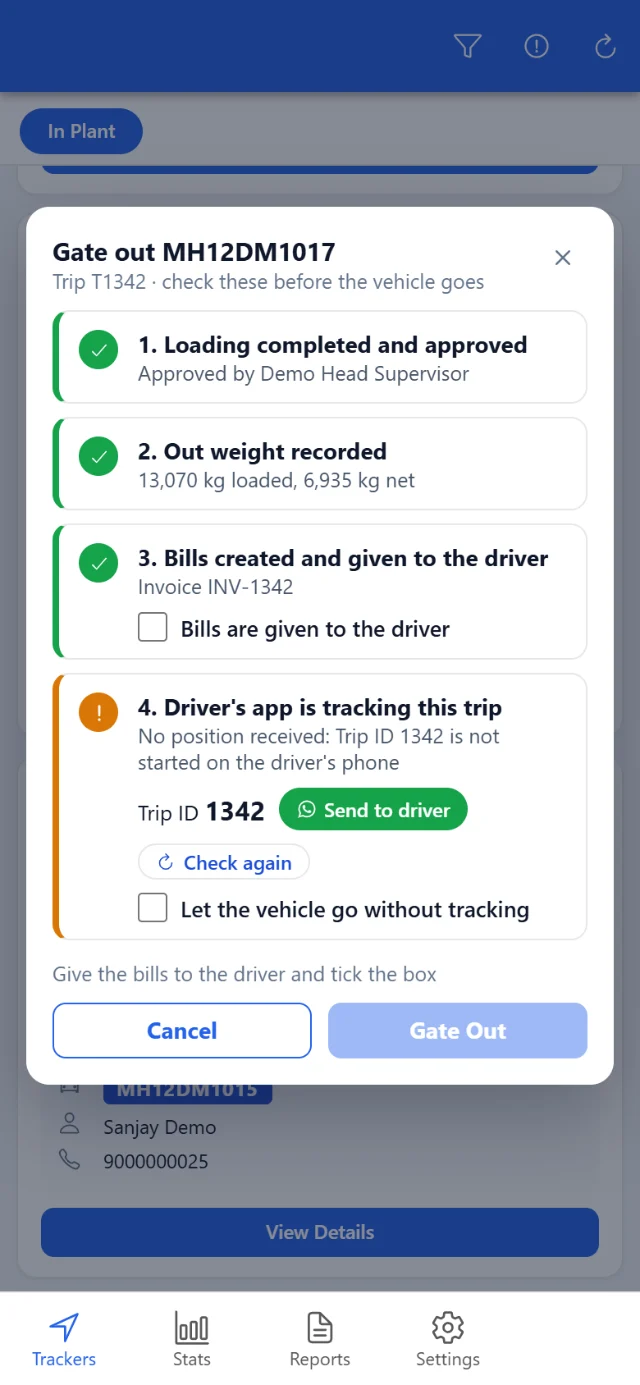
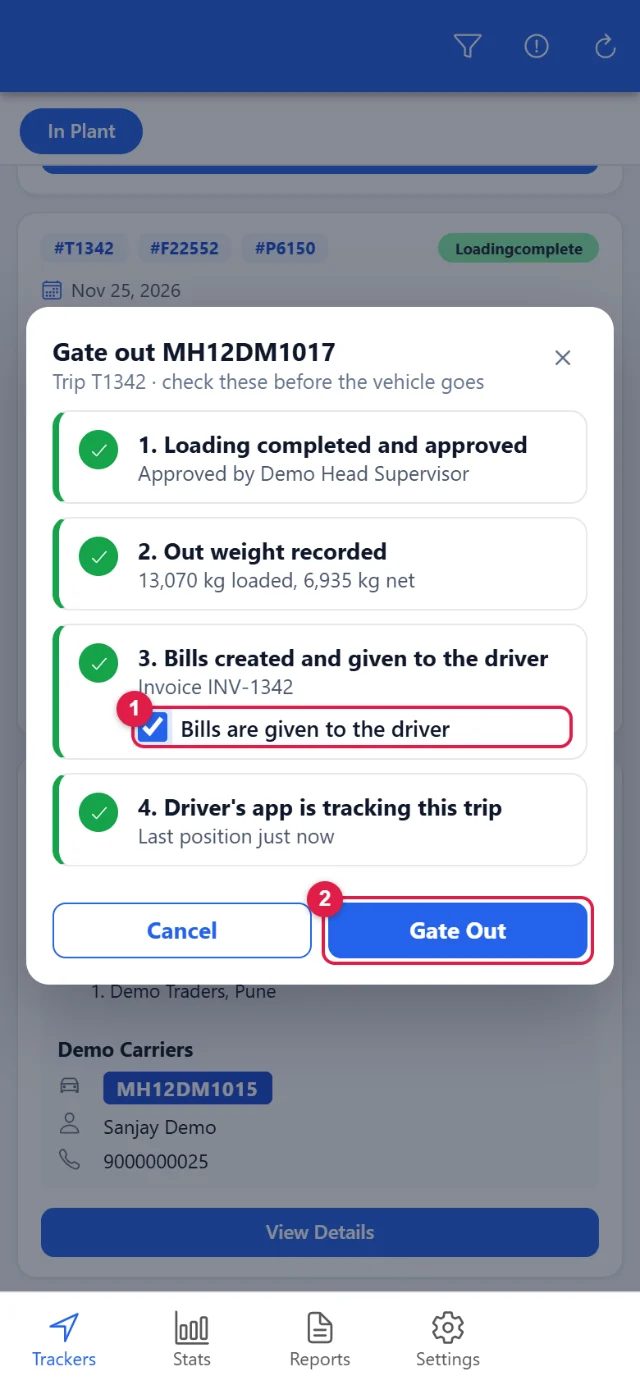
Checks 1, 2 and 3 cannot be skipped. Check 4 is a reminder only. What you tick is saved on the trip with your name.
7. Dispatch
- After Gate Out the button on the card becomes Dispatch.
- Press it when the vehicle leaves, and press OK to confirm.
- The trip starts and the vehicle leaves your list.
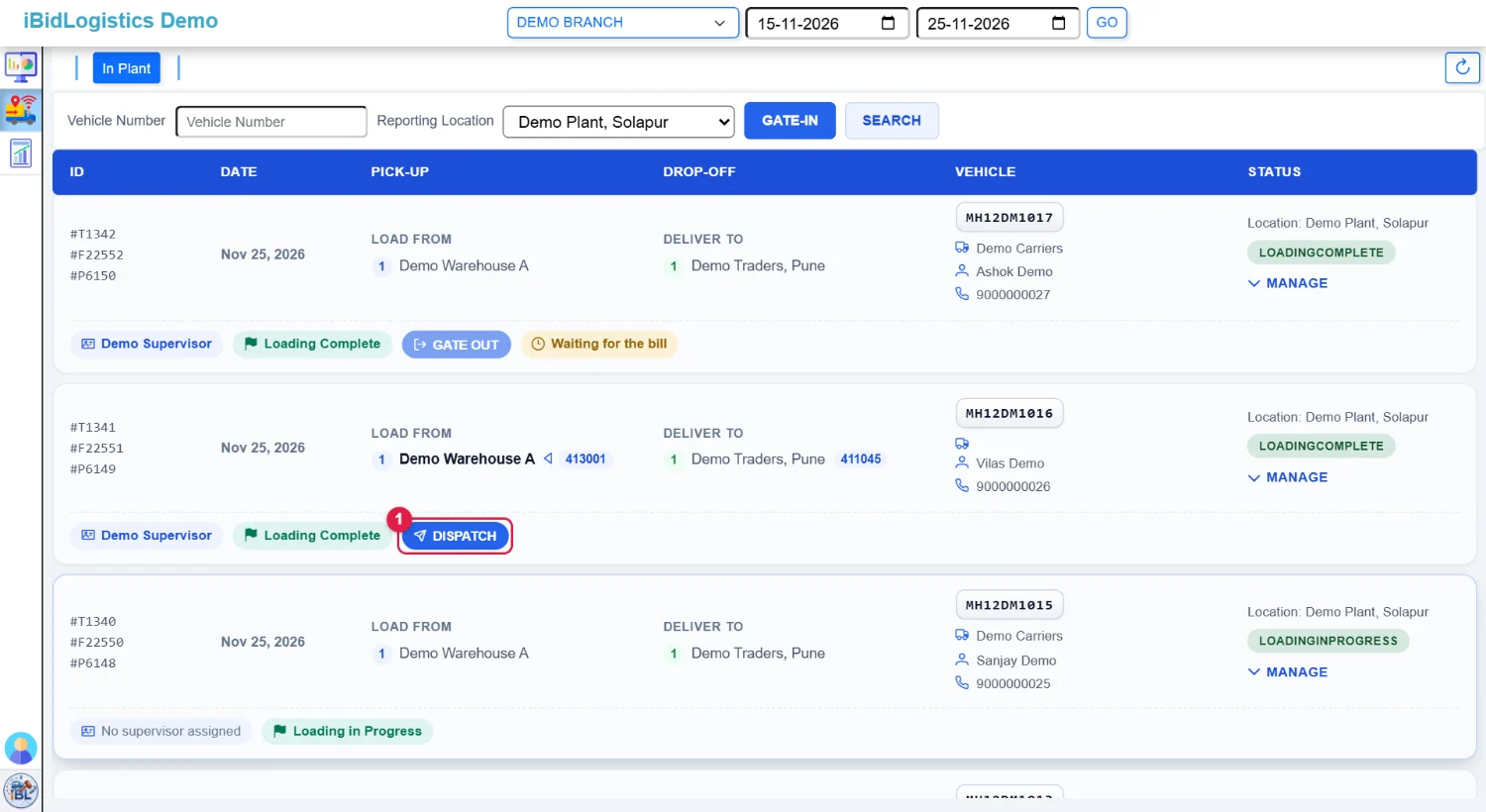
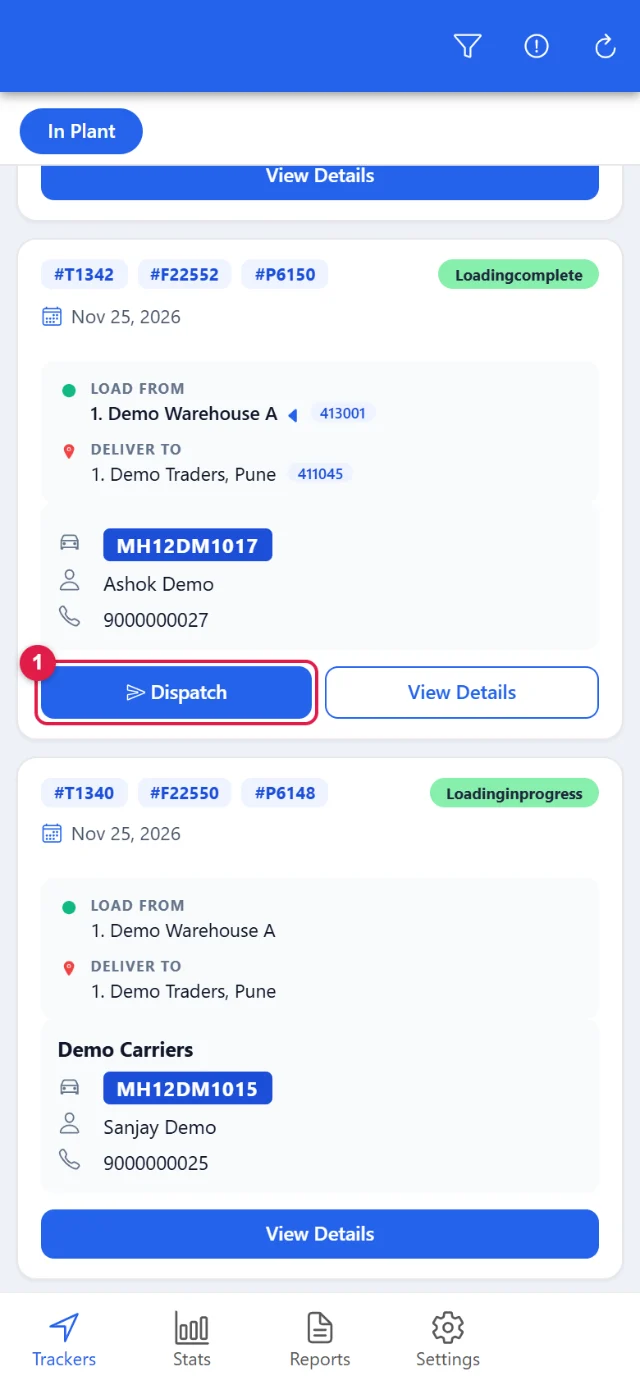
Loading at two plants? Gate Out sends the vehicle to the next plant, whose gatekeeper takes it in. Bills are checked, and Dispatch appears, only at the last plant.
8. Reports
- Loading report: open the trip with Manage and press Download Report (PDF) or Excel for SAP.
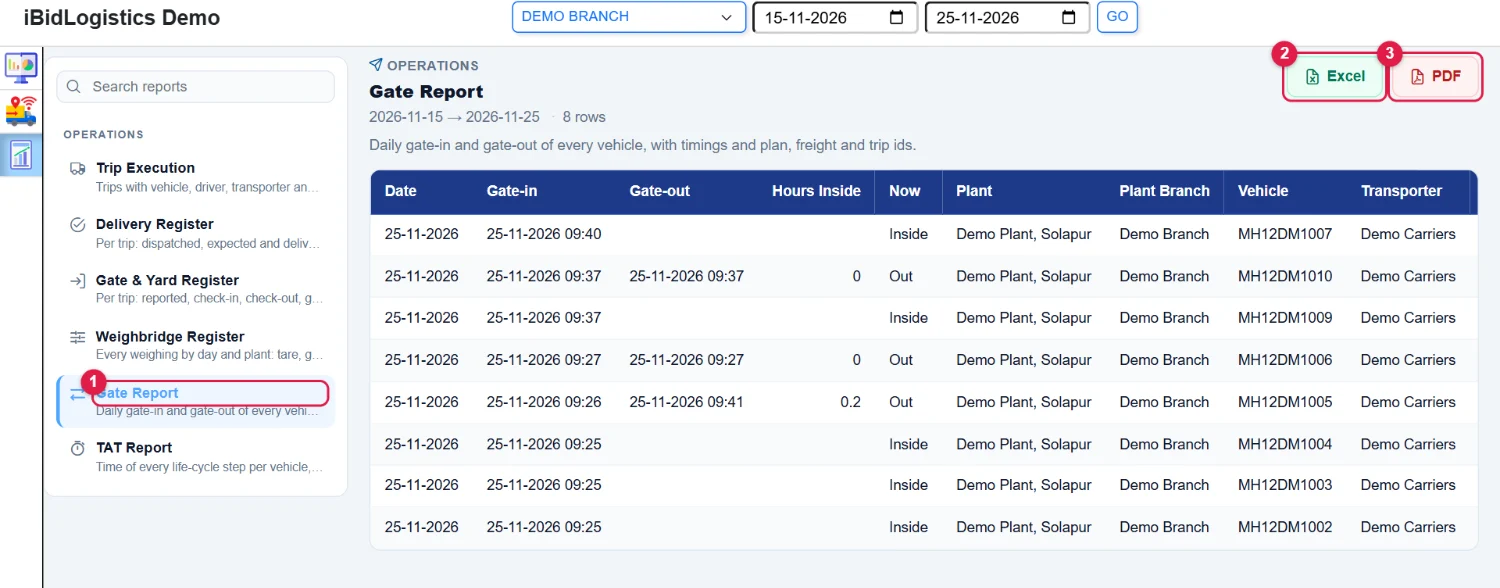
- Gate Report: open Reports, choose Gate Report, set the dates at the top, then Excel or PDF.

9. Messages and what to do
| Message | What to do |
|---|---|
| This vehicle is not alloted to any freight. Please check the number. | Check the number. If it is right, ask the transporter to assign this vehicle to the freight. |
| Vehicle … is assigned to Location : … | The vehicle belongs to another plant's gate. Send it there. |
| Vehicle … is at … now. It comes to this gate after it gates out there. | The vehicle is still at the other plant. Wait for that gate to gate it out. |
| Vehicle … was not gated in here. Trip … is waiting for it to report at its loading plant. | It must report at its loading plant first. |
| Gate out is not allowed yet. … | One of the first three checks is missing. The message says which one (see section 6). |
| Number not registered | Your mobile number is not active. Ask your Admin. |
To sign out: Settings, then Log out.
Need help? Write to info@ibidlogistics.com