
Your work at a glance
- To bill: the vehicle is loaded, approved and weighed.
- Fill the bill: invoice, LR and e-way bill.
- Save bill: the gate can now send the vehicle out.
- E-way bills: extend them before they expire.
- Transporter invoices: approve and mark paid.
1. Sign in
- Open ibidlogistics.com/login on the computer, or the iBidLogistics app on the phone.
- Enter your registered mobile number and press Request OTP.
- Enter the OTP that comes by SMS and press Login.
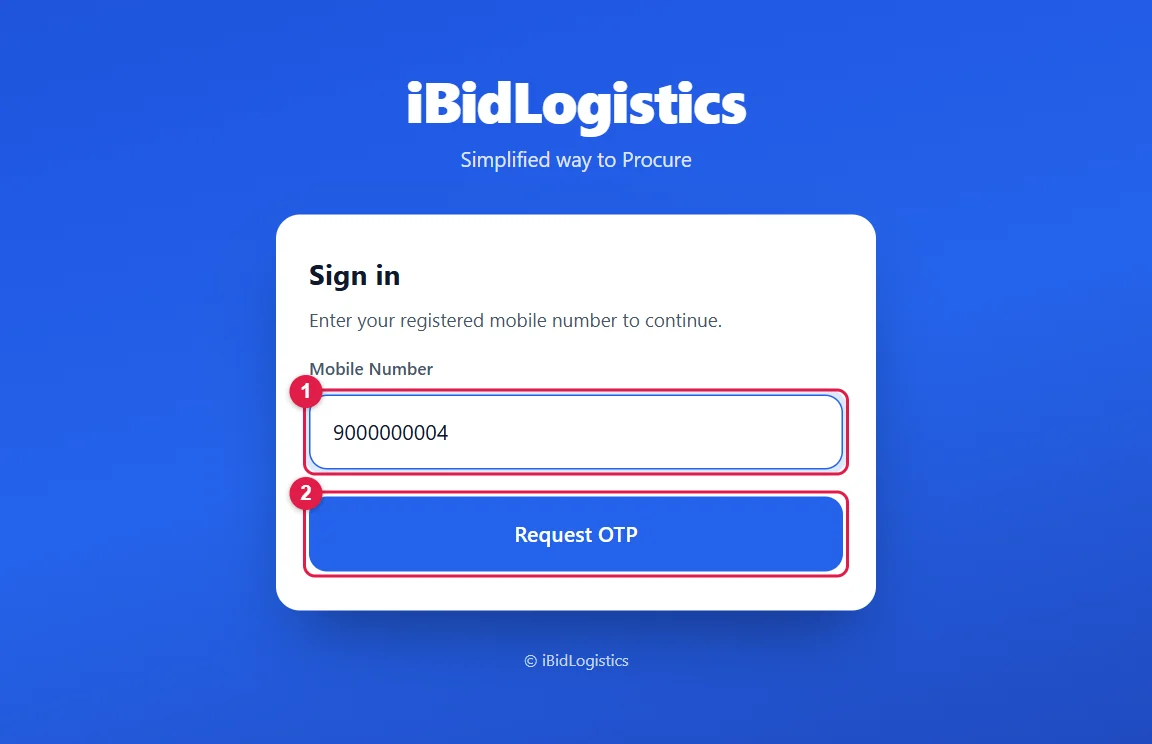
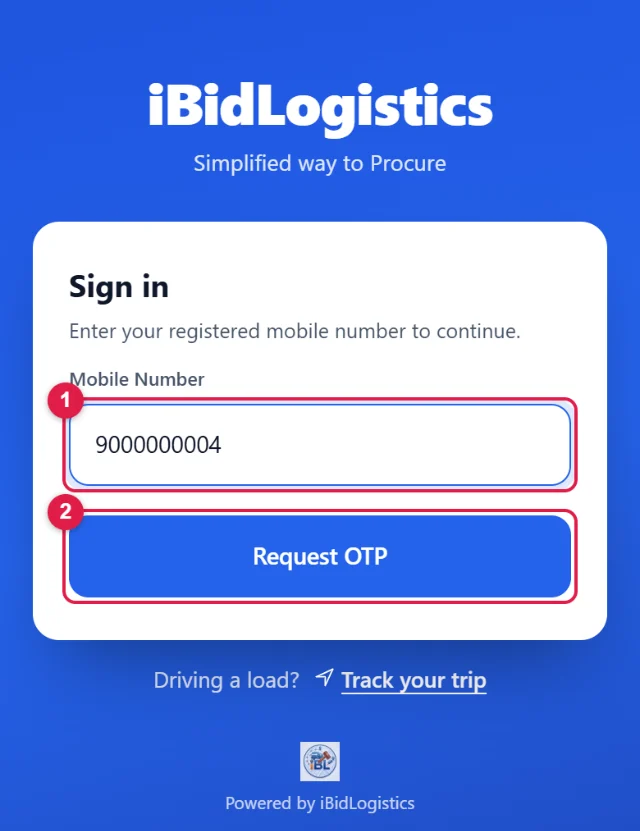
You stay signed in. Do not share your OTP with anyone.
2. Your screen
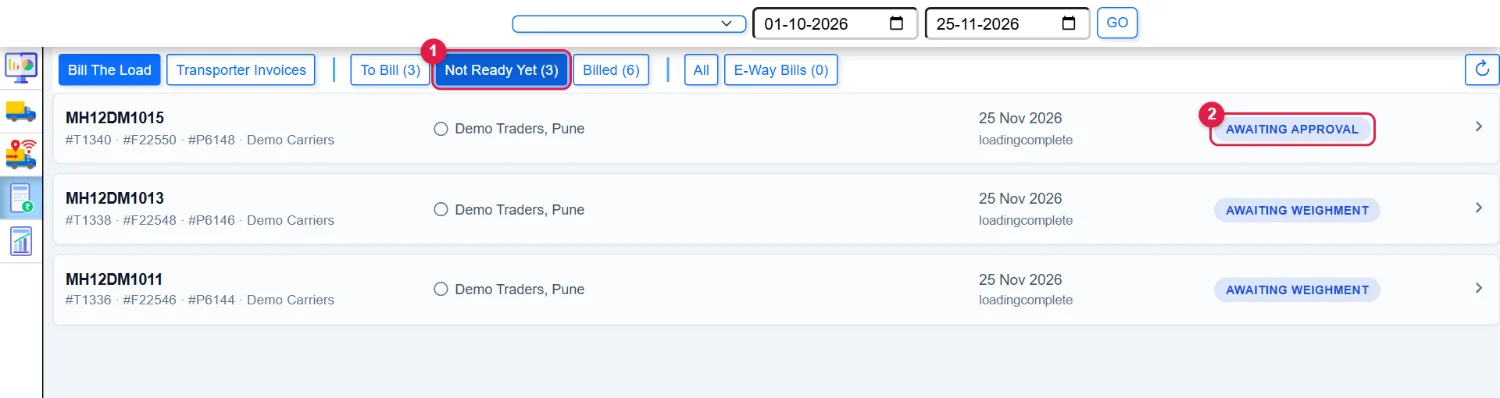
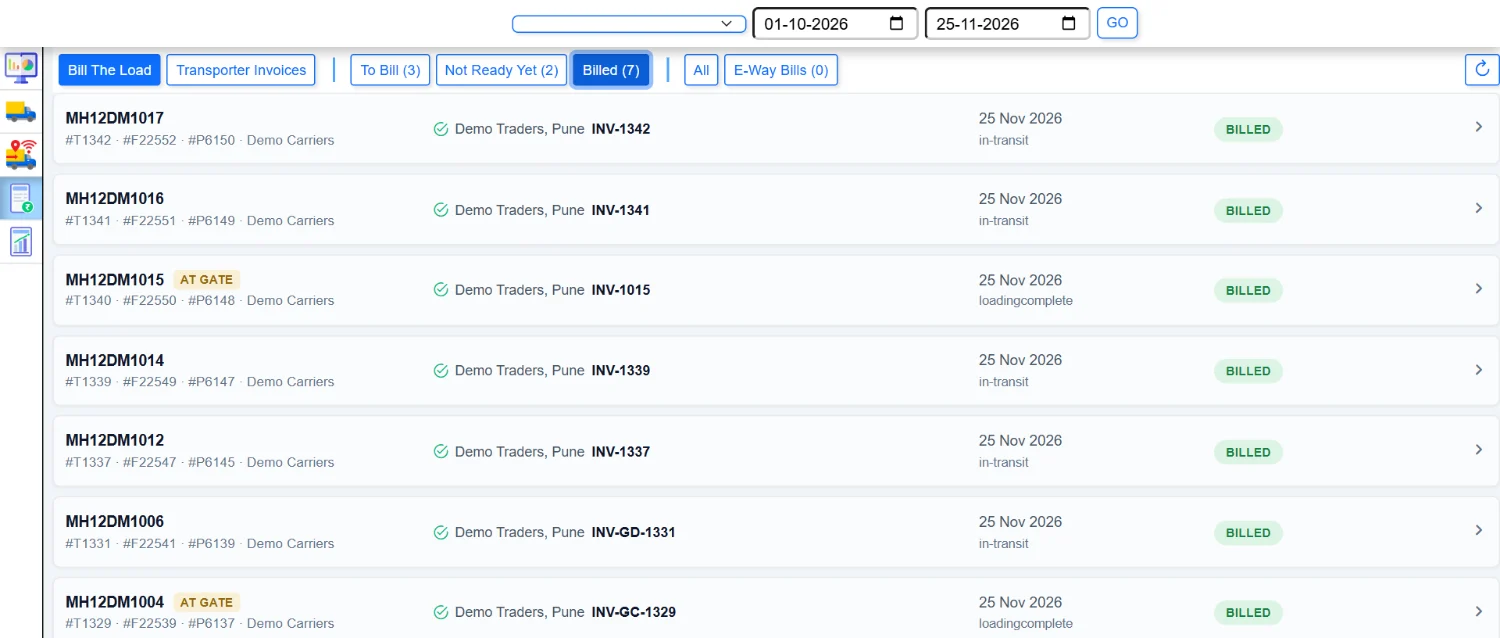
You land on Bill the Load.
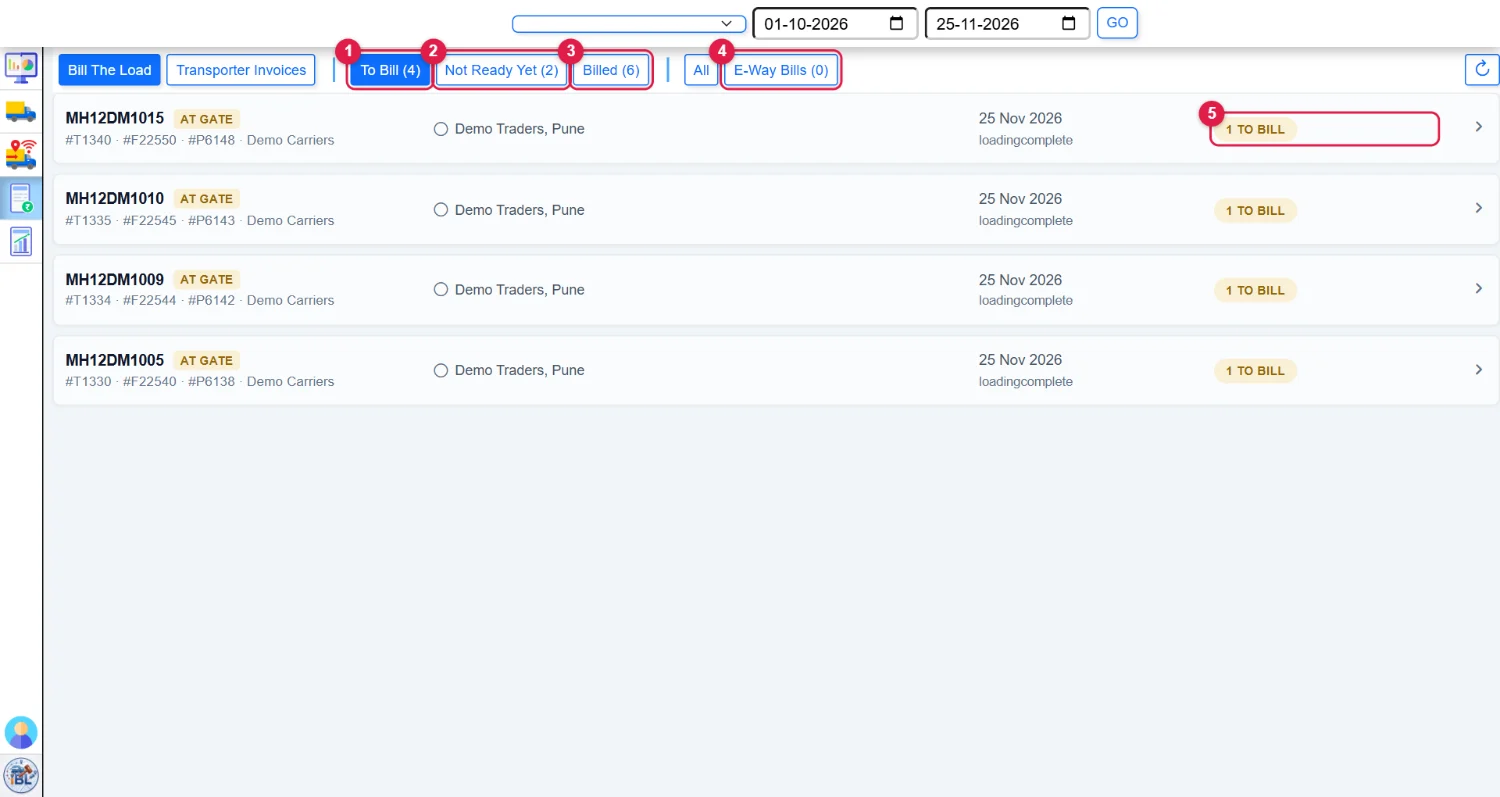
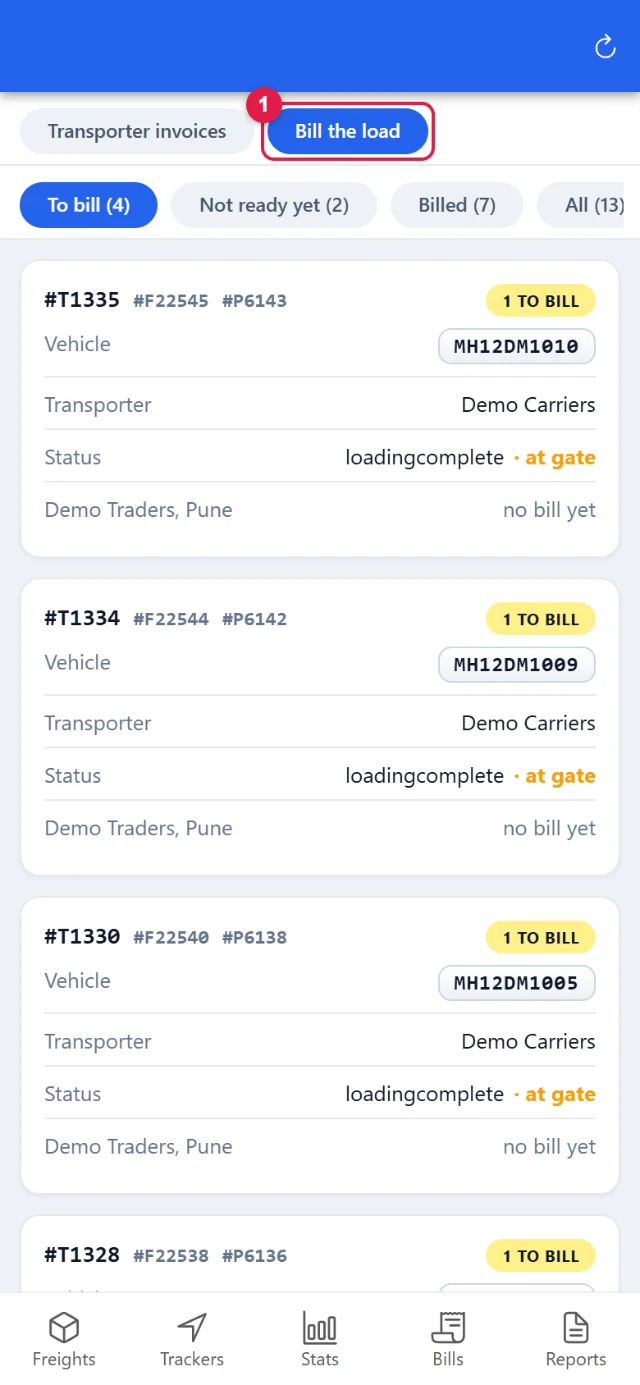
Not ready yet shows what the vehicle is waiting for: loading, approval or weighing.
3. Bill the load
- Open a vehicle under To bill. If it has more than one customer, choose the customer.
- Fill the invoice number, date and amount.
- Fill the LR number and date.
- Fill the e-way bill number, date and distance. It is required above 50,000 rupees. The app fills Valid until.
- Press Save bill.
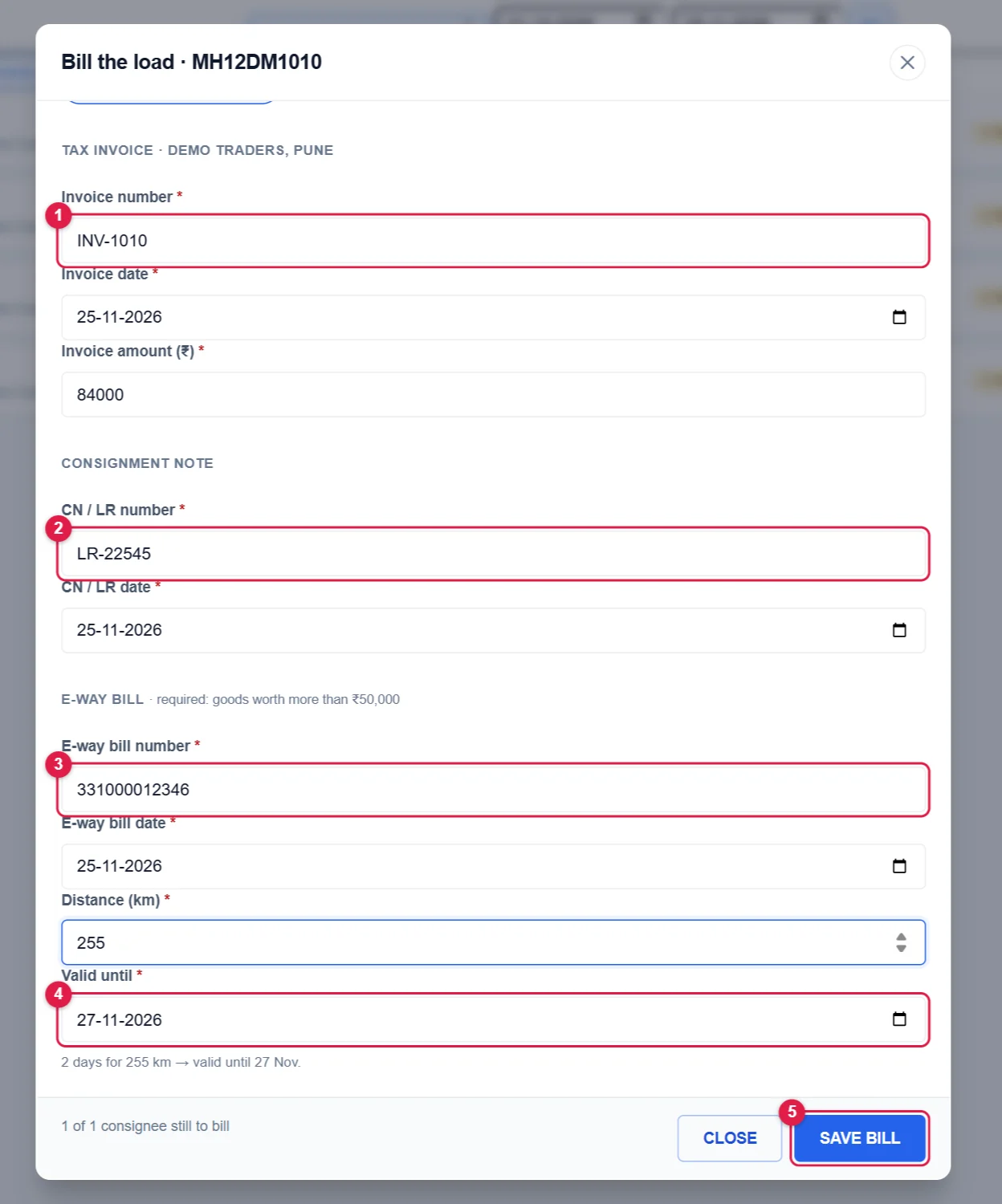
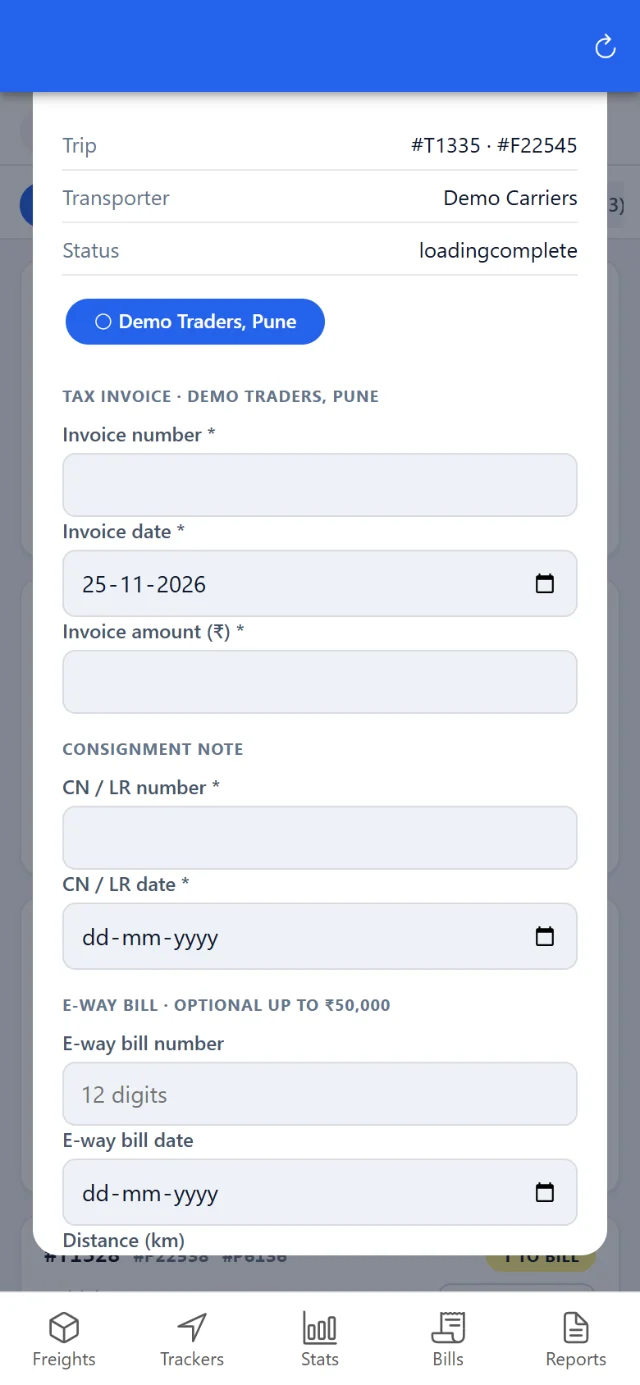
The gate cannot send the vehicle out until every customer on it is billed.
4. More than one invoice
For a second invoice or e-way bill on the same vehicle, open the bill and press Add another invoice. Remove deletes a wrong one.
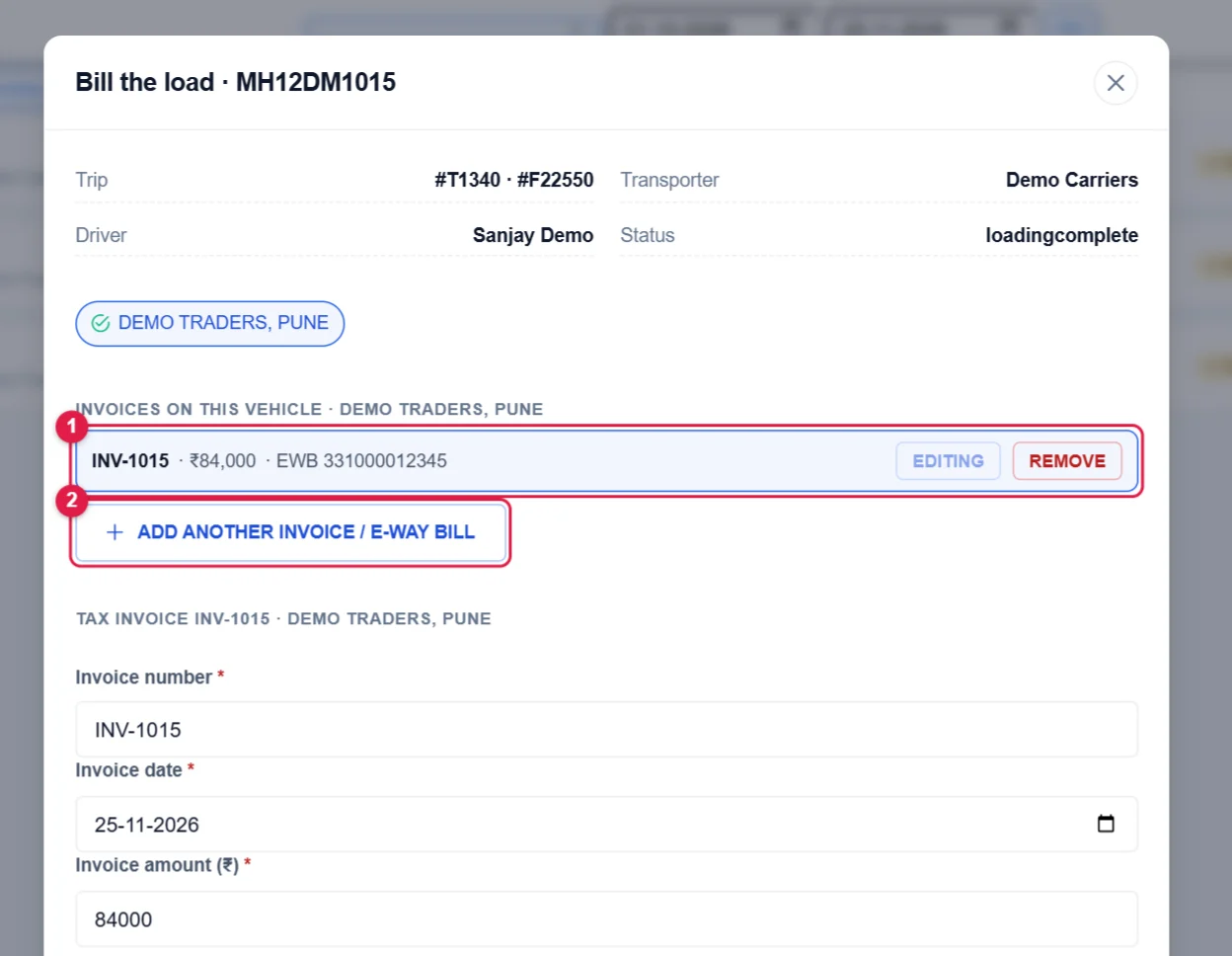
If goods are added after billing, the bill says revise. Update it and save again.
5. E-way bills
E-way bills lists every bill that is about to expire on a loaded or moving vehicle.
- Extend the bill on the GST portal first.
- Then press Record extension and enter the reason and the new date.
6. Transporter invoices
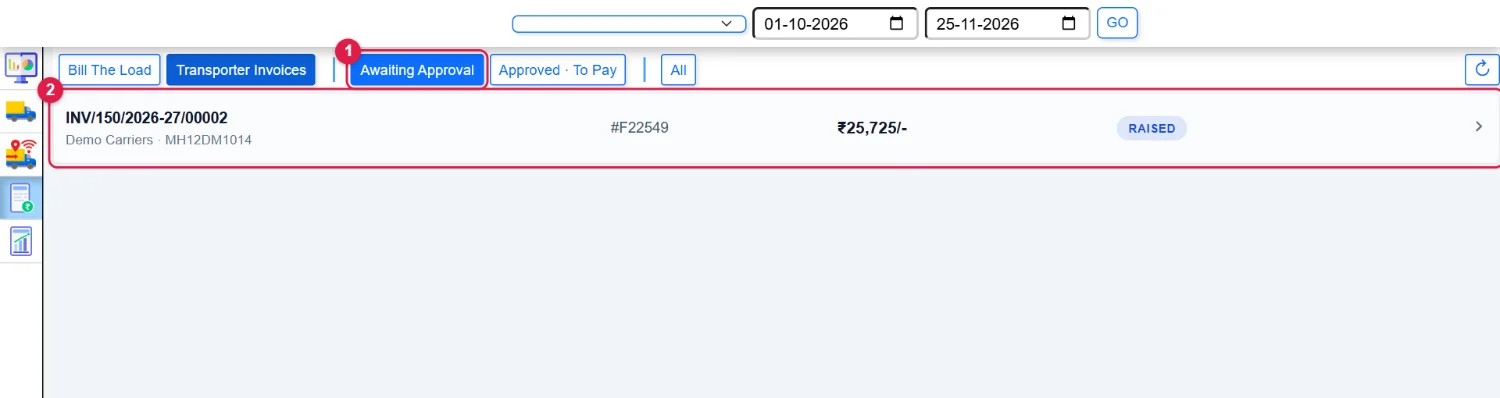
- Open Transporter Invoices. Awaiting approval shows the new ones.
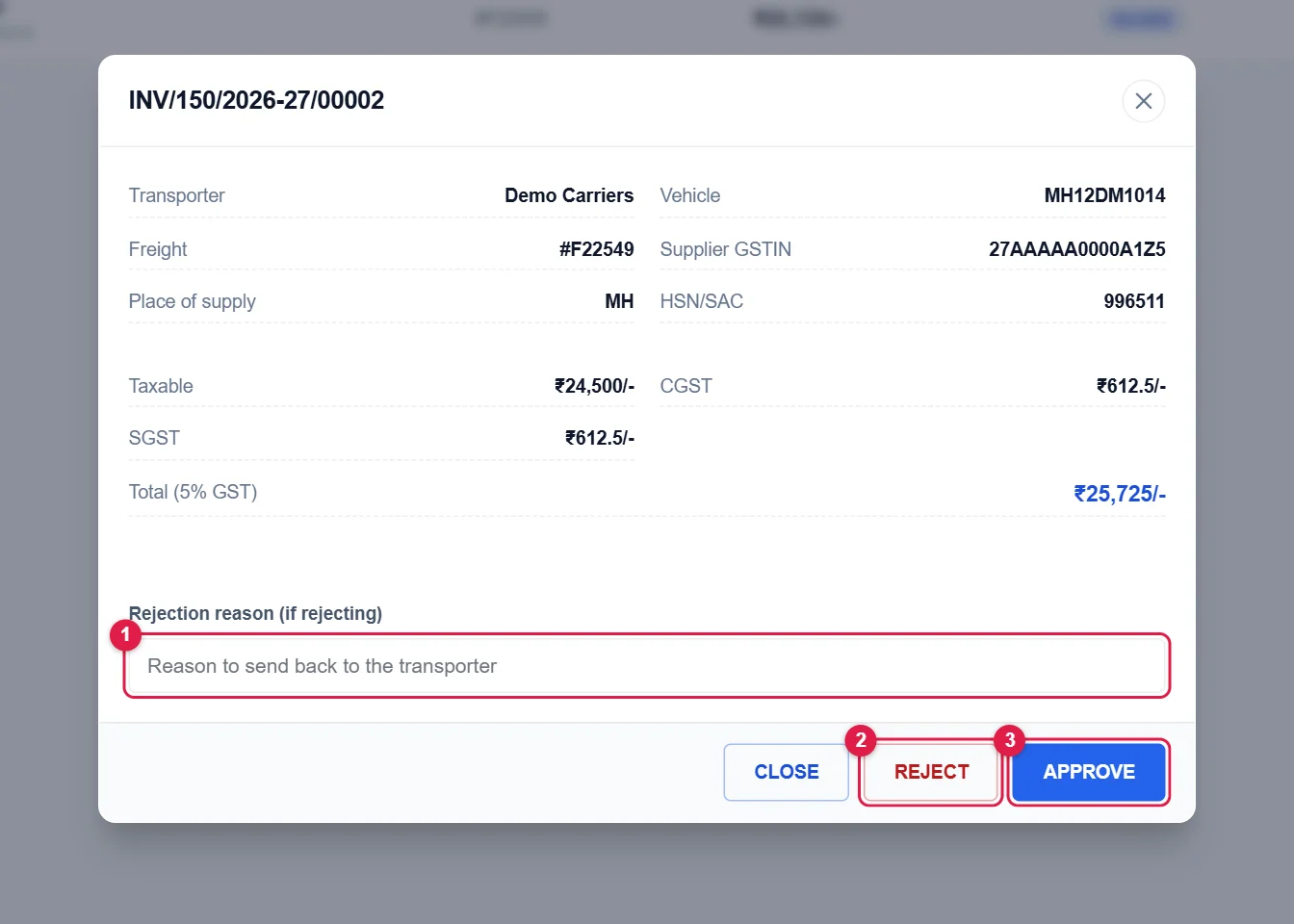
- Open the invoice and check the amount, the vehicle and the tax.
- Press Approve. To send it back, write the reason and press Reject.
- After paying, open it under To Pay, enter the payment reference and press Mark paid.
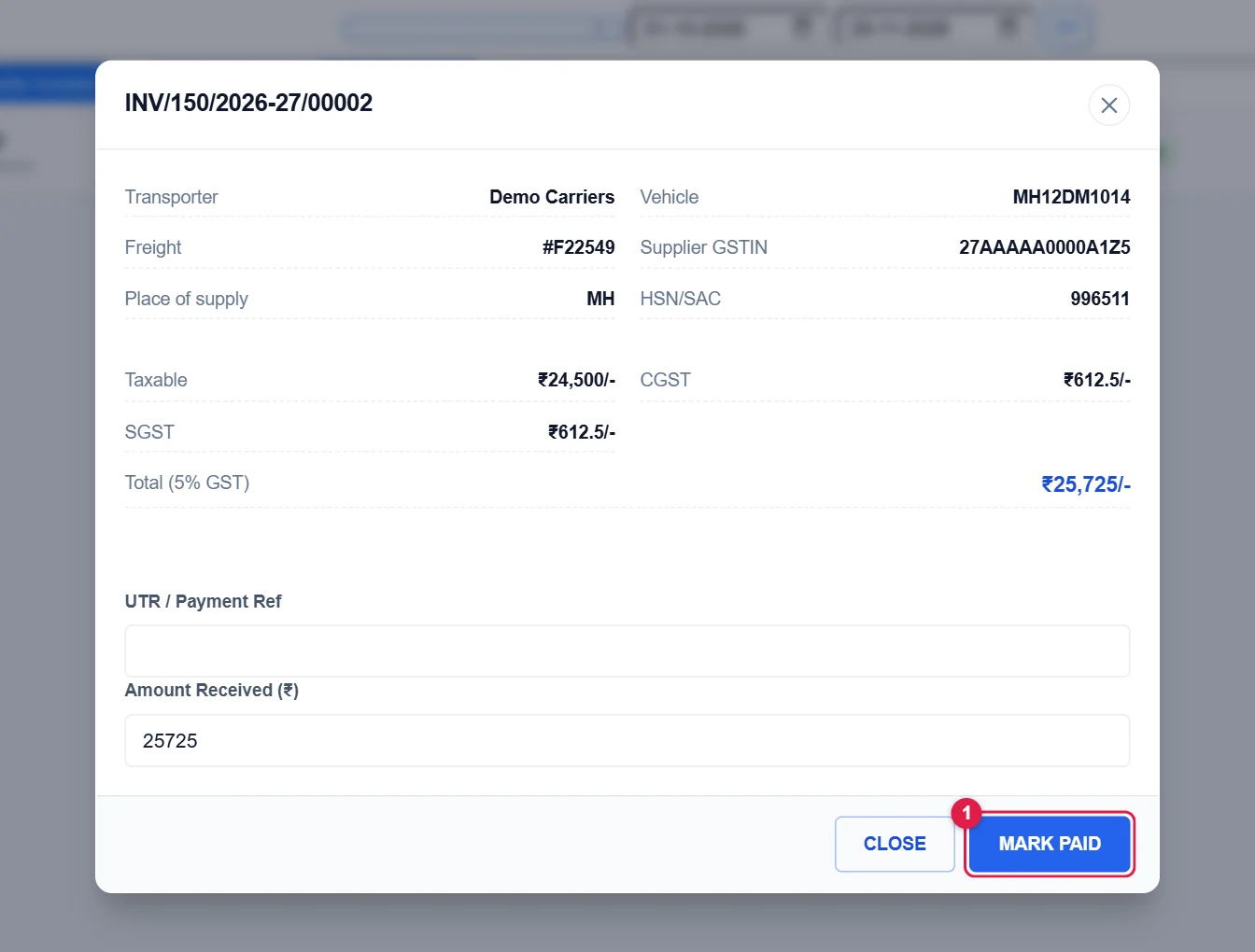
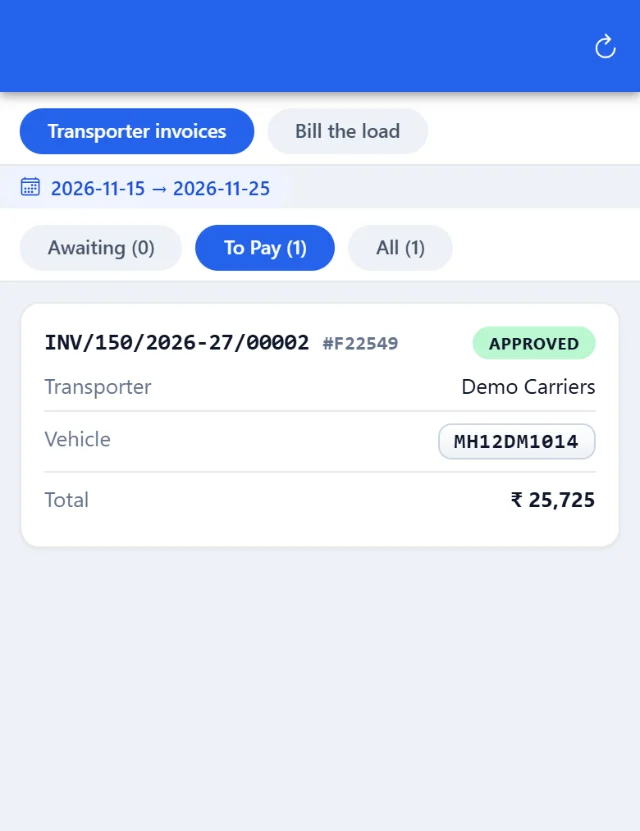
Mark paid only records the payment. It does not send money.
7. Dashboard
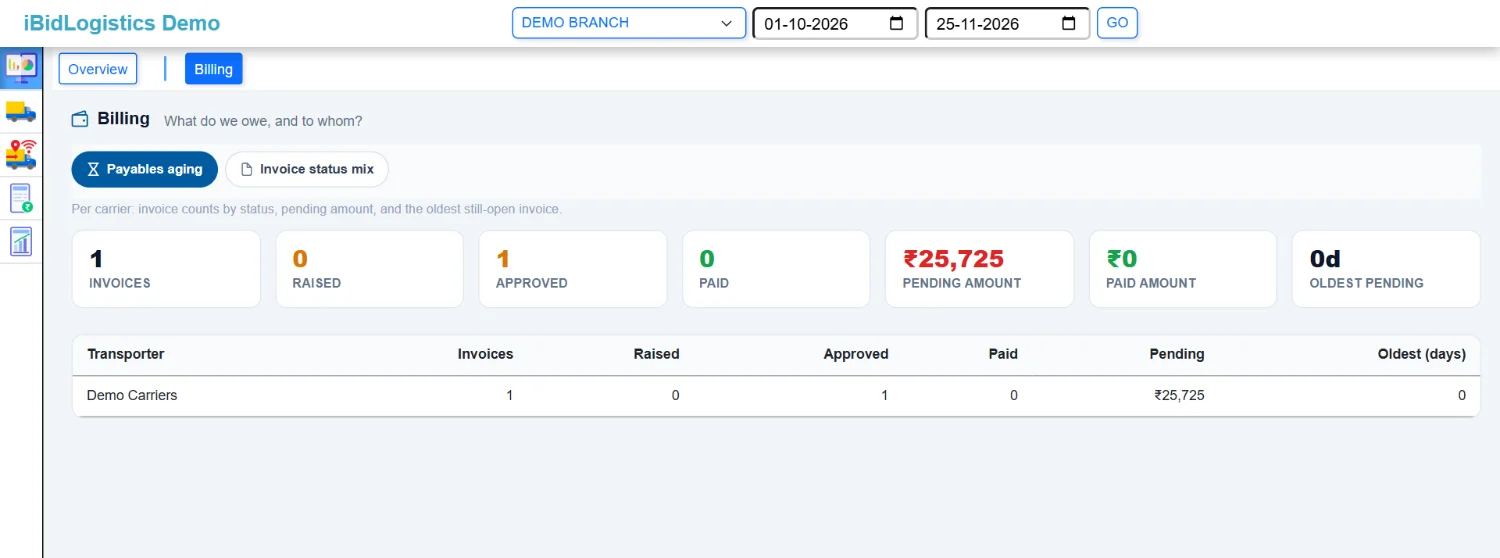
Dashboard shows what you owe to each transporter and the oldest unpaid invoice.
8. Messages and what to do
| Message or problem | What to do |
|---|---|
| The vehicle is not under To bill | See Not ready yet for the reason. |
| Save bill does not work | Fill every box with a star. The message says which one is missing. |
| Number not registered | Your mobile number is not active. Ask your Admin. |
To sign out: Settings, then Log out.
Need help? Write to info@ibidlogistics.com