
Your work at a glance
- Branches and plants: where you load from.
- Users: who can sign in, with their role and plant.
- Consignees: your customers and their pin codes.
- Transporters: who can bid.
- Daily work: dashboard, deliveries and reports.
1. Sign in
- Open ibidlogistics.com/login on the computer, or the iBidLogistics app on the phone.
- Enter your registered mobile number and press Request OTP.
- Enter the OTP that comes by SMS and press Login.
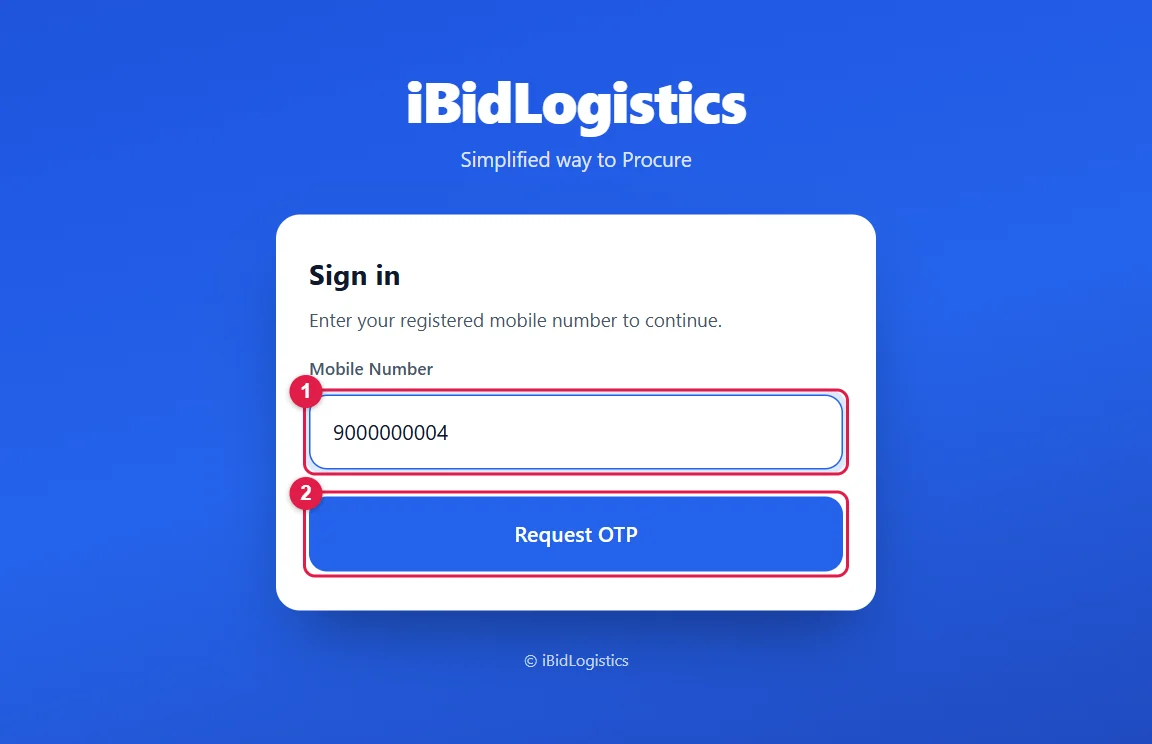
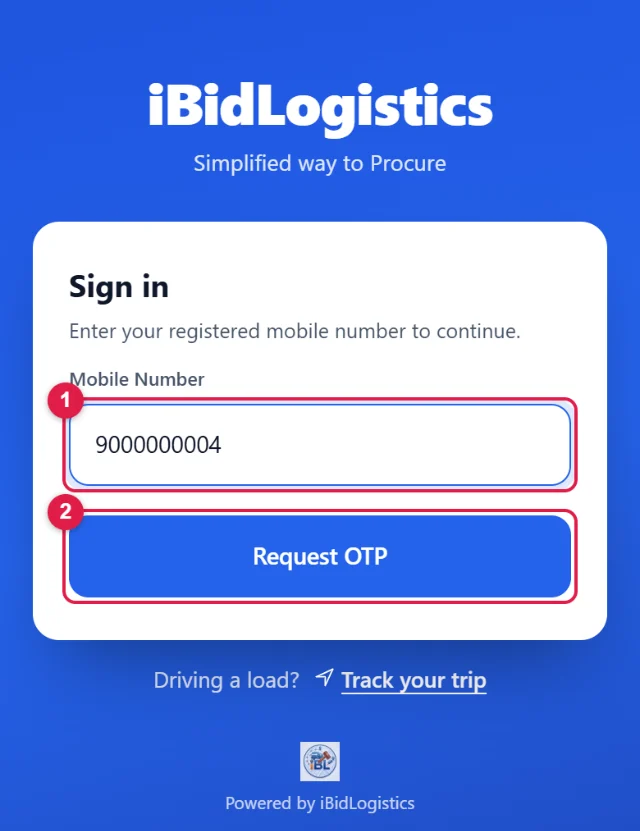
You stay signed in. Do not share your OTP with anyone.
2. Your screen
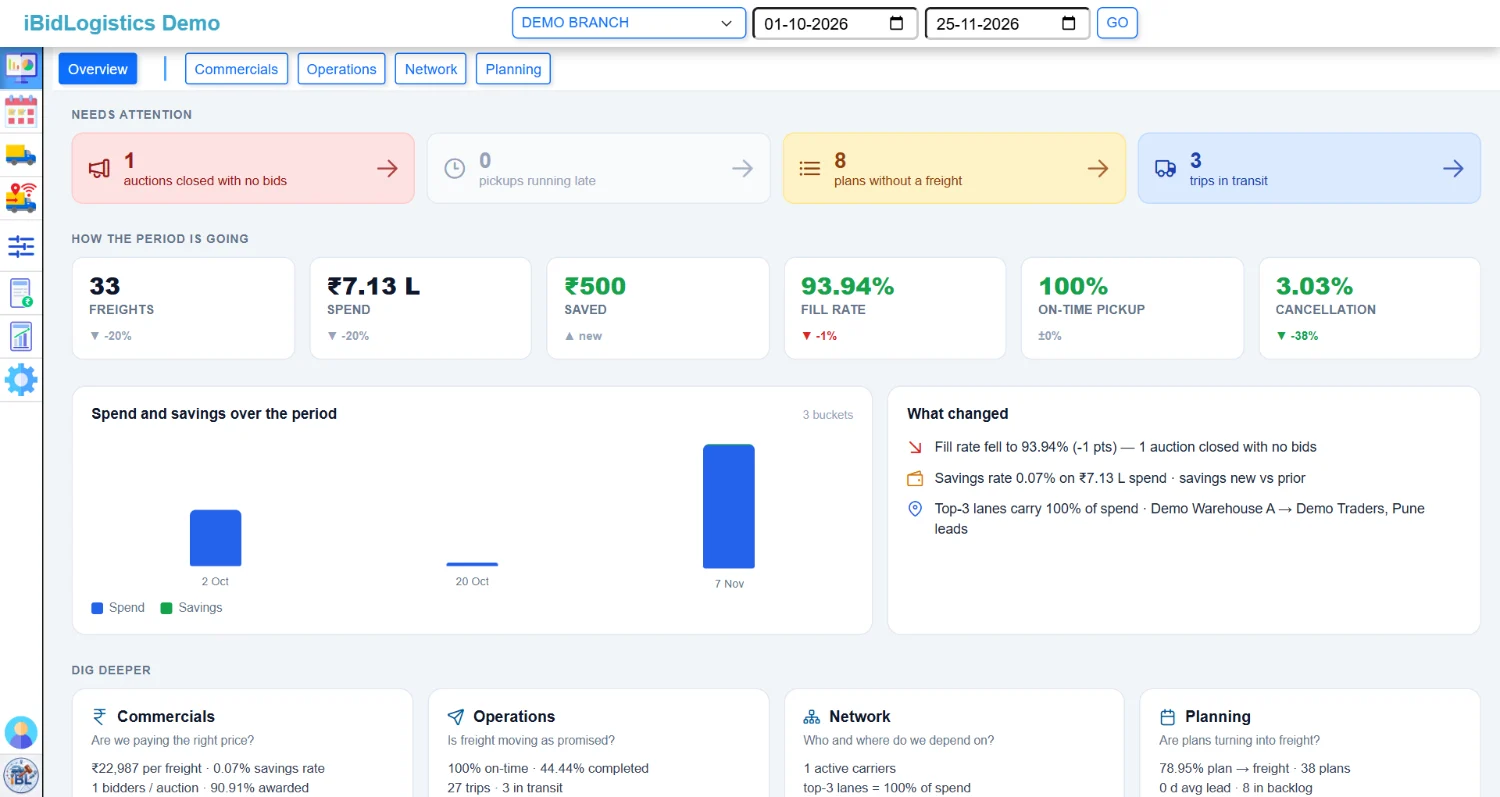
The menu on the left opens the dashboard, plans, freights, trips, weighbridge, billing, reports and Administration.
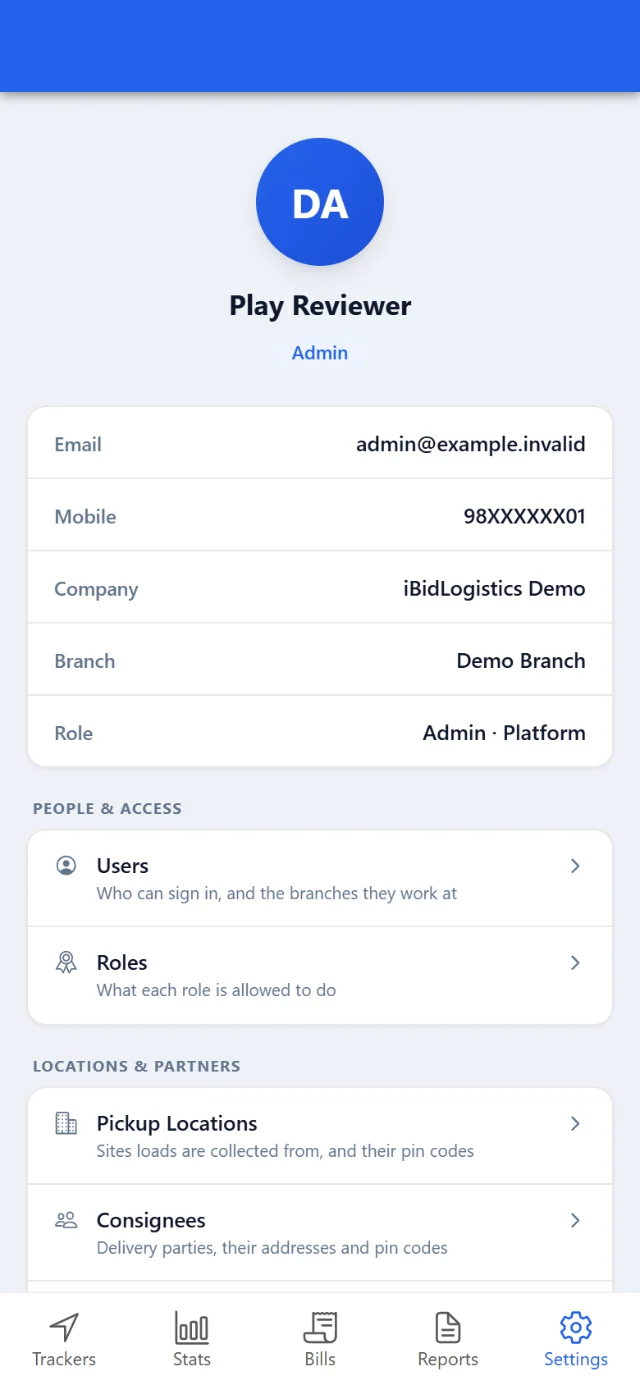
On the phone, open Settings for the same records.
3. Branches and pick-up locations
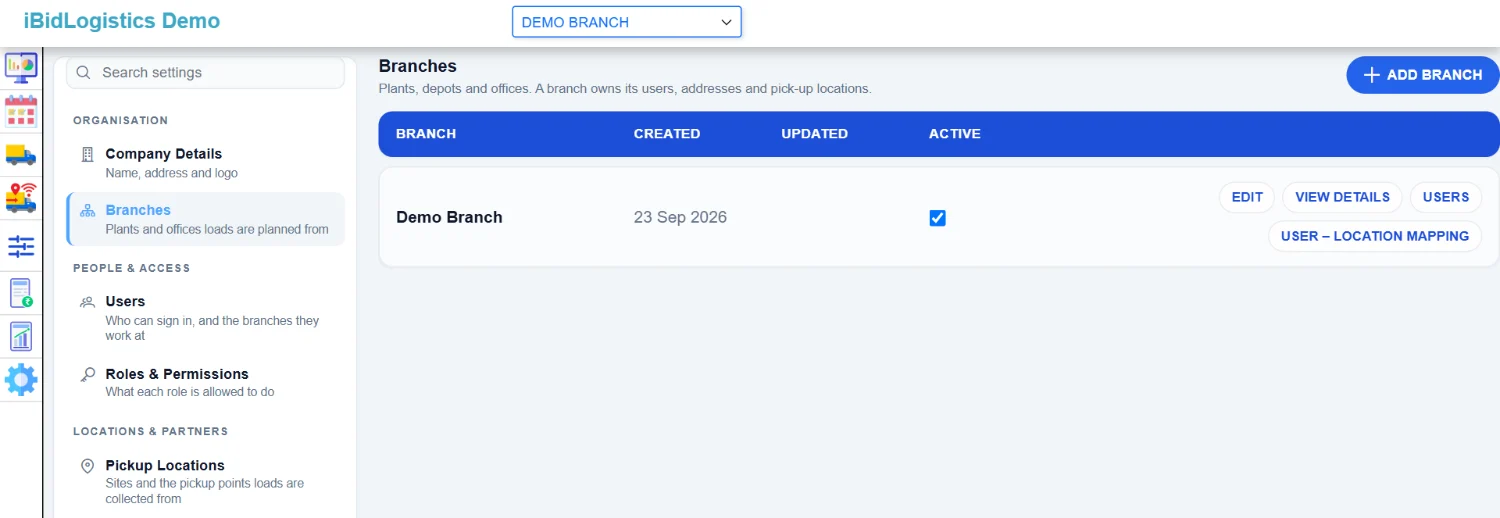
- In Administration, open Branches and press Add branch.
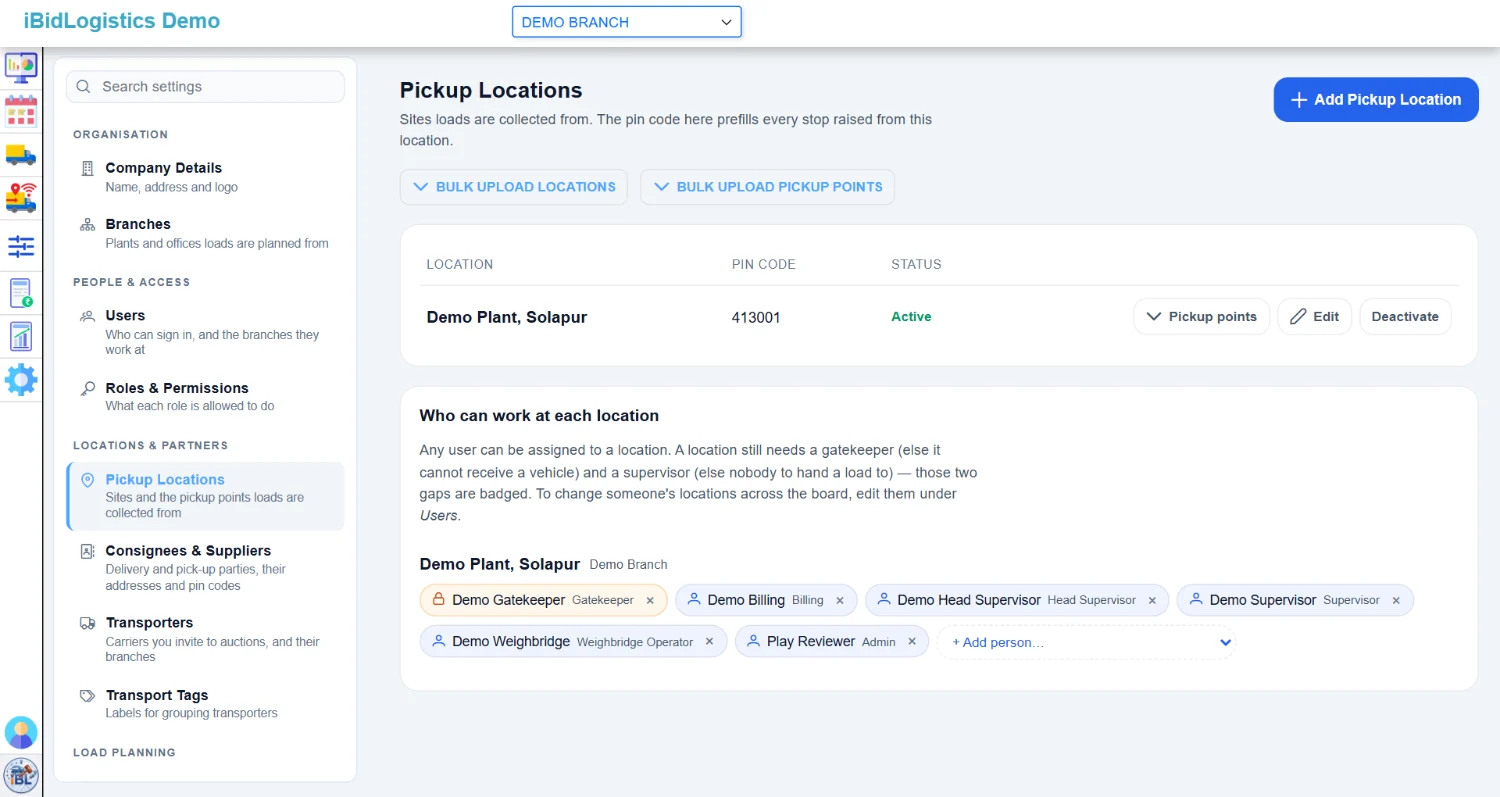
- Open Pickup Locations and press Add Pickup Location. Each location has its pin code and pick-up points.
- Below it, see who works at each location. Every location needs a gatekeeper and a supervisor.
4. Users and roles
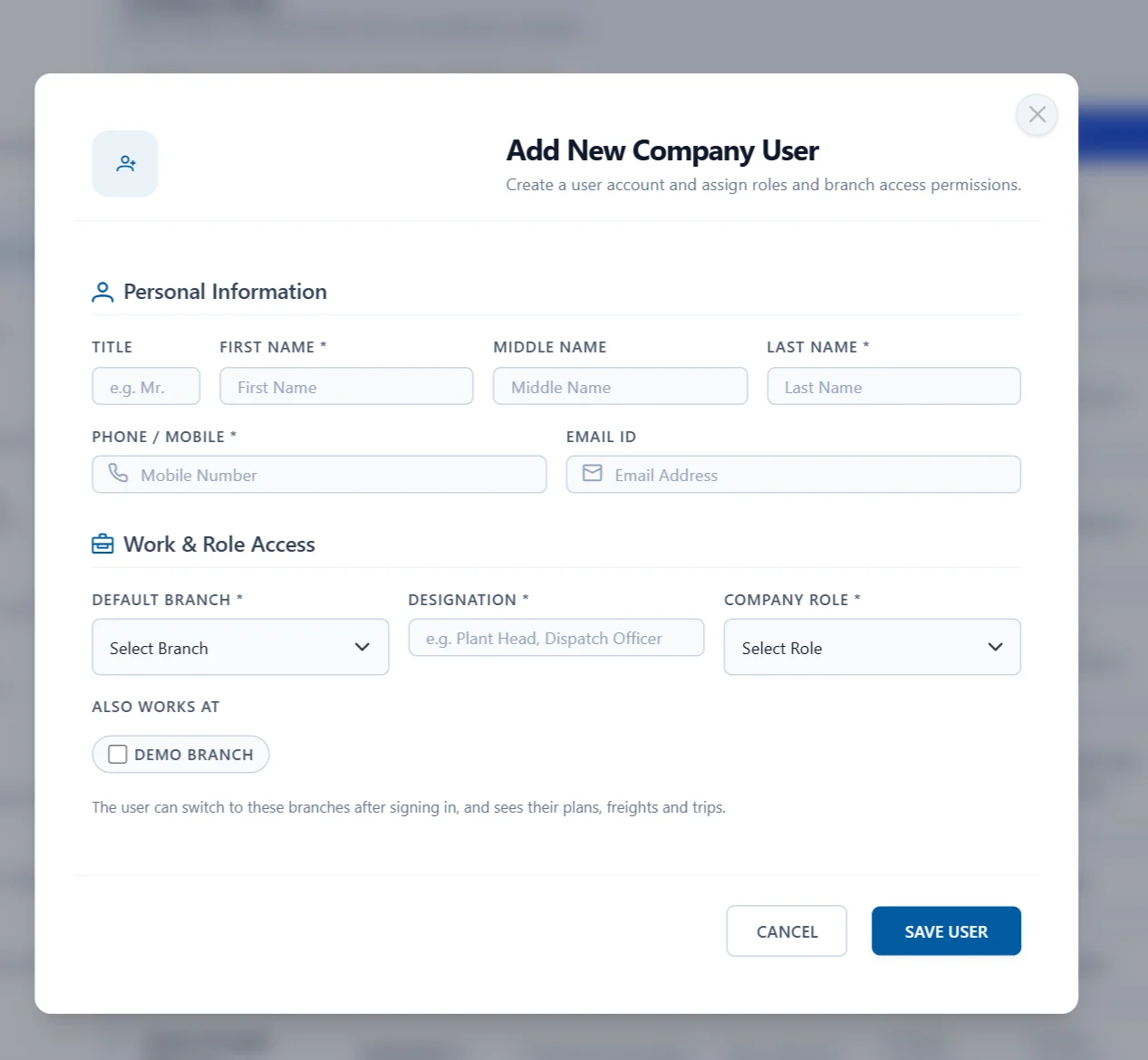
- Open Users and press Add user.
- Enter the name and the mobile number. The person signs in with this number.
- Choose the branch and the role. The role decides what the person can do. The designation is only a title.
- For gate, weighbridge and loading staff, choose the plant under Works at. Save the user.
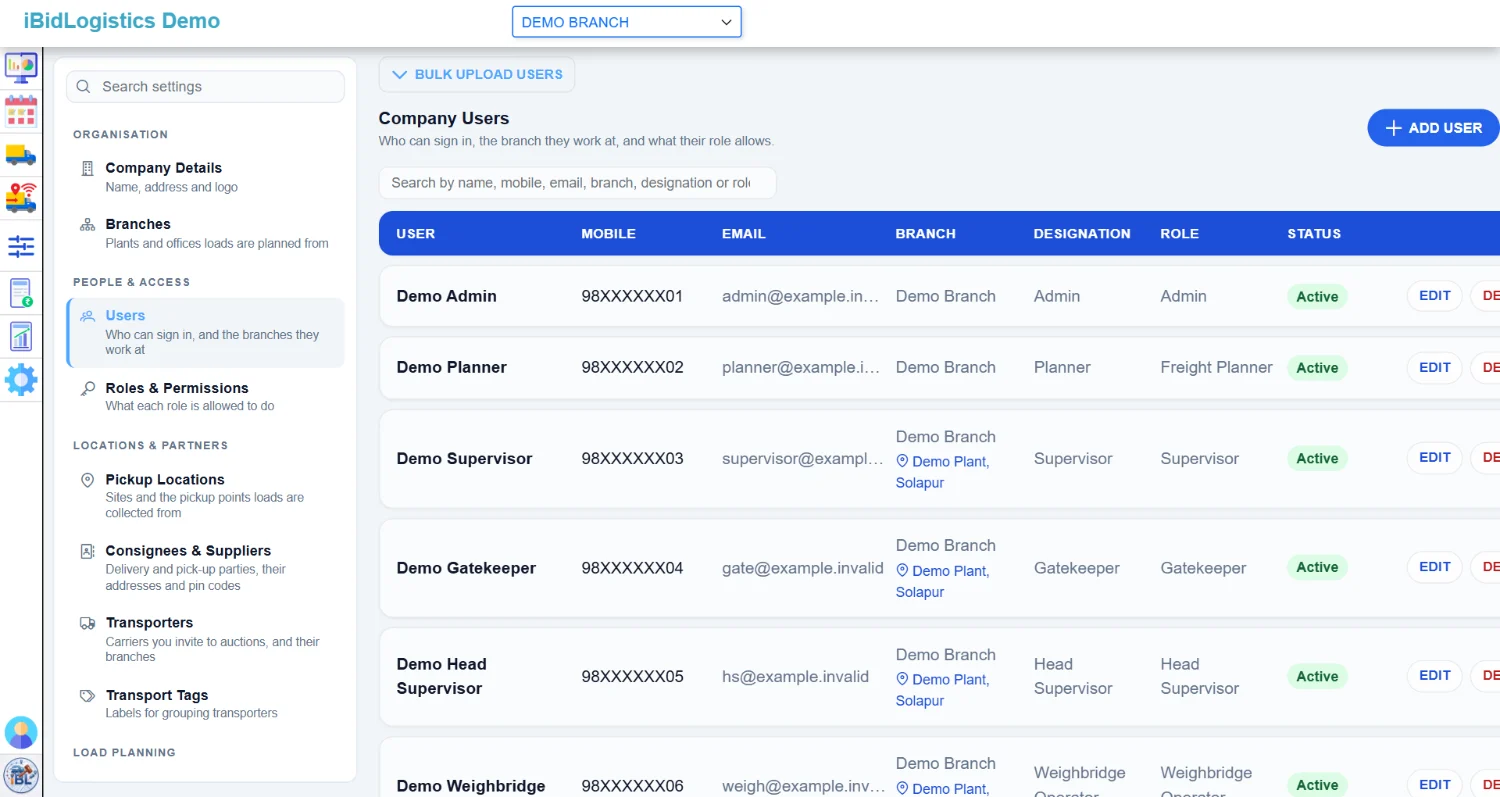
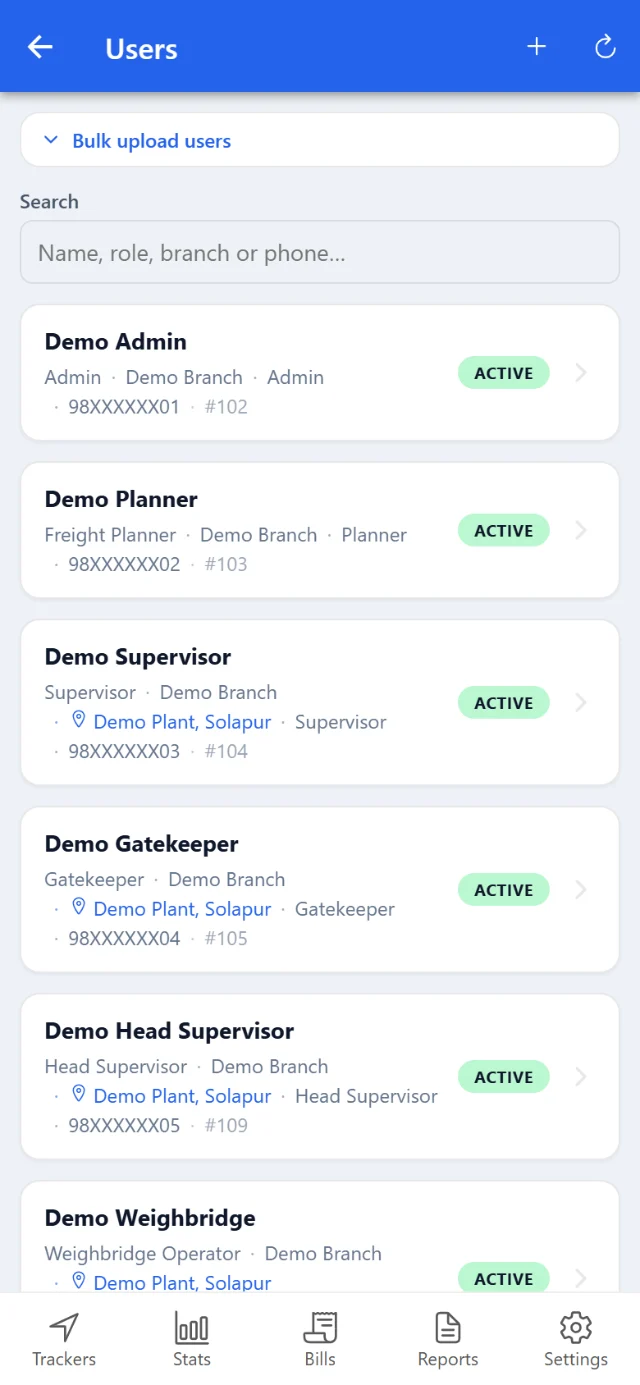
When a person leaves, press Deactivate the same day.
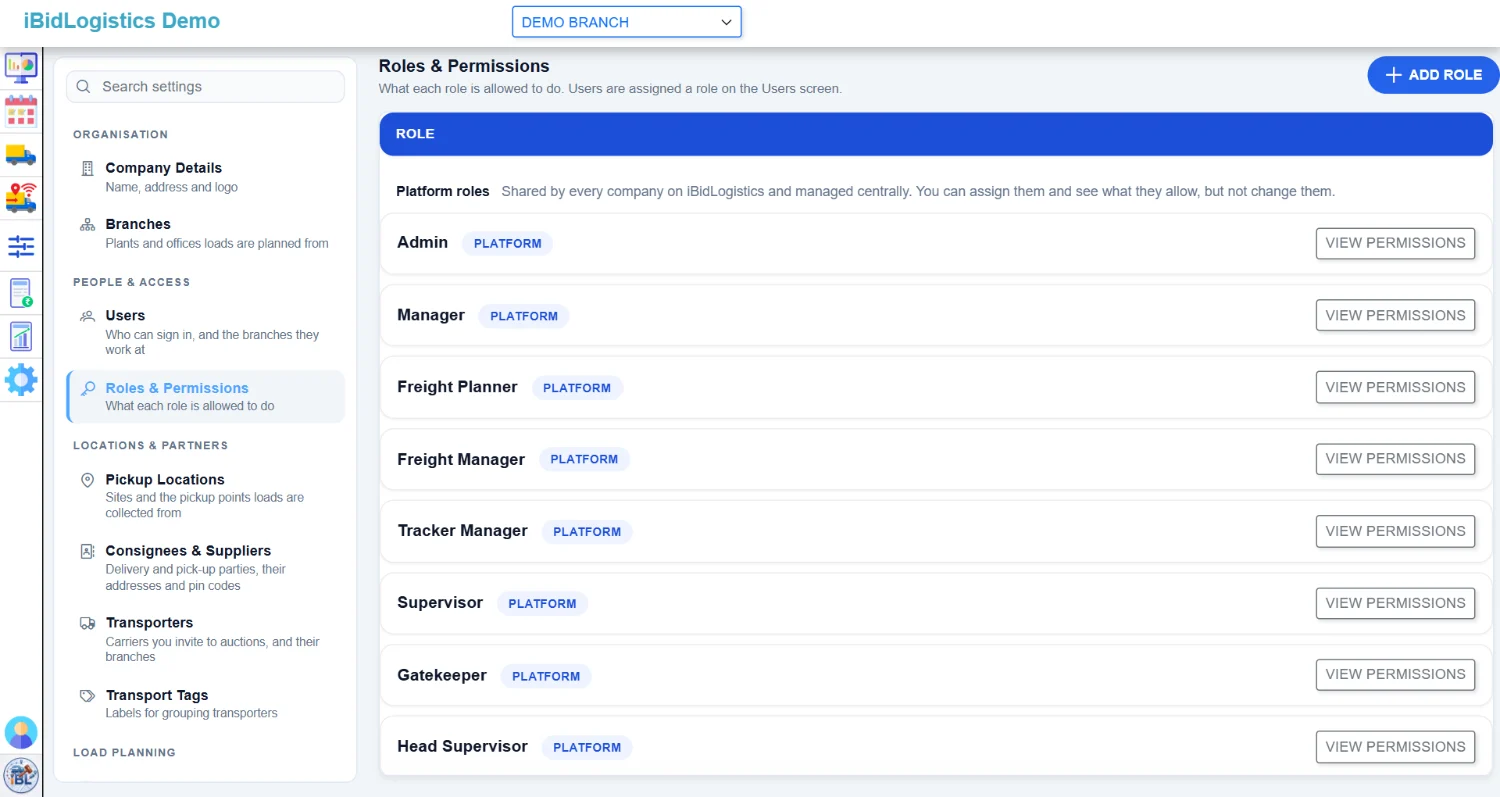
Roles & Permissions shows what each role can do. You can also make your own role.
5. Consignees
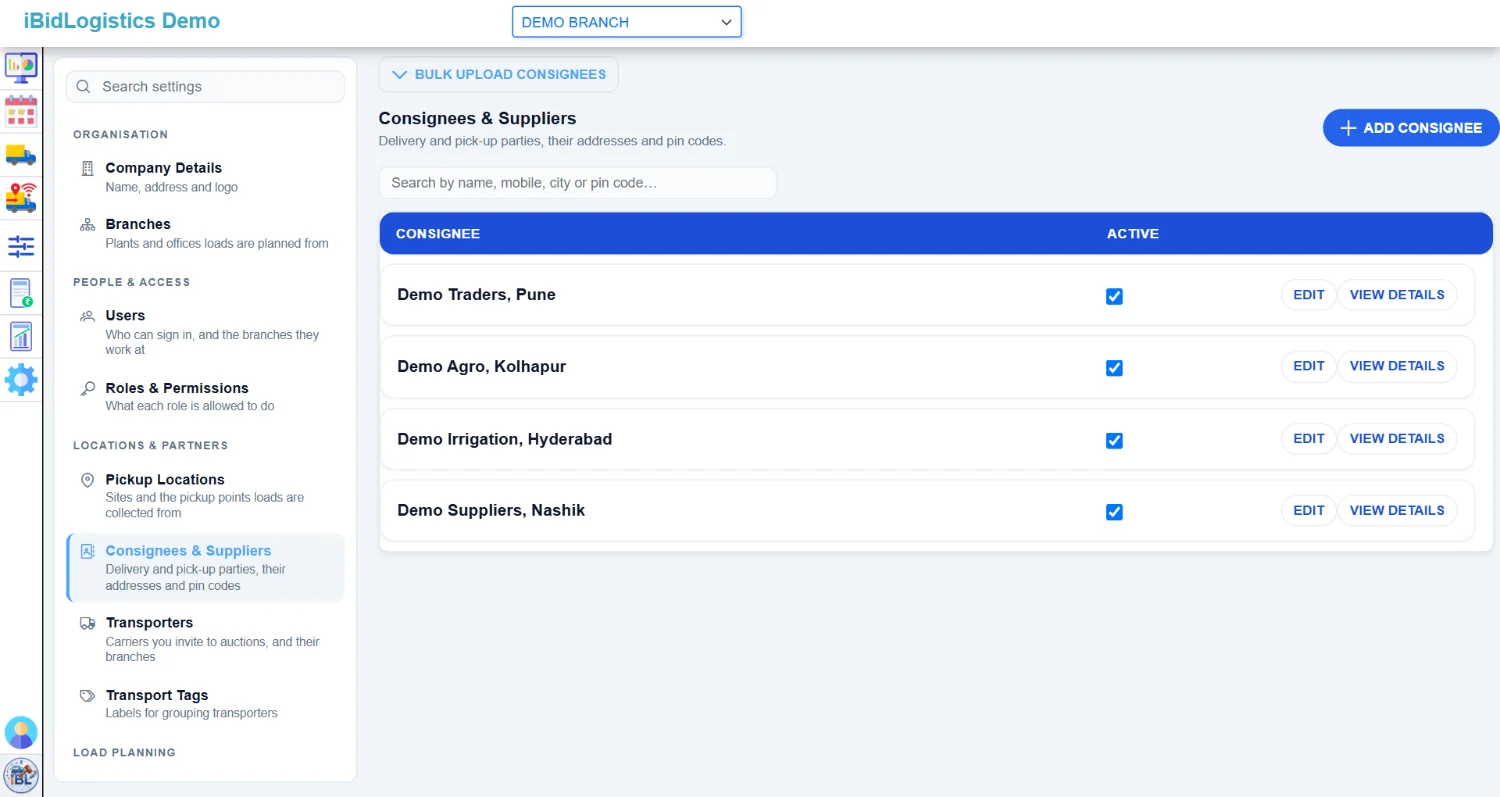
Open Consignees & Suppliers and press Add consignee, or upload many from Excel. The pin code must be right: it decides where the vehicle has reached.
6. Transporters and tags
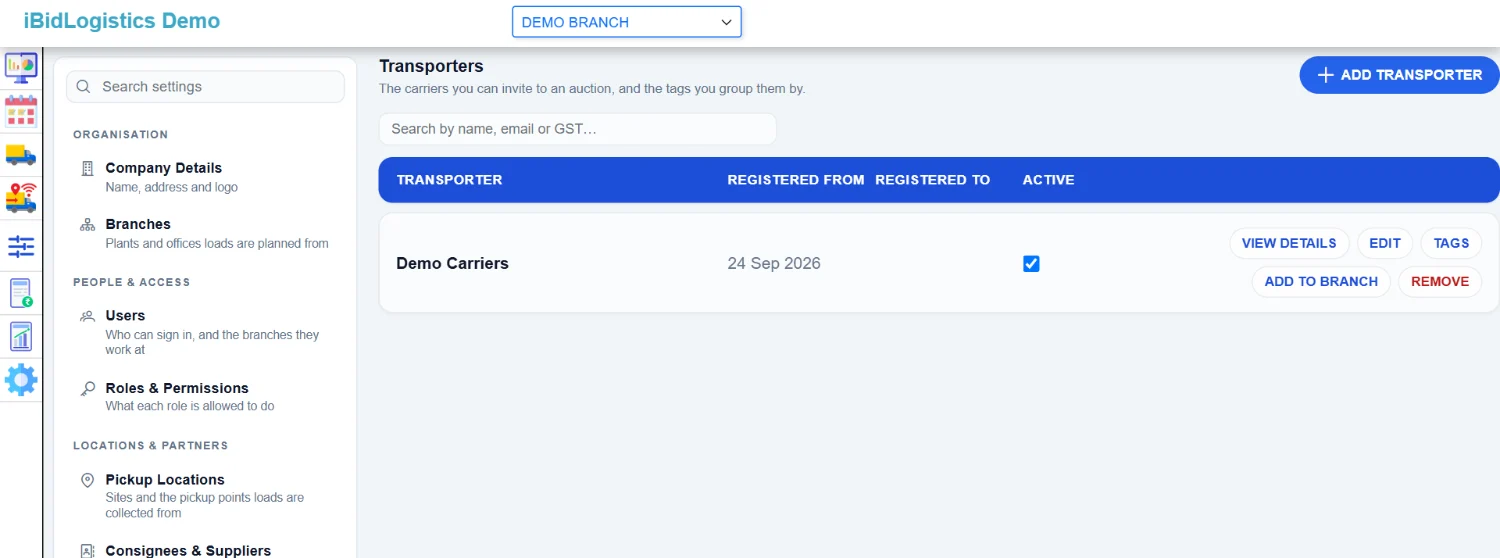
- Open Transporters and press Add transporter. Then Add to branch for every branch that uses it.
- Use Transport Tags to make groups, so that you can invite a whole group to an auction.
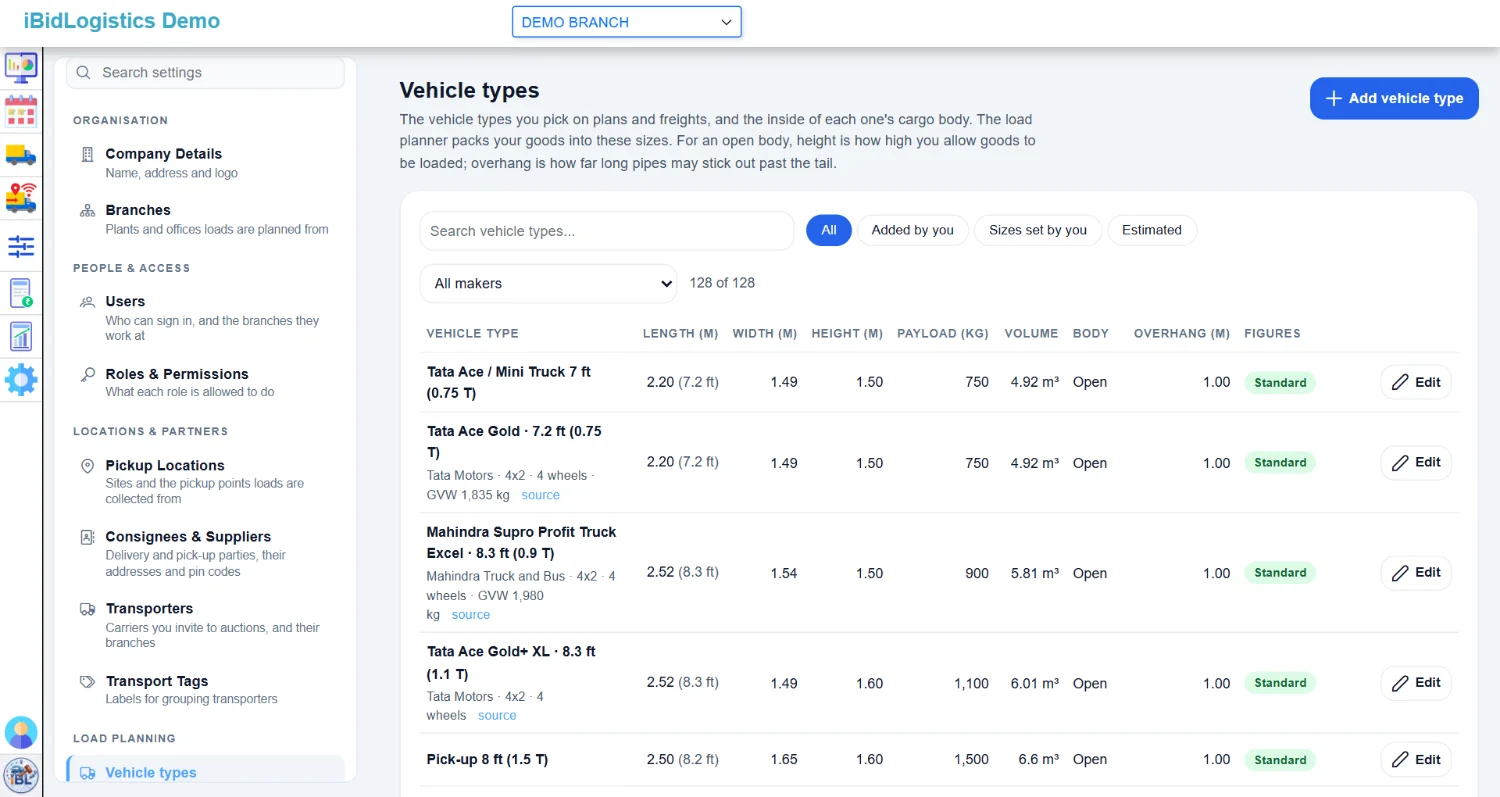
7. Vehicle types
Vehicle types holds the body size and payload of each truck. The load plan uses them.
8. Daily work
- Dashboard: press a box under Needs attention to open its list.
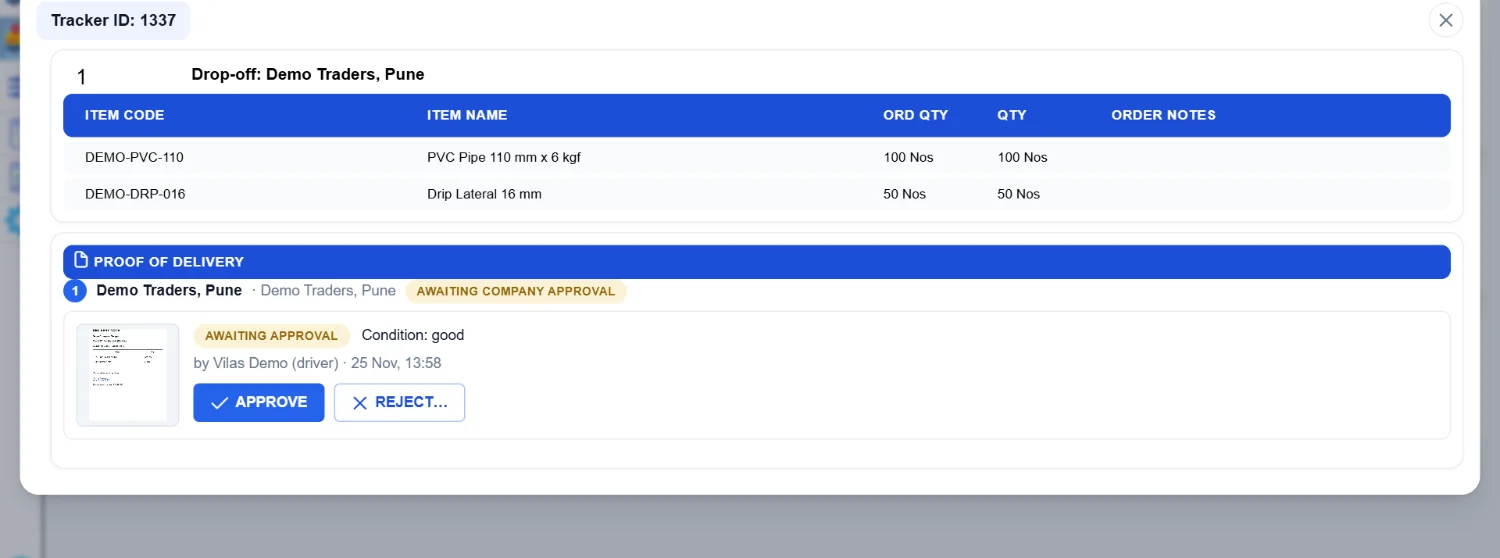
- POD Pending: check each photo, then Approve or Reject.
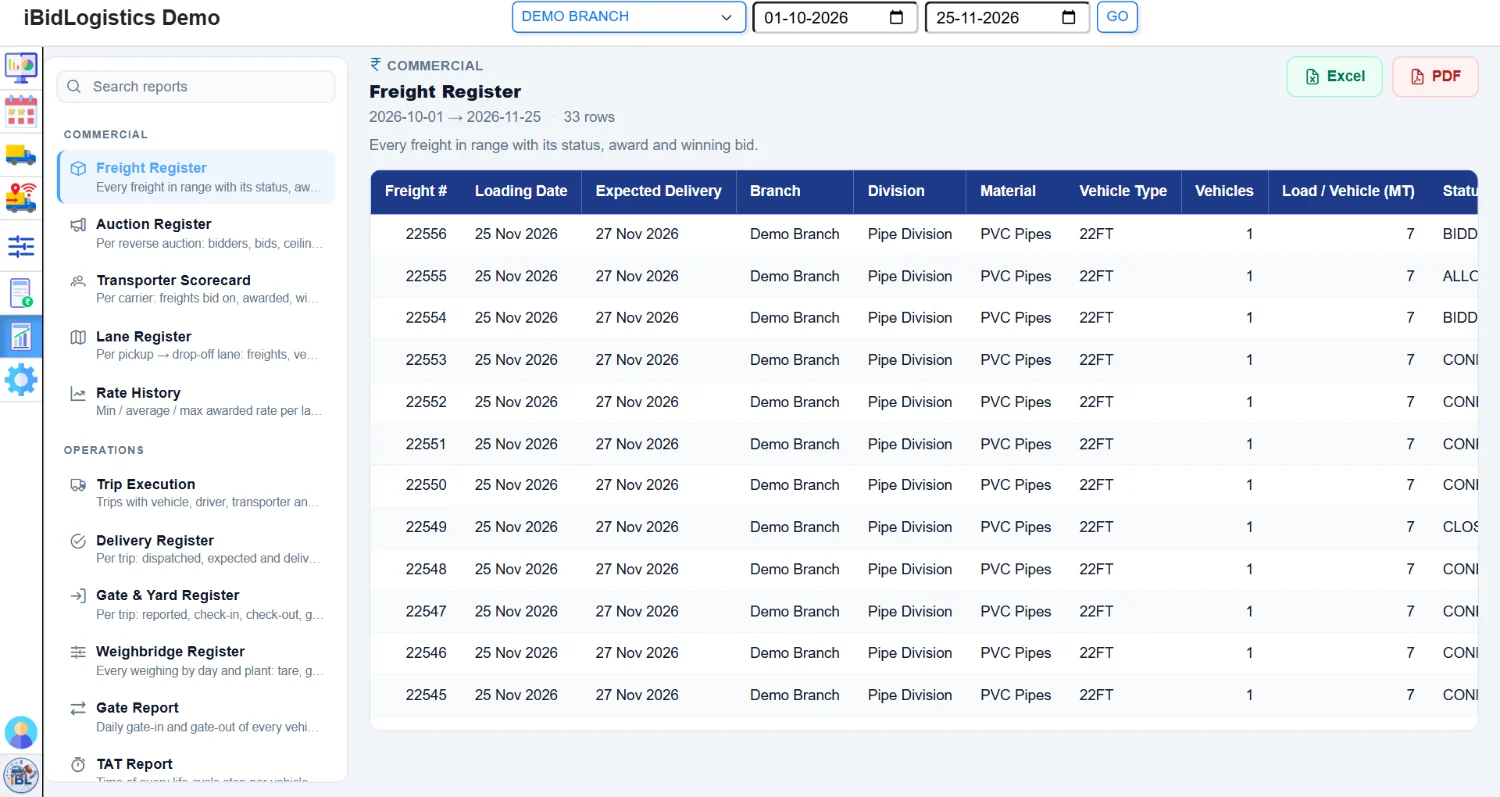
Reports has every register, with Excel and PDF.
An Admin can do the work of every other role. Each role has its own guide.
9. Messages and what to do
| Message or problem | What to do |
|---|---|
| A user cannot sign in | Check the mobile number and that the user is Active. |
| A gatekeeper or supervisor sees nothing | Set the plant under Works at. |
| Number not registered | Your mobile number is not active. Ask your Admin. |
To sign out: Settings, then Log out.
Need help? Write to info@ibidlogistics.com