
Your work at a glance
- Vehicle gated in: it appears on your list.
- Tare: weigh the empty vehicle and save.
- Loading: the vehicle is loaded and the Head Supervisor approves.
- Gross: weigh the loaded vehicle and save.
- Net load: the app calculates it.
1. Sign in
- Open ibidlogistics.com/login on the computer, or the iBidLogistics app on the phone.
- Enter your registered mobile number and press Request OTP.
- Enter the OTP that comes by SMS and press Login.
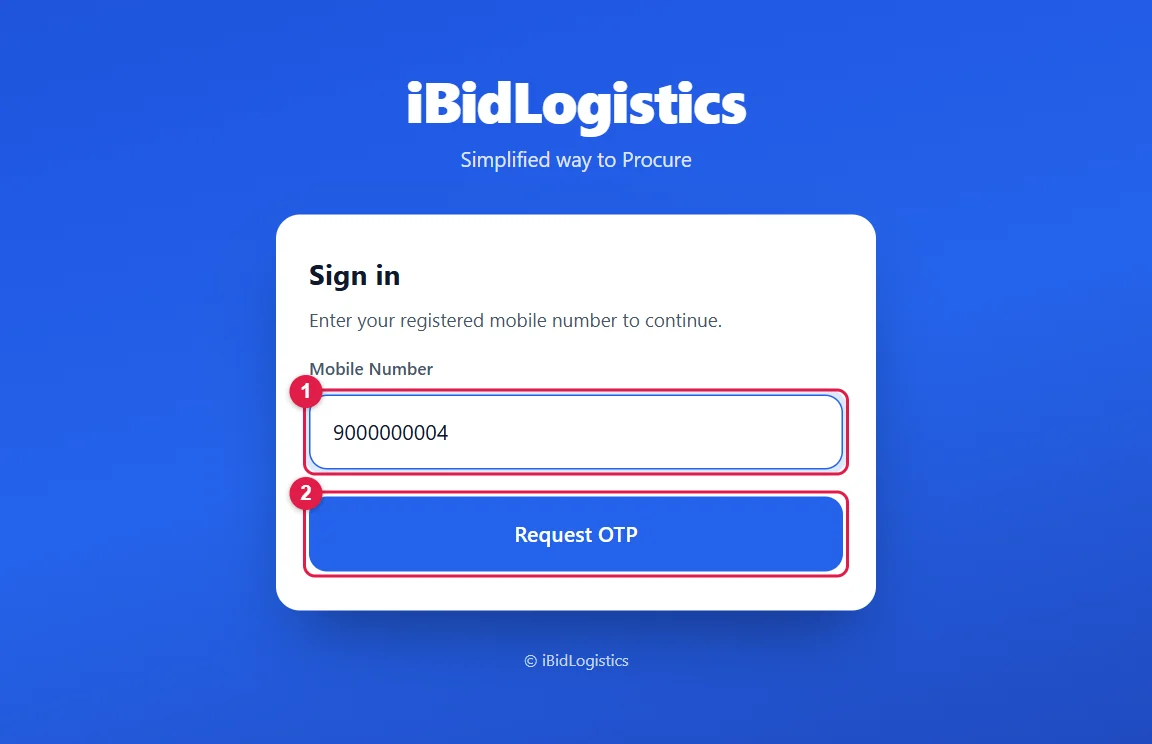
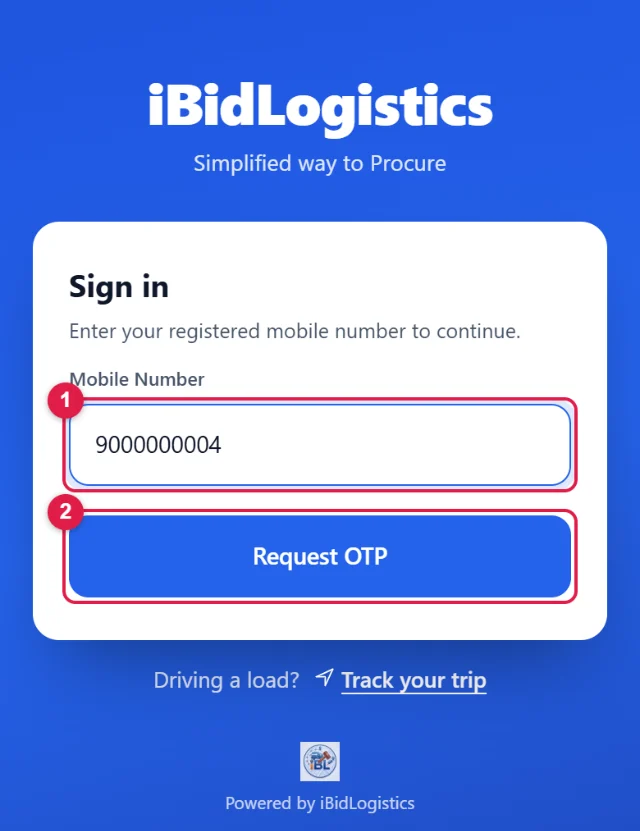
You stay signed in. Do not share your OTP with anyone.
2. Your screen
- Weighbridge at: the plant you work at.
- To weigh: vehicles waiting for a weight.
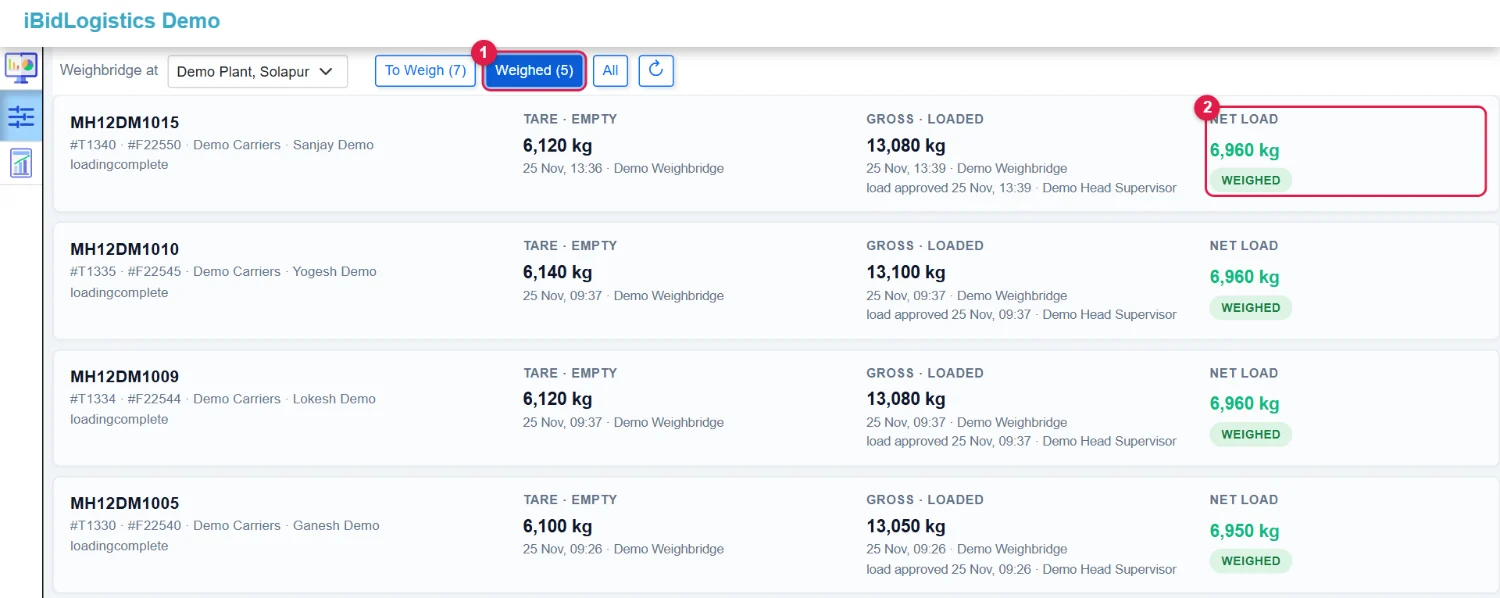
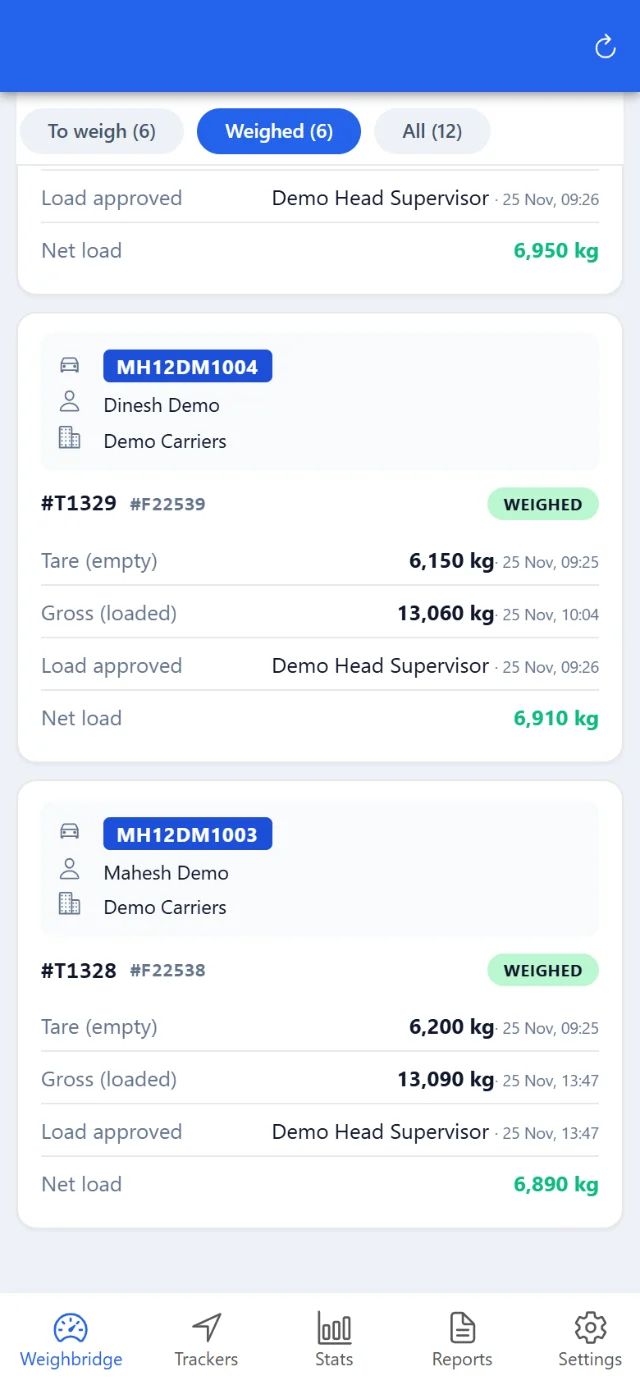
- Weighed: both weights are recorded.
3. Empty weight (tare)
- Find the vehicle. It shows Awaiting tare.
- Type the weight in kg, exactly as on the bridge.
- Press Save.
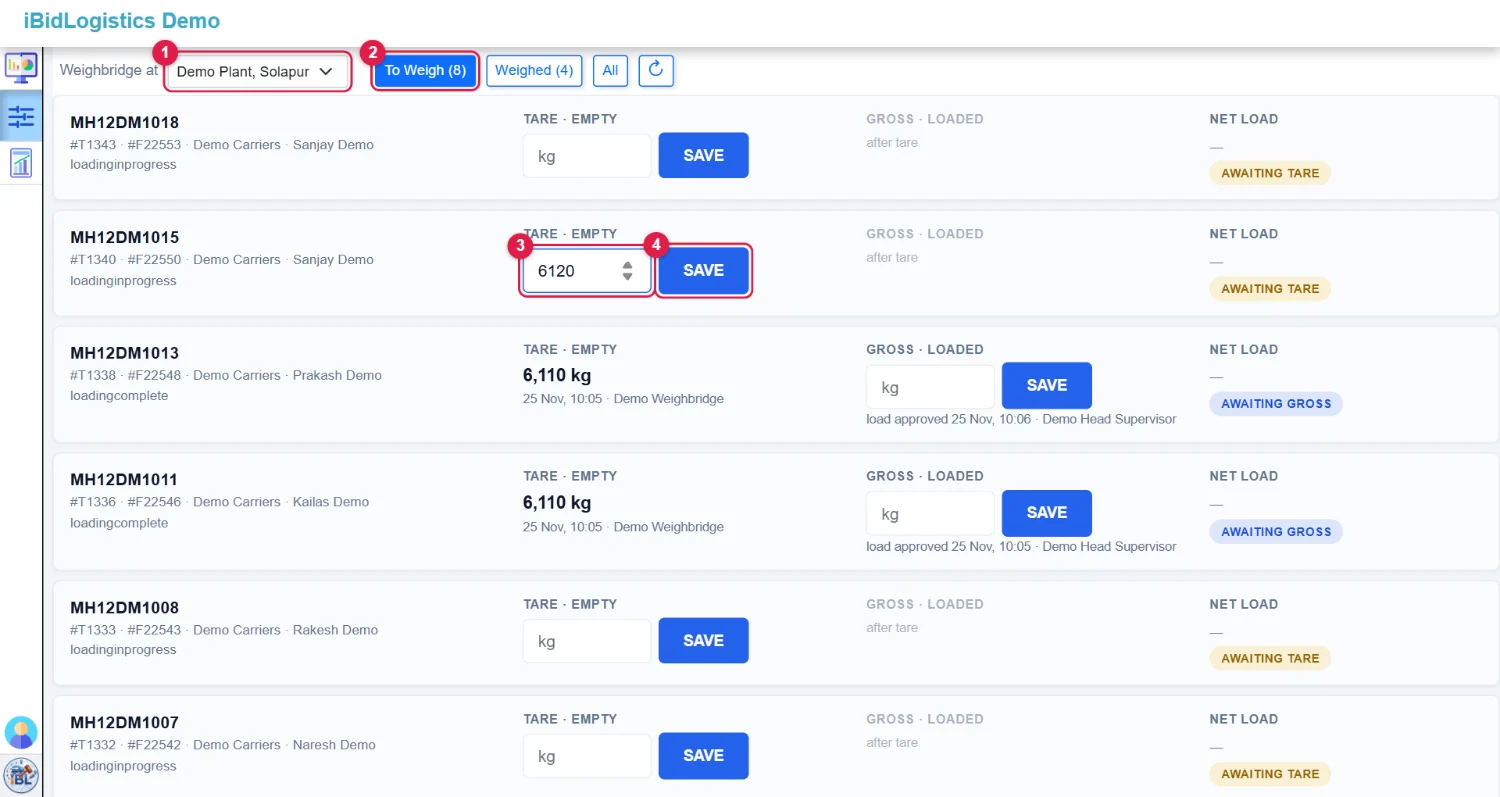
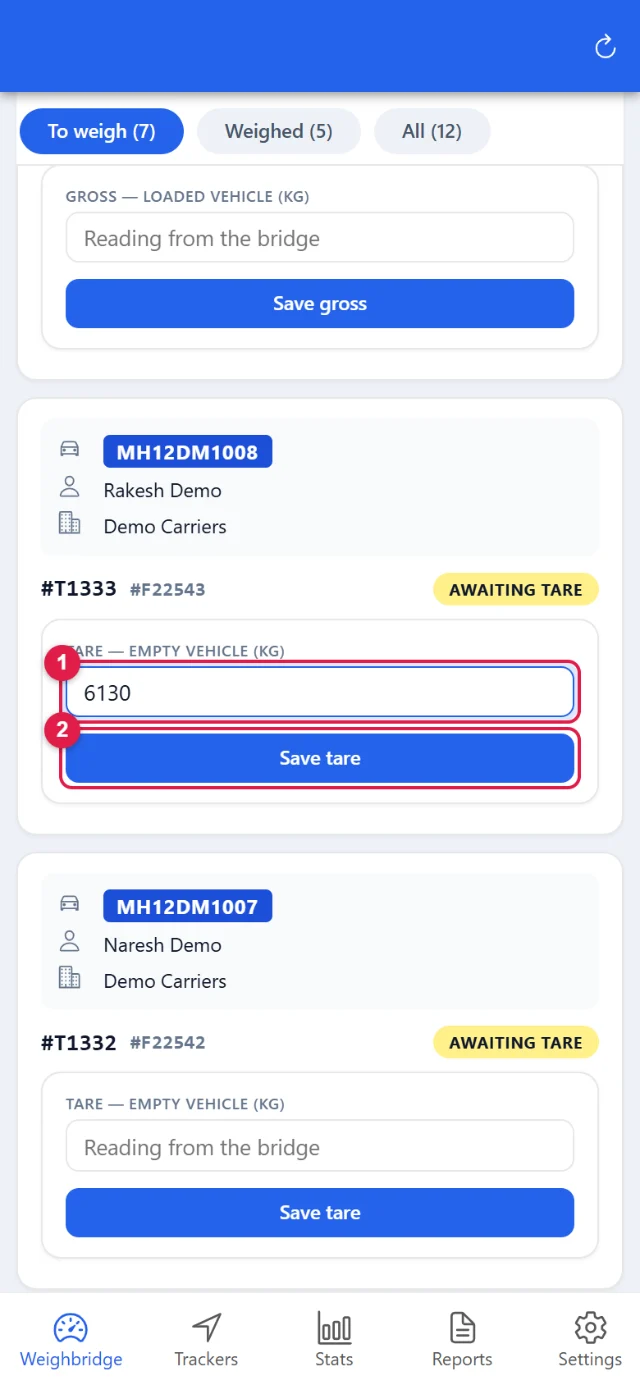
After saving, the vehicle shows Loading until it is loaded and approved.
4. Loaded weight (gross)
- Wait until the vehicle shows Awaiting gross and Load approved.
- Weigh the loaded vehicle, type the weight and press Save.
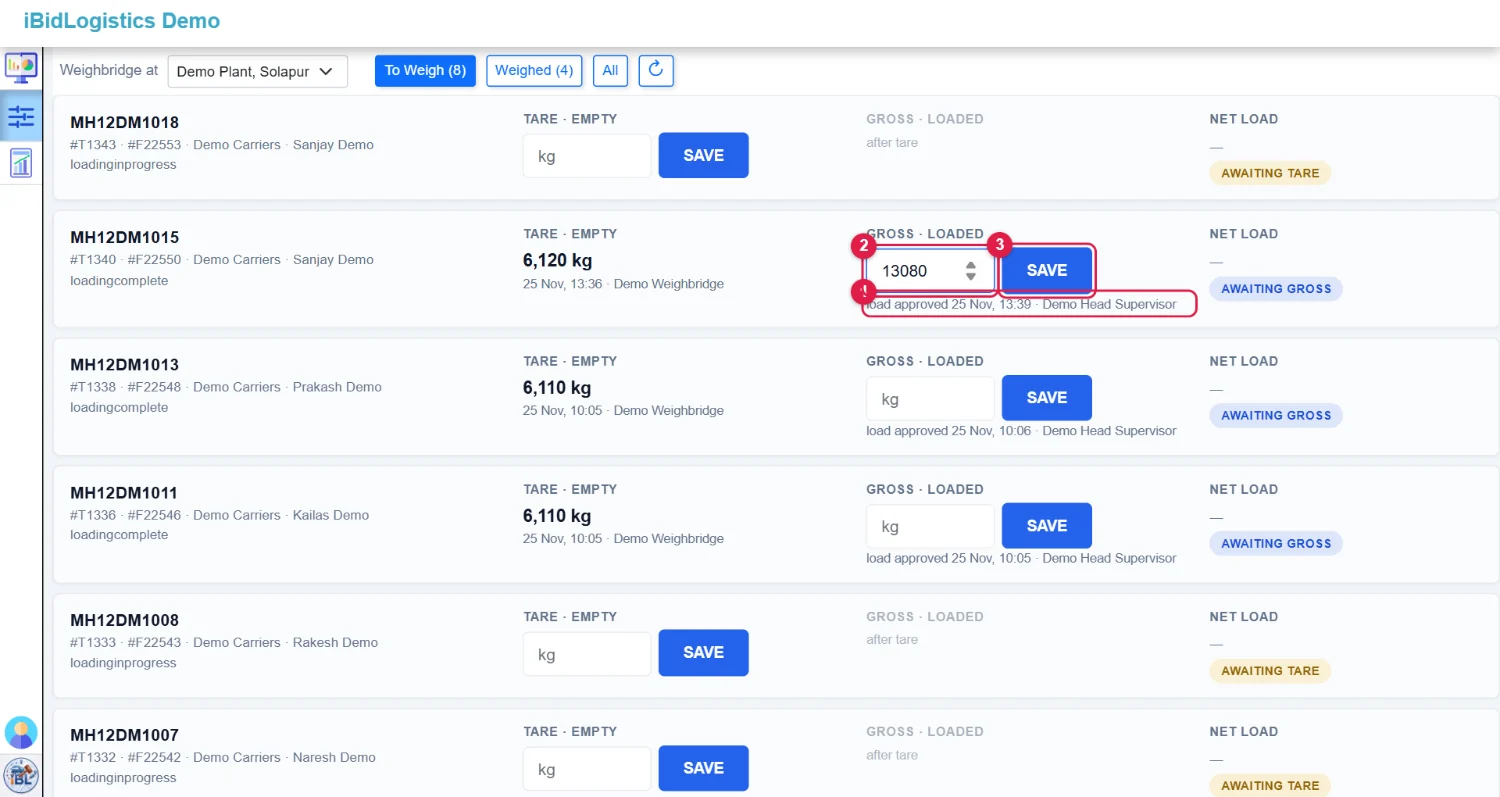
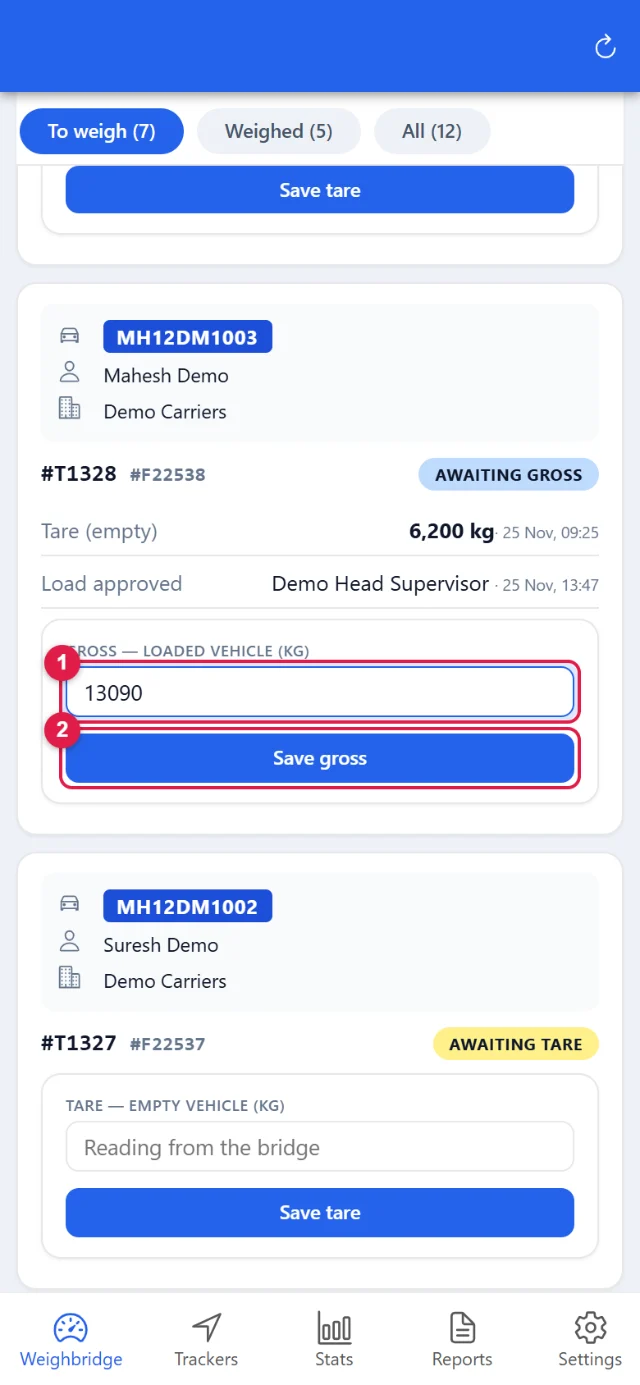
The loaded weight is closed until the Head Supervisor approves the load.
5. Net load
The app takes the empty weight from the loaded weight. The vehicle moves to Weighed, and billing can start.
6. Dashboard and report
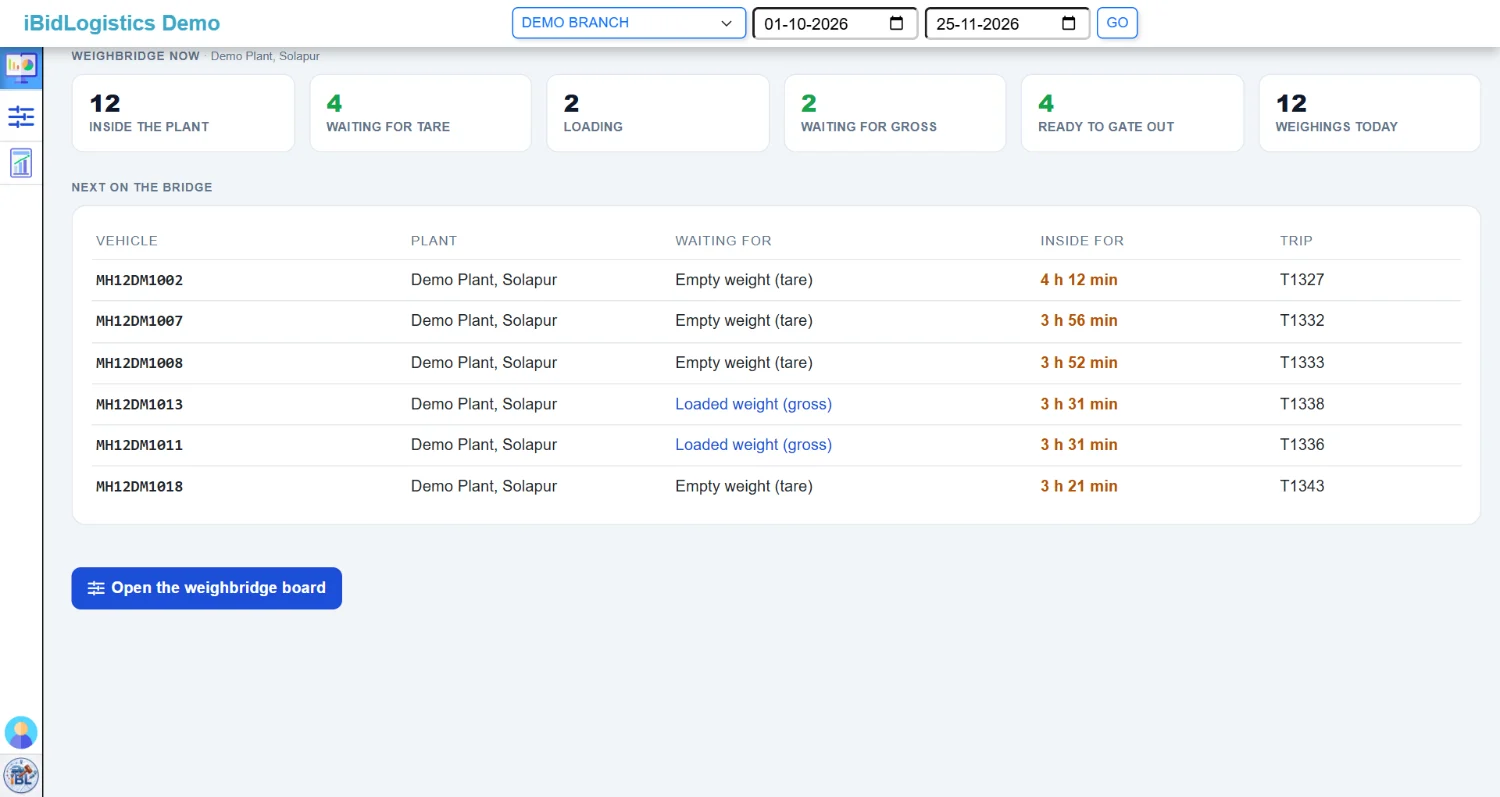
Dashboard shows which vehicle to weigh next and how long it has waited.
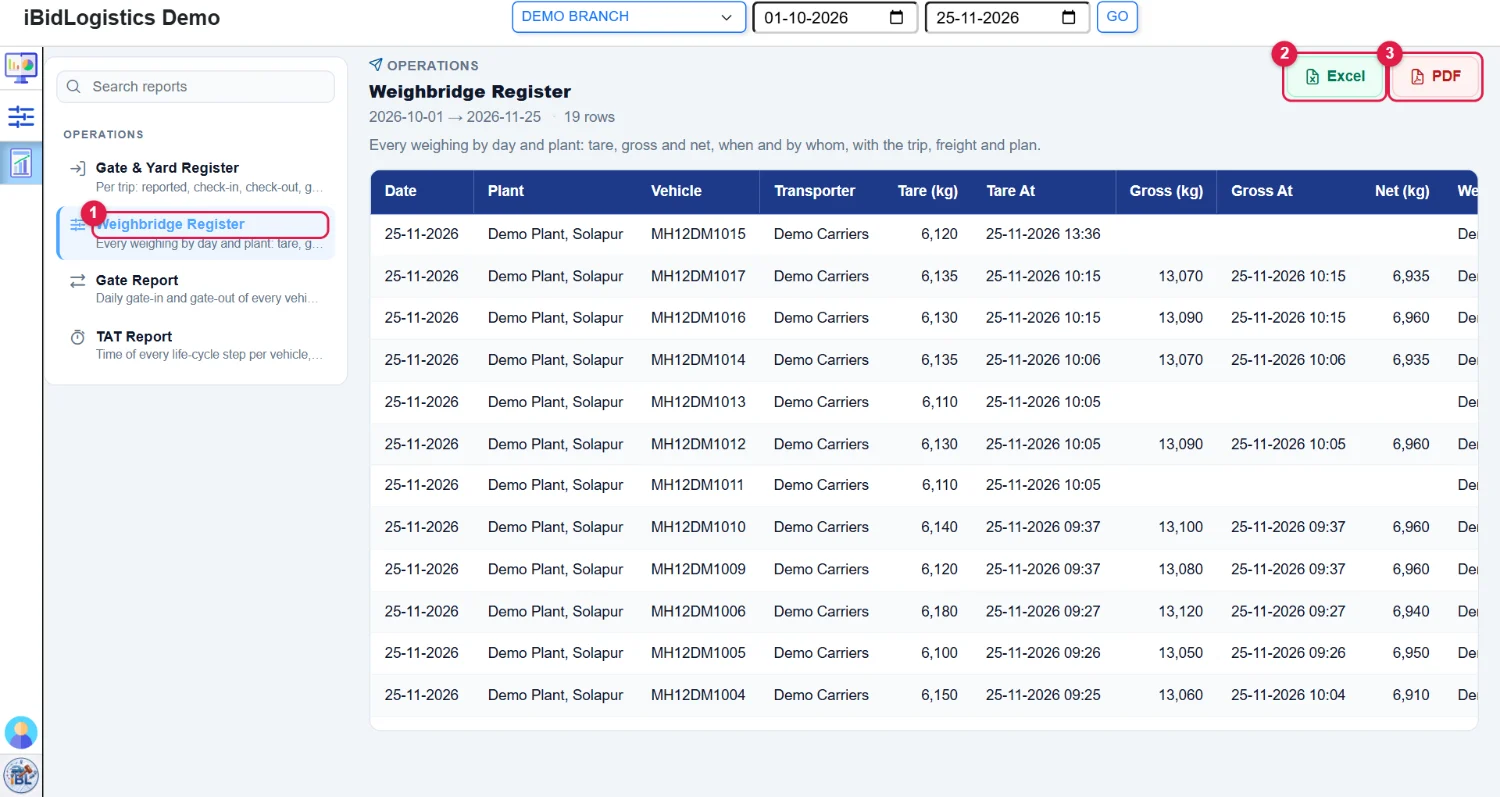
For the register open Reports, choose Weighbridge Register, set the dates, then Excel or PDF.
7. Messages and what to do
| Message or problem | What to do |
|---|---|
| No location assigned to you | Ask your Admin to set your plant under Works at. |
| Awaiting Head Supervisor approval | The load is not approved. Ask the Head Supervisor. |
| A wrong weight was saved | Tell your manager with the trip number and the correct weight. |
| Number not registered | Your mobile number is not active. Ask your Admin. |
To sign out: Settings, then Log out.
Need help? Write to info@ibidlogistics.com