
Your work at a glance
- Bid in the live auction.
- Assign your vehicle when the freight is yours.
- Send the Trip ID to the driver.
- Follow the trip until delivery.
- Send the invoice after the delivery is approved.
1. Sign in
- Open ibidlogistics.com/login on the computer, or the iBidLogistics app on the phone.
- Enter your registered mobile number and press Request OTP.
- Enter the OTP that comes by SMS and press Login.
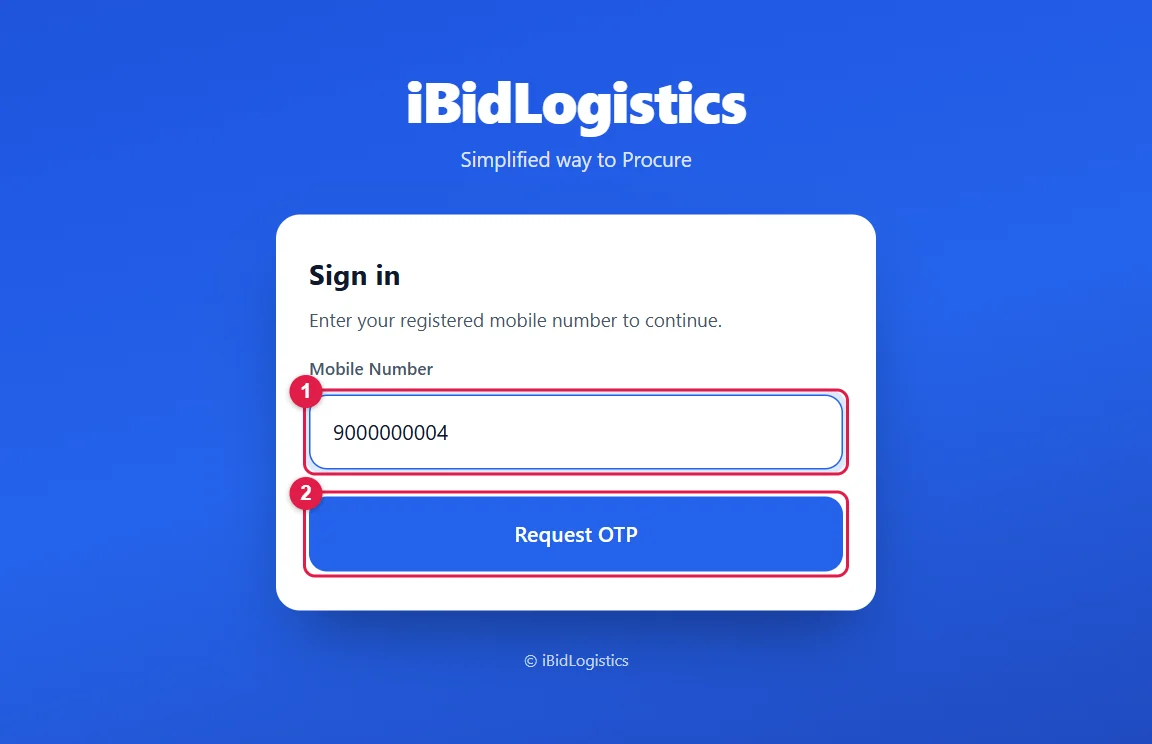
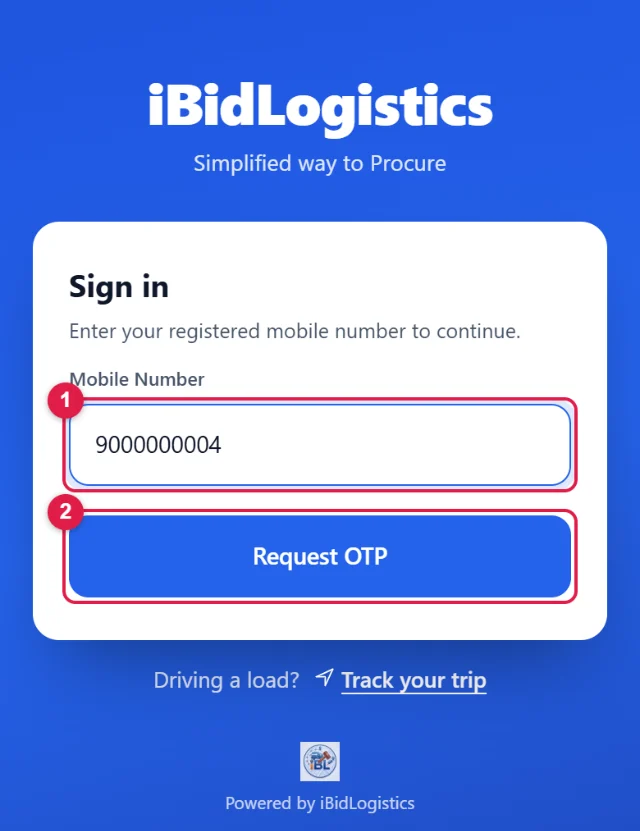
You stay signed in. Do not share your OTP with anyone.
2. Bid
- Open Freights. Auctions in Progress shows the freights you can bid on and the time left.
- Enter your rate per vehicle and press Place bid.
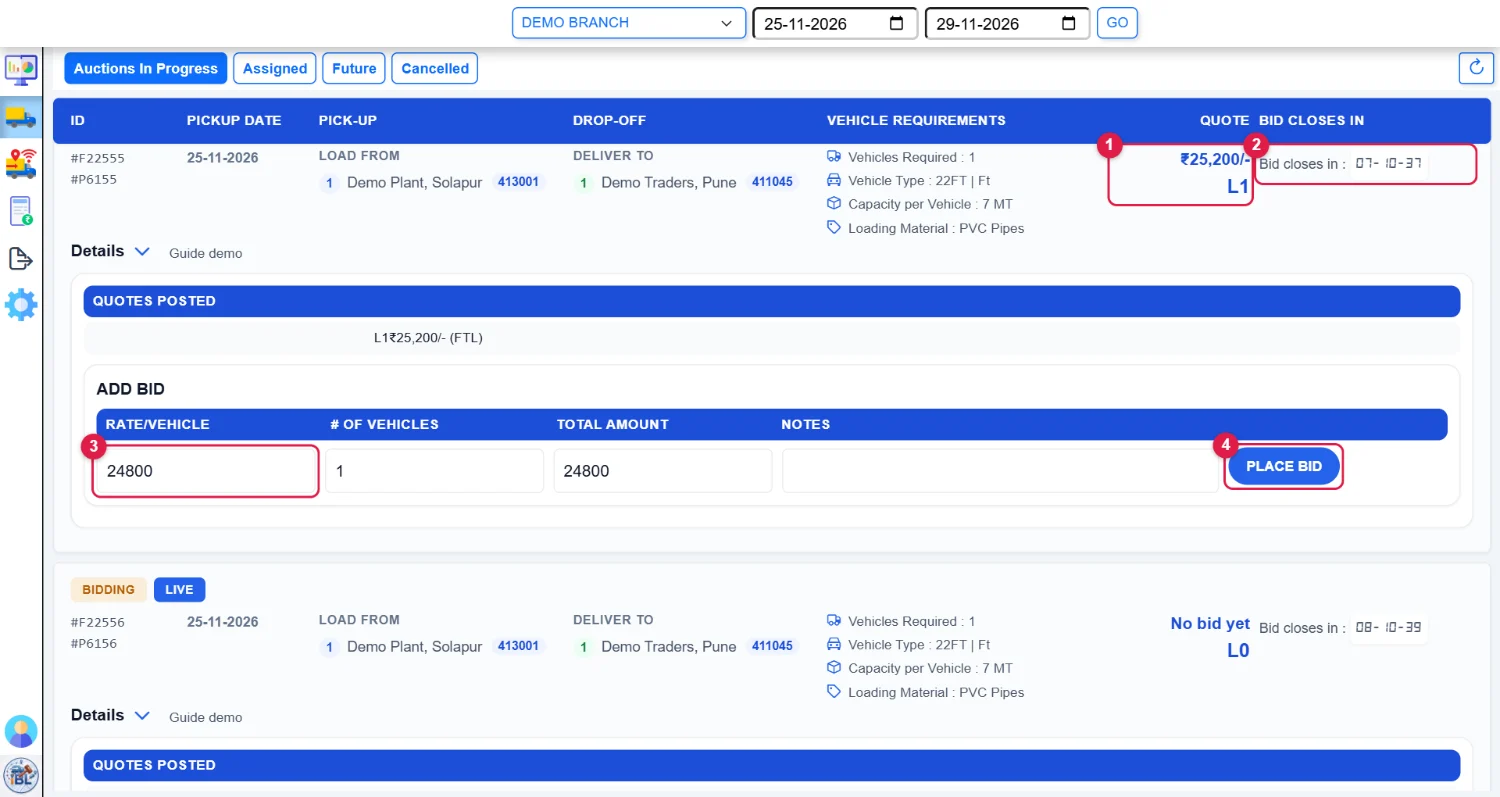
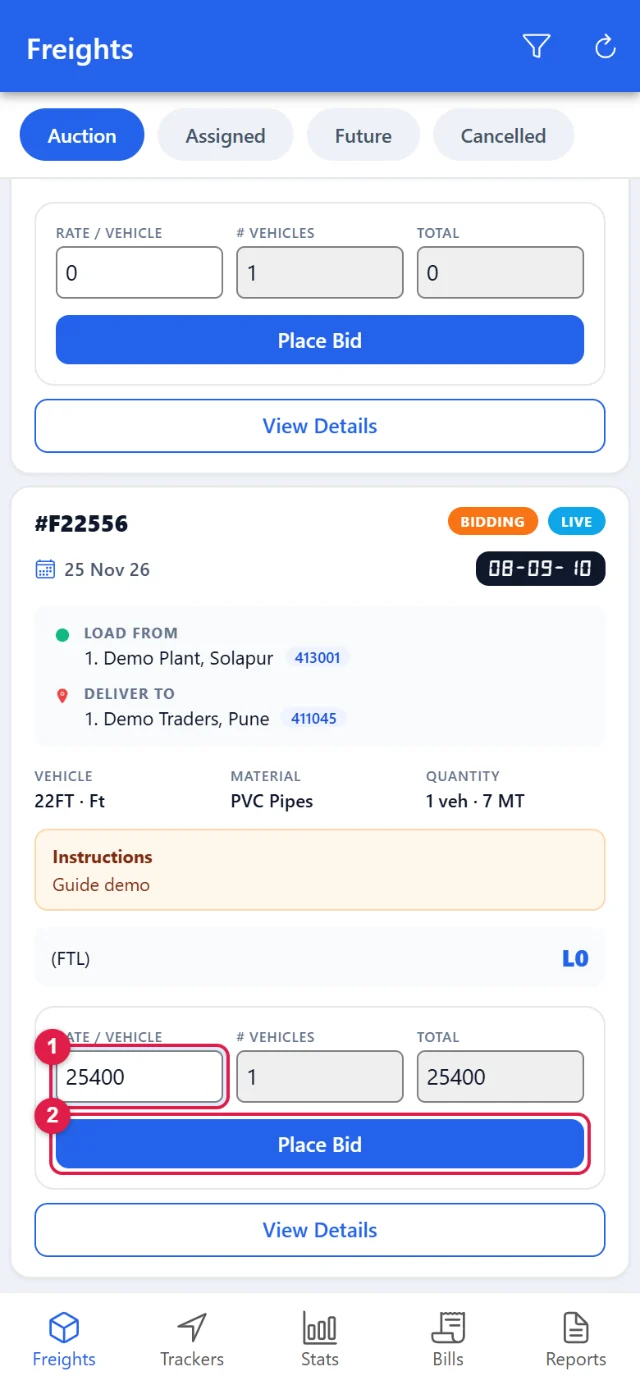
L1 means your rate is the lowest now. You can bid again, at a lower rate, until the time ends.
If the company sends a counter-offer, you can accept or reject it.
3. Assign the vehicle
- Open Assigned. Press Vehicle 1 details on the freight.
- Pick the vehicle from your fleet, or type its number.
- Add the driver's name and mobile number. This is optional, but the driver needs it to send the proof of delivery.
- Enter the LR number and press Save.
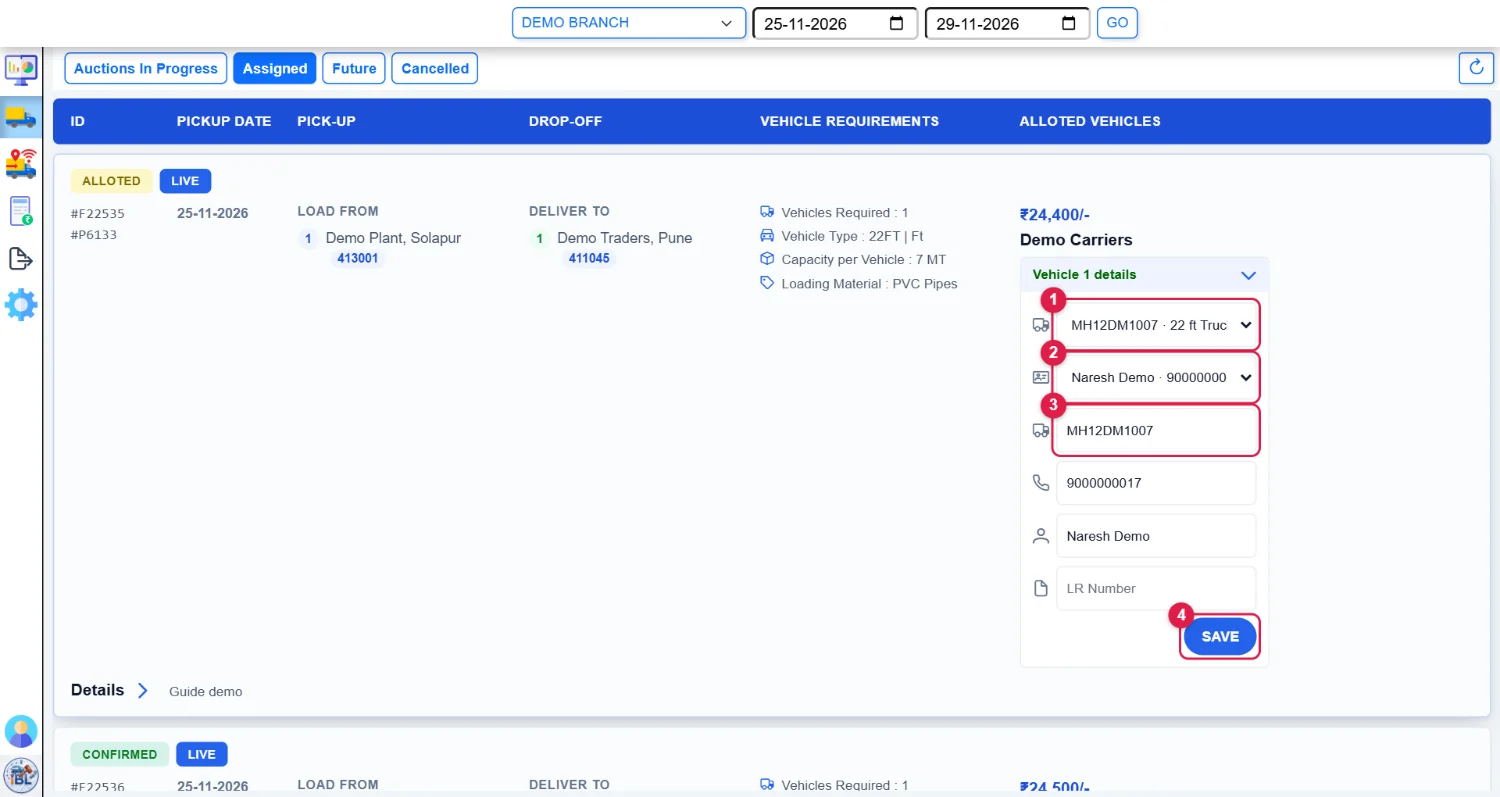
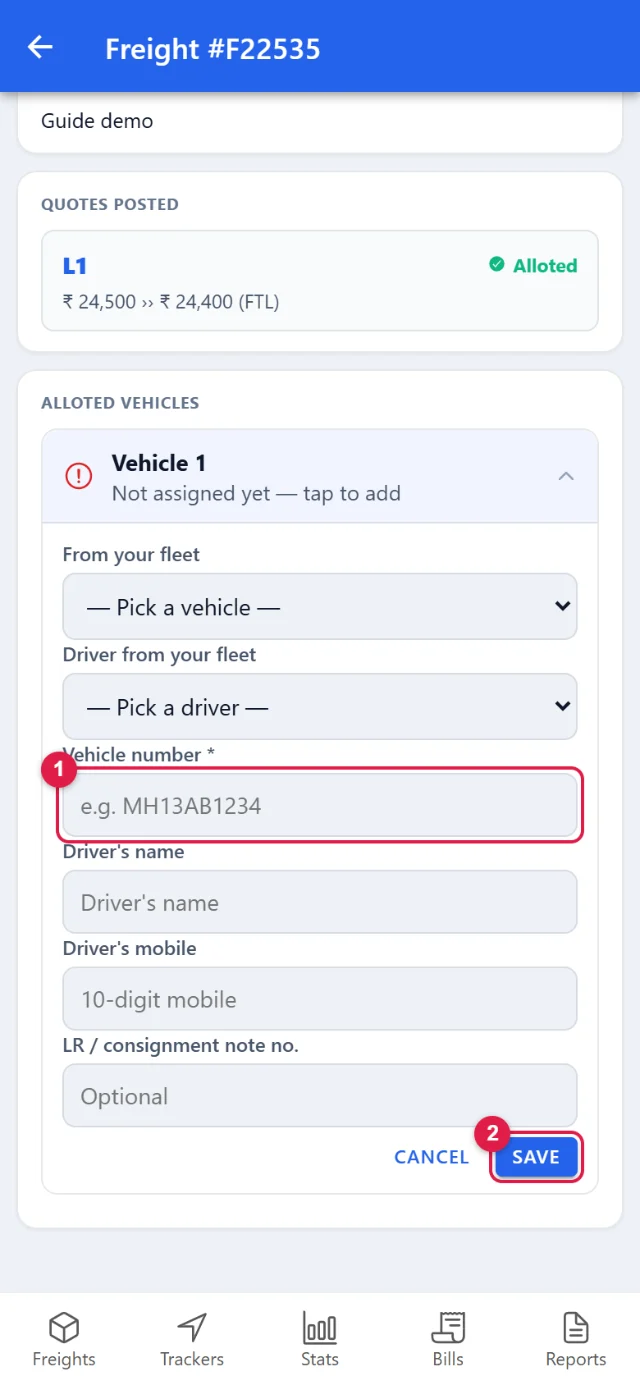
The trip opens when you save the vehicle. Its number is the Trip ID: send it to the driver for tracking.
4. Follow your trips
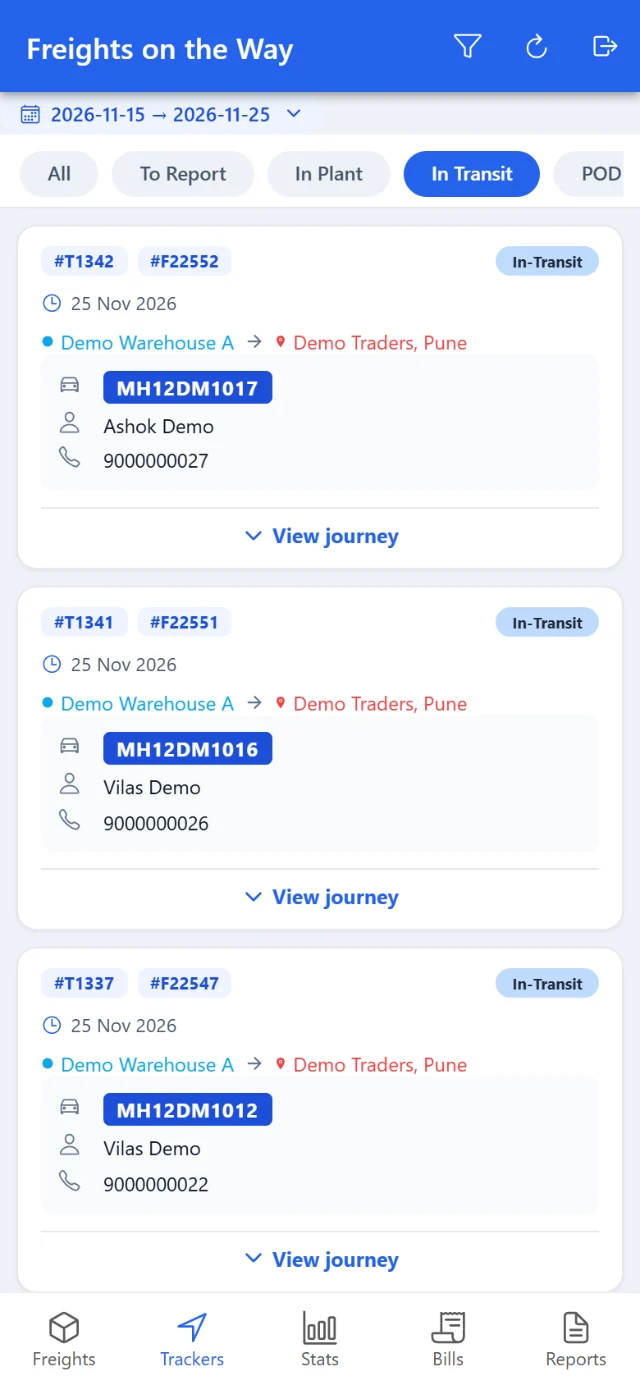
Freights on the Way shows all your vehicles.
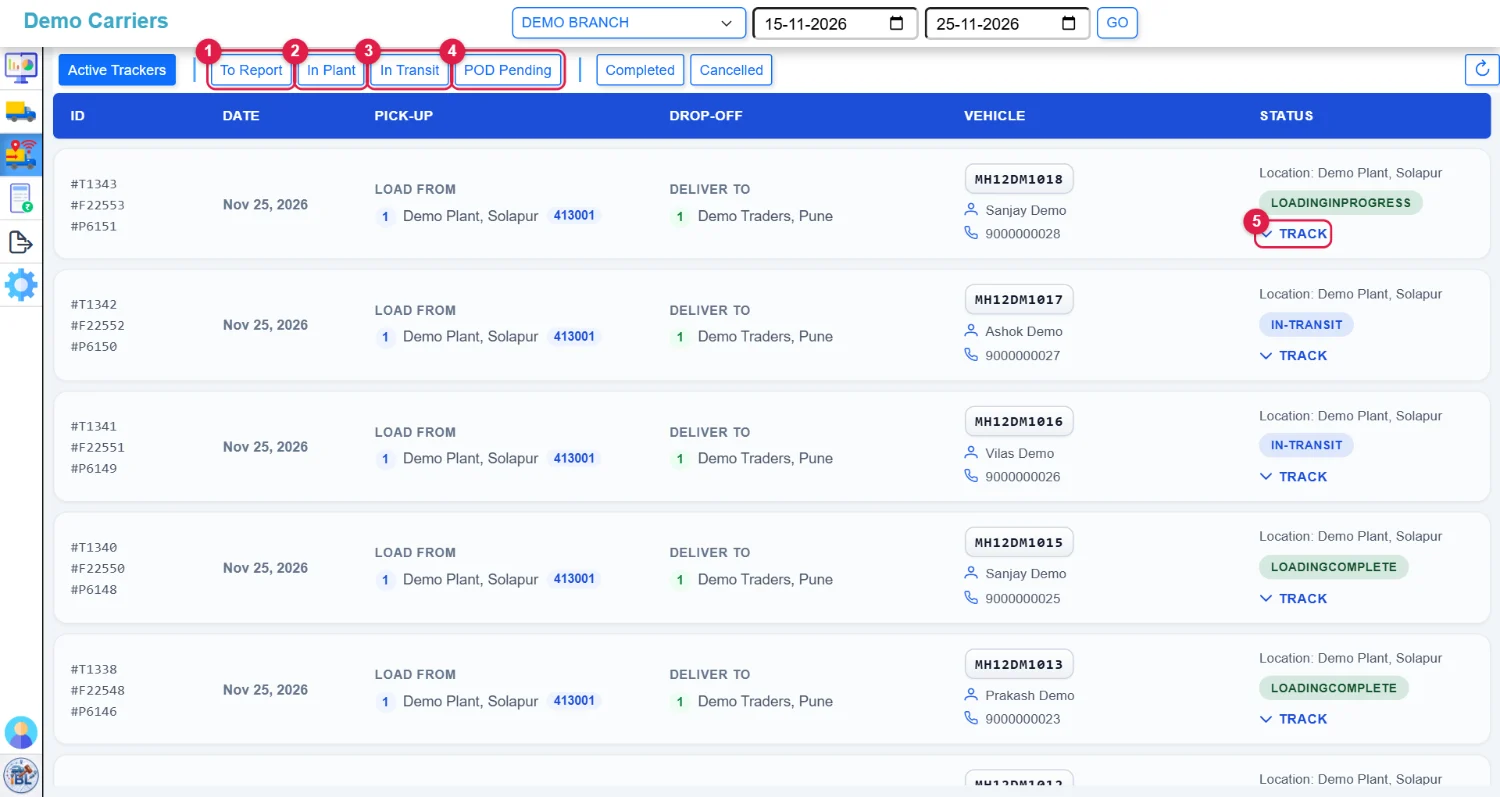
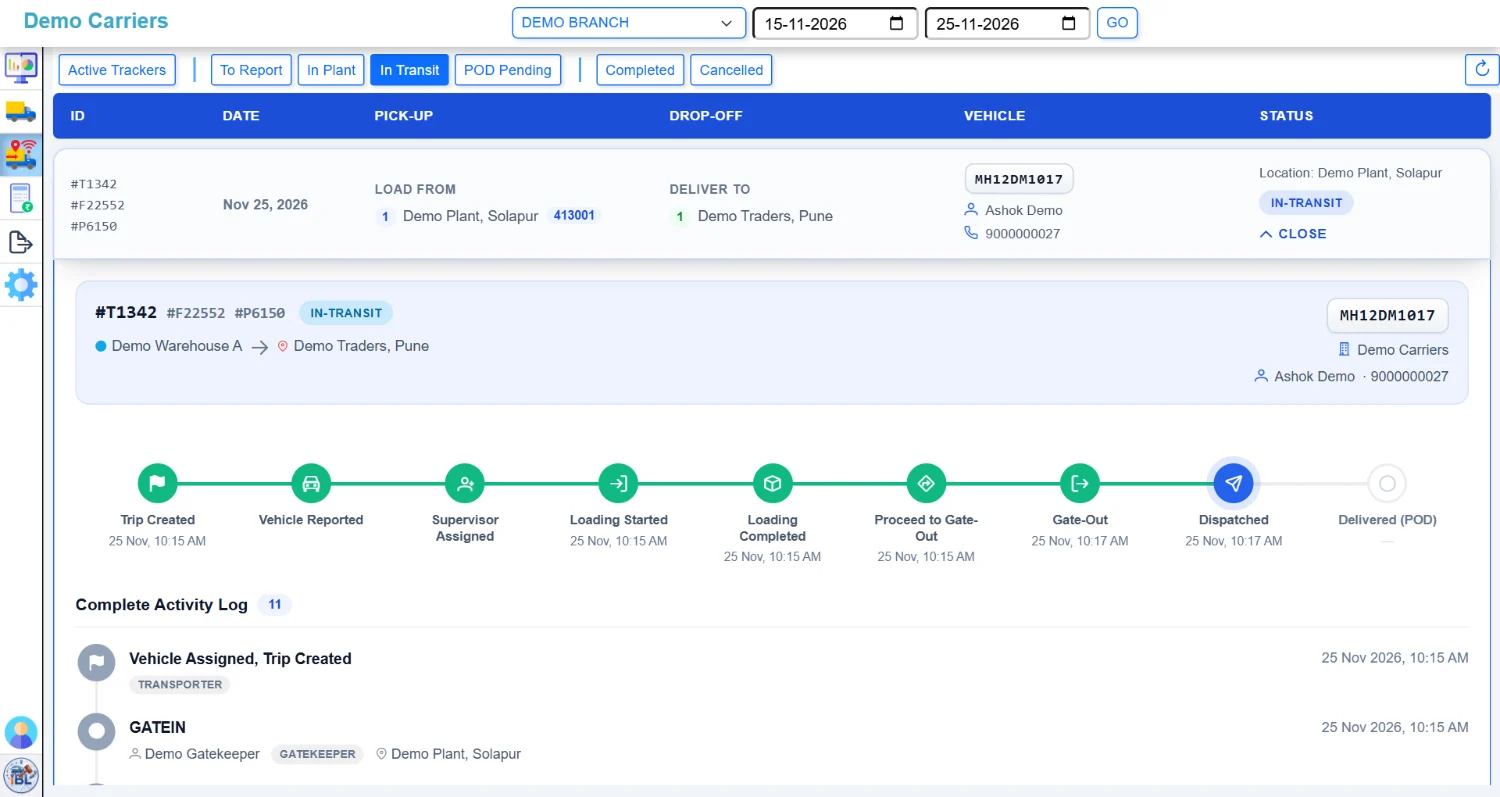
Track opens the journey of one vehicle.
5. Send the invoice
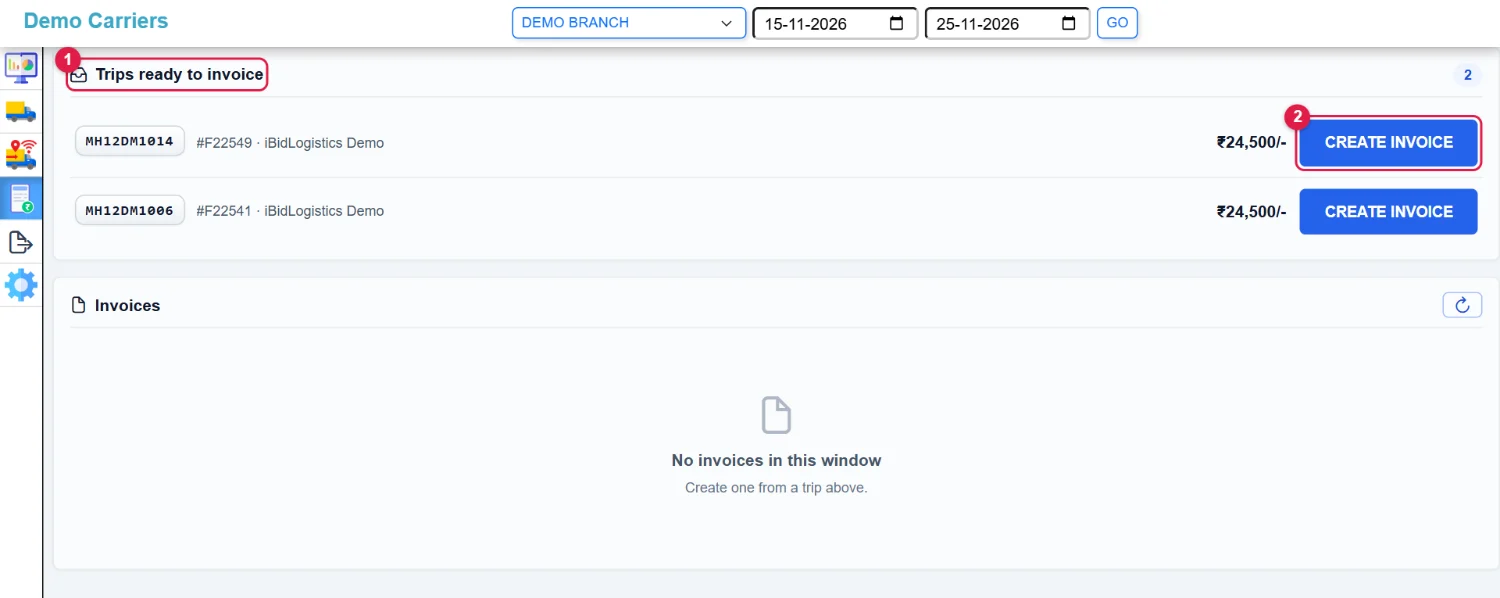
A trip is ready to invoice after the company approves the proof of delivery.
- Open Billing & Invoices and press Create invoice.
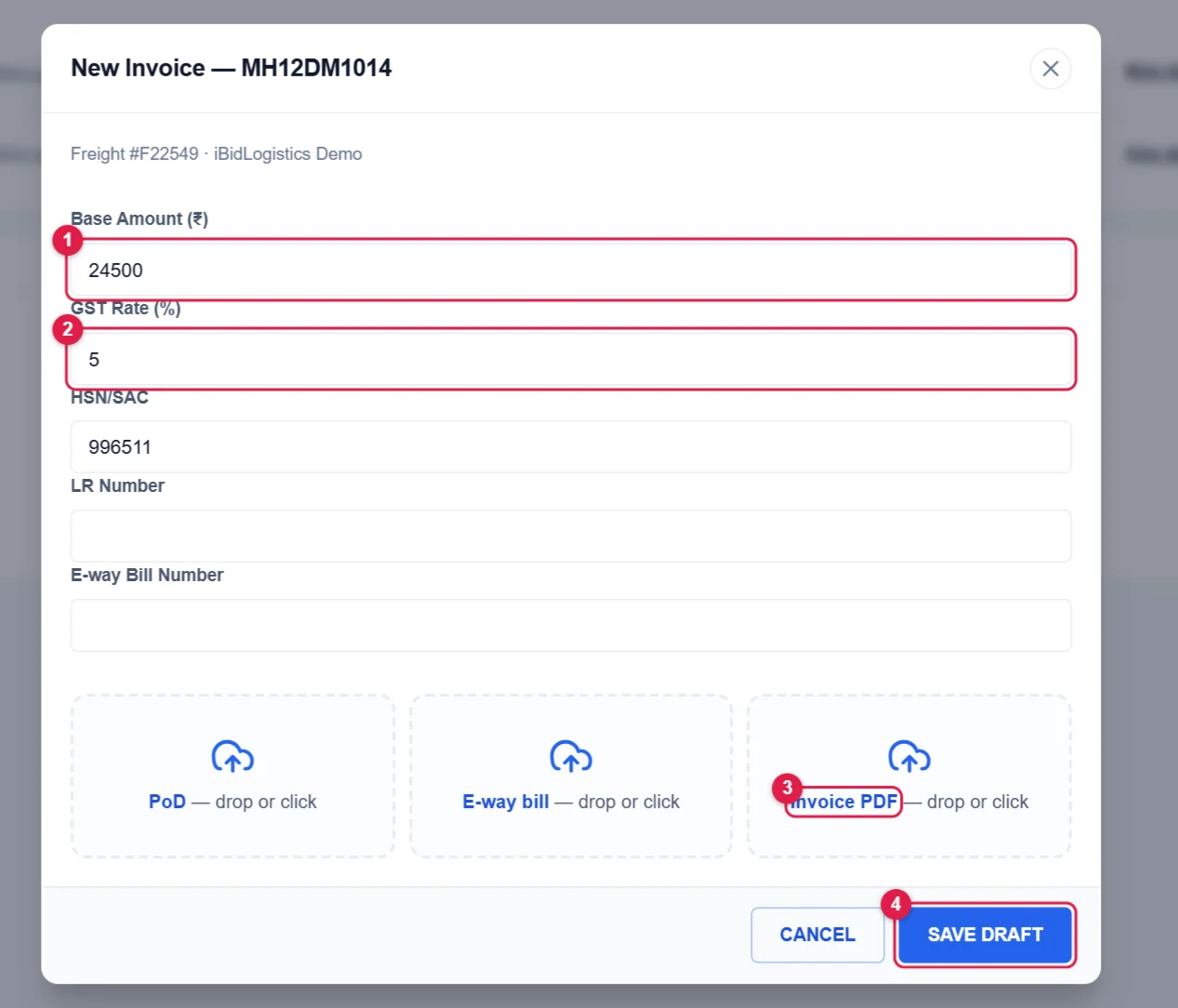
- Check the amount and the GST, attach the papers, and press Save draft.
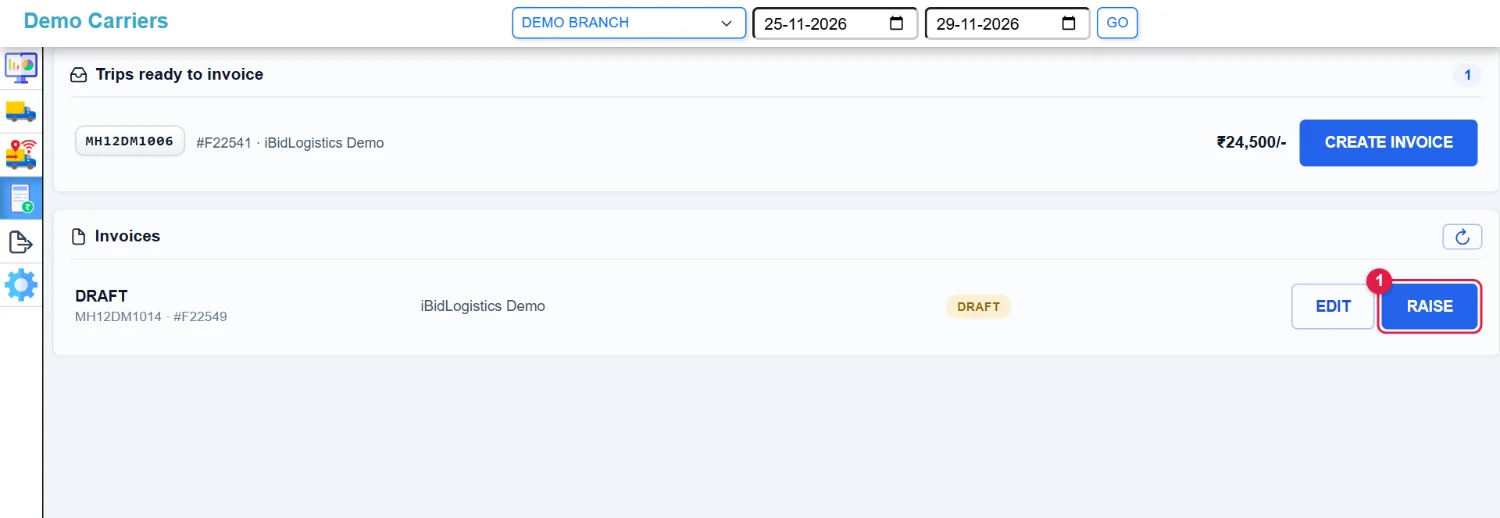
- Press Raise to send it to the company. It gets its number and cannot be edited after that.
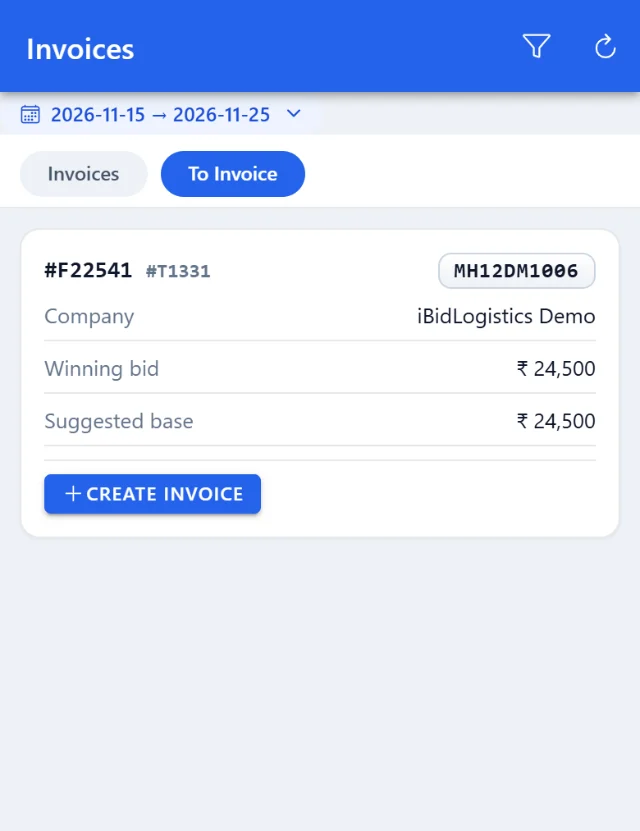
If the company rejects it, read the reason, correct the invoice and raise it again.
6. Your fleet and users
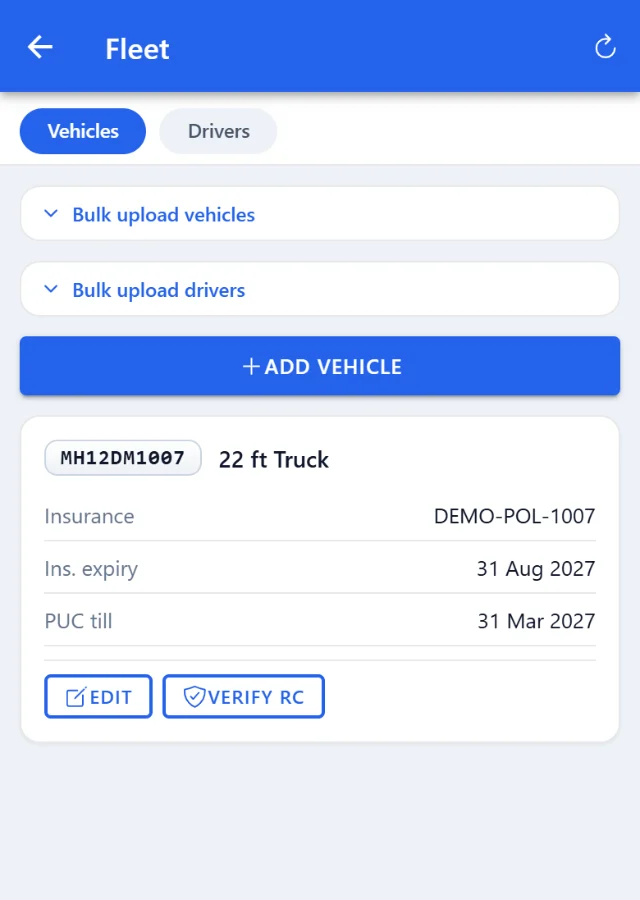
- Open Administration, then Vehicles. Press Add vehicle and enter the insurance and PUC dates.
- Press Verify RC. A verified vehicle passes the check at the gate.
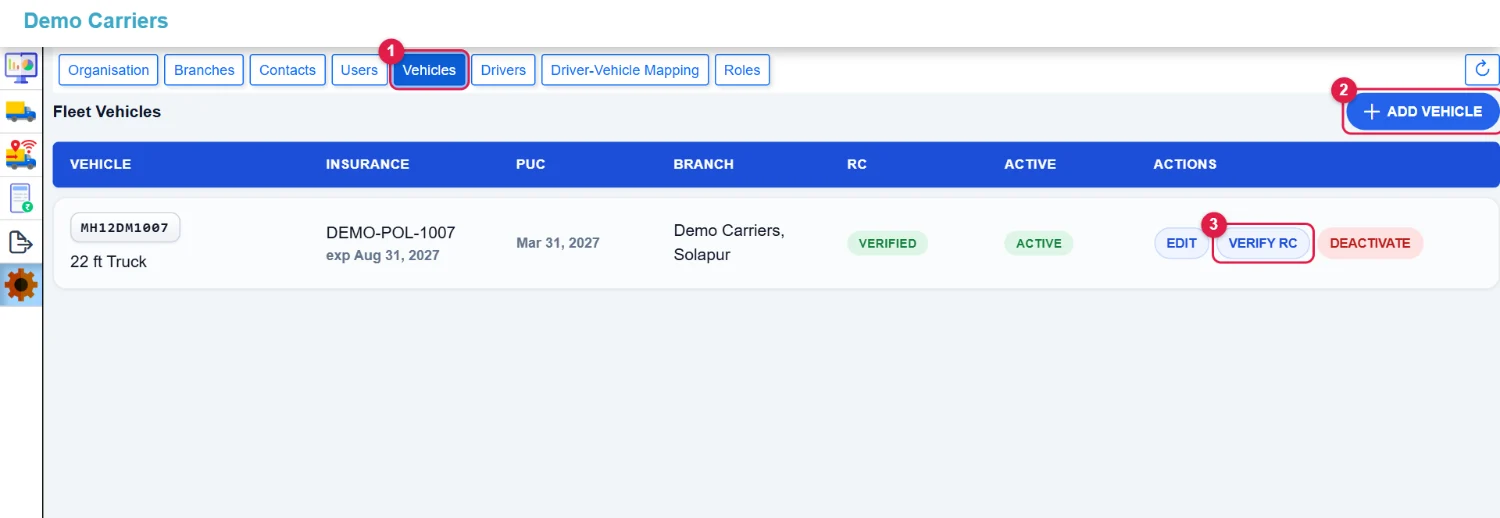
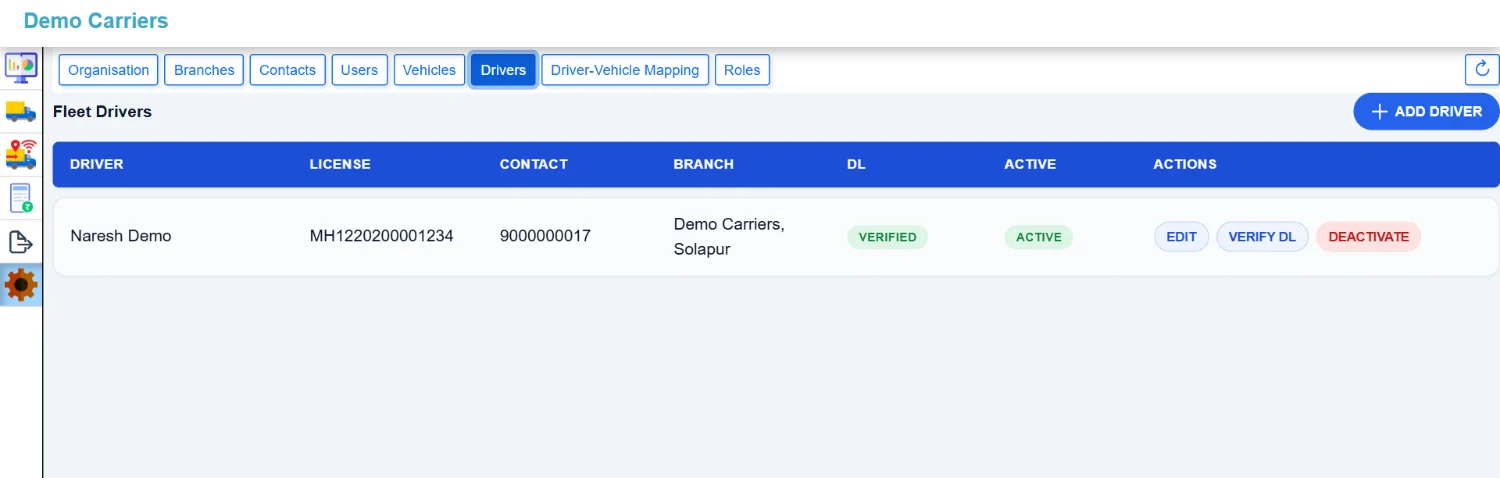
Add your drivers under Drivers, and your staff under Users.
7. Reports
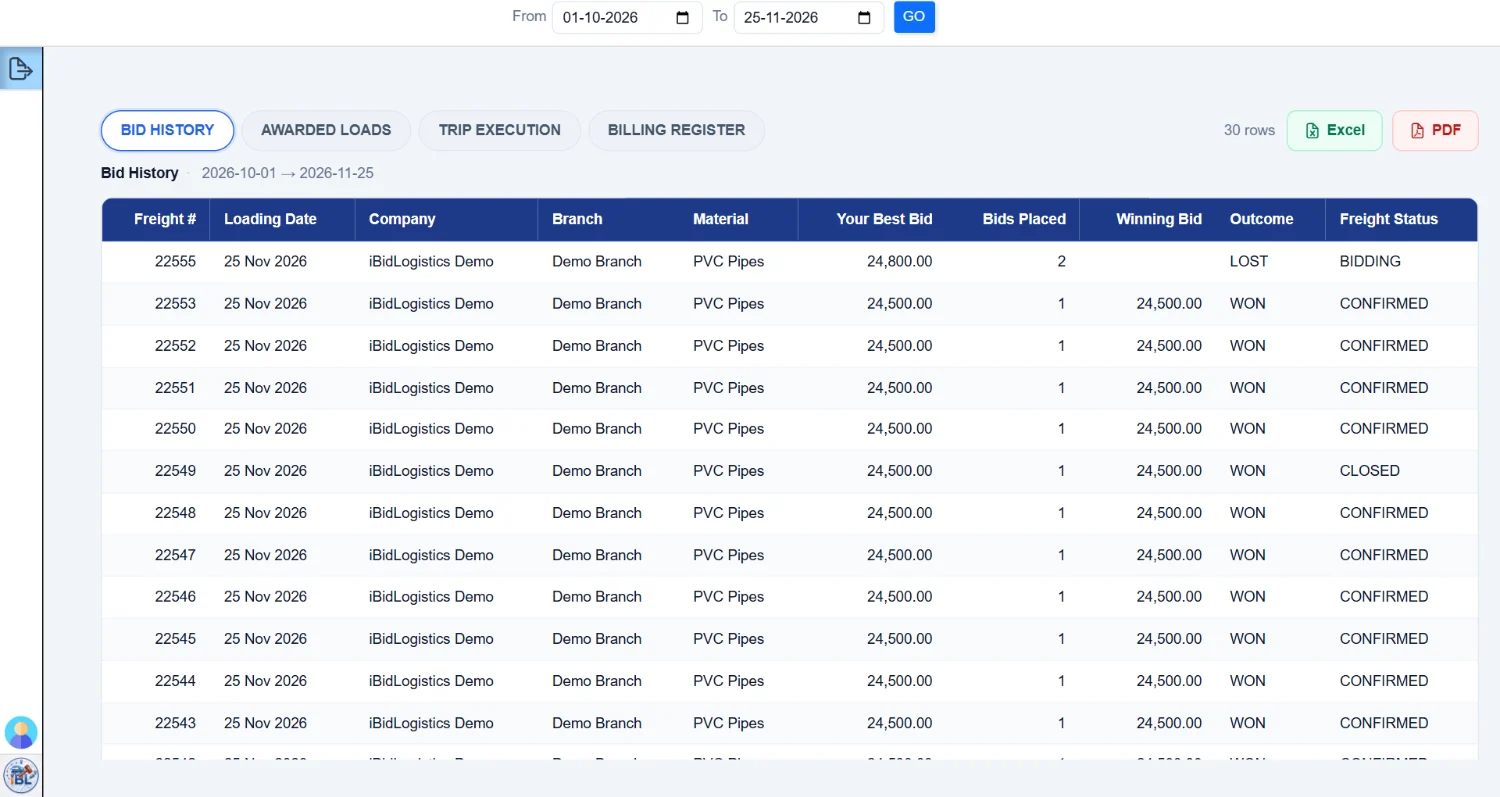
Reports has your bids, awarded loads, trips and bills, with Excel and PDF.
8. Messages and what to do
| Message or problem | What to do |
|---|---|
| No bid yet | You have not bid on this freight. |
| No trip is ready to invoice | The proof of delivery is not approved yet. Ask the driver to send the photo. |
| Number not registered | Your mobile number is not active. Ask your Admin. |
To sign out: Settings, then Log out.
Need help? Write to info@ibidlogistics.com