
Your work at a glance
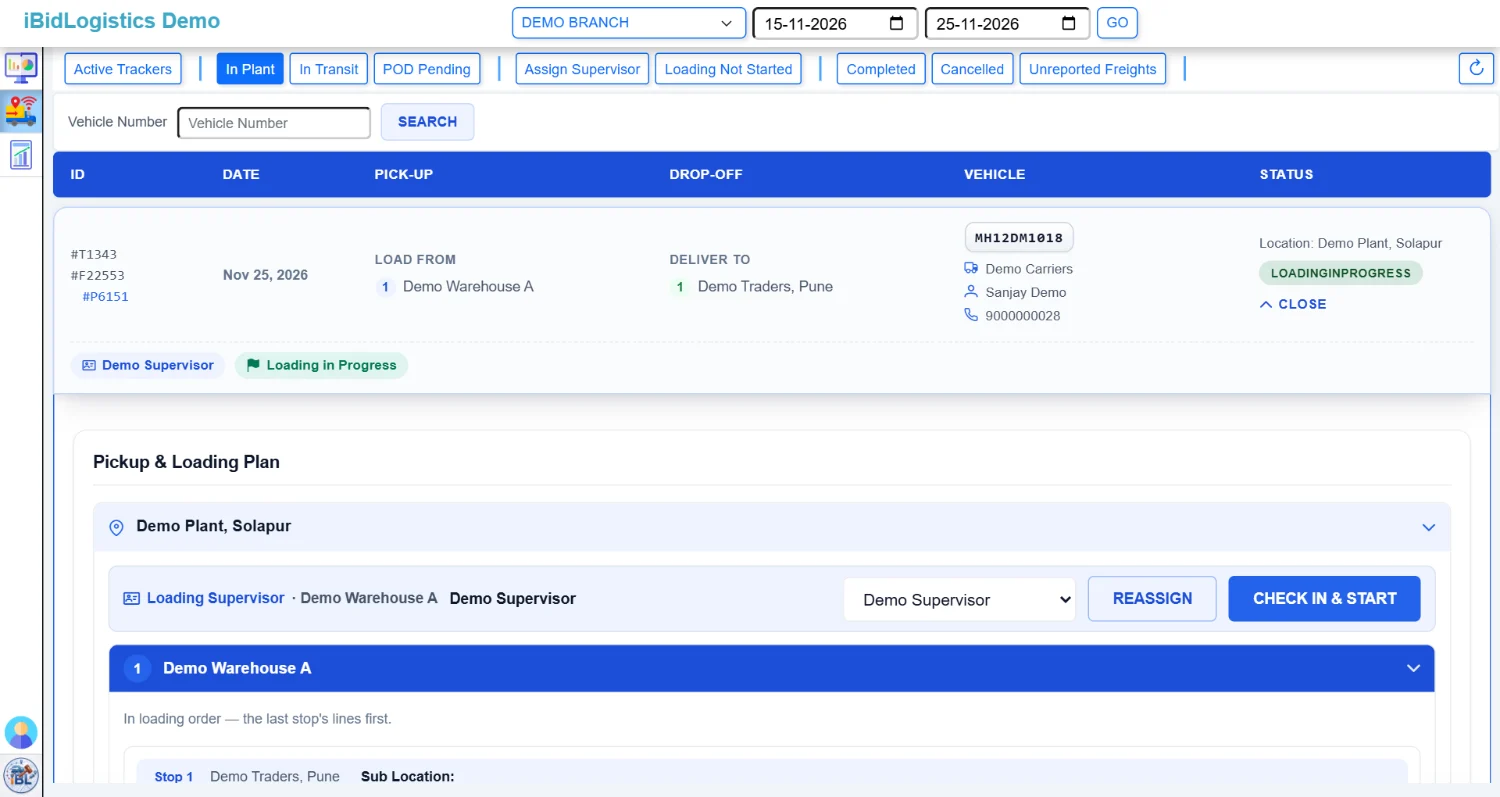
- In Plant: vehicles that are loading.
- In Transit: vehicles on the road, on the map.
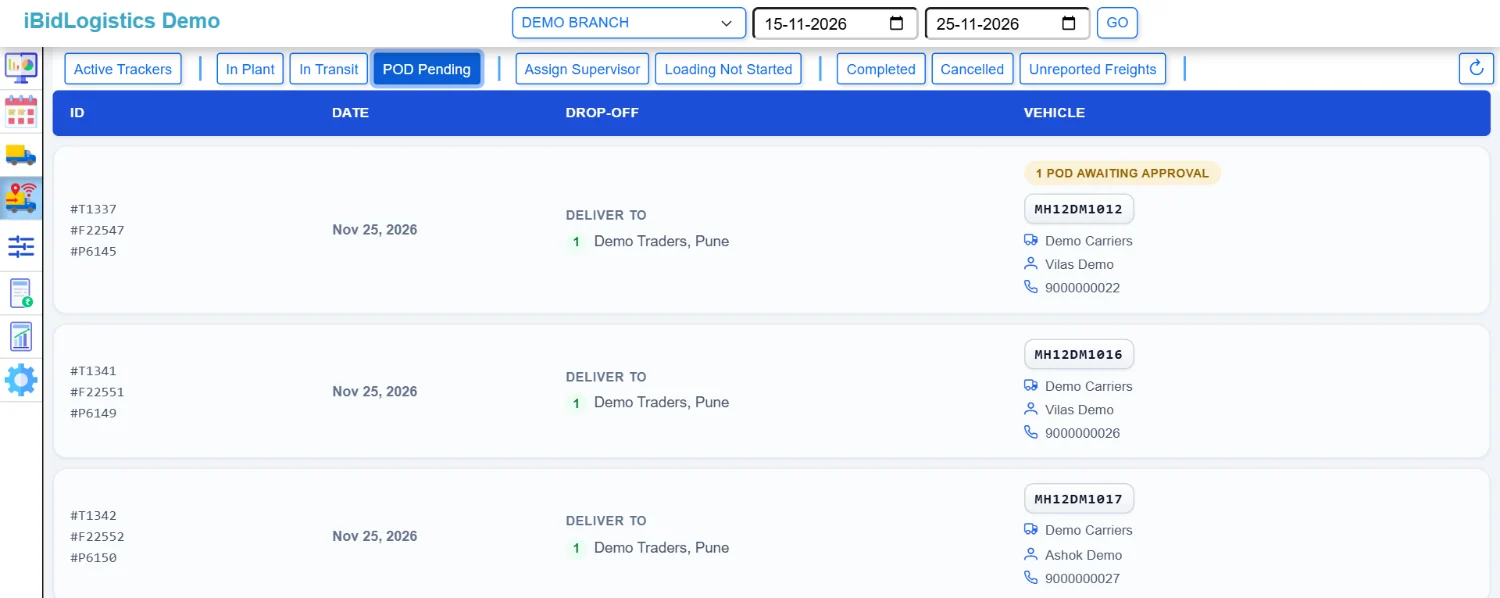
- POD Pending: check the proof of delivery.
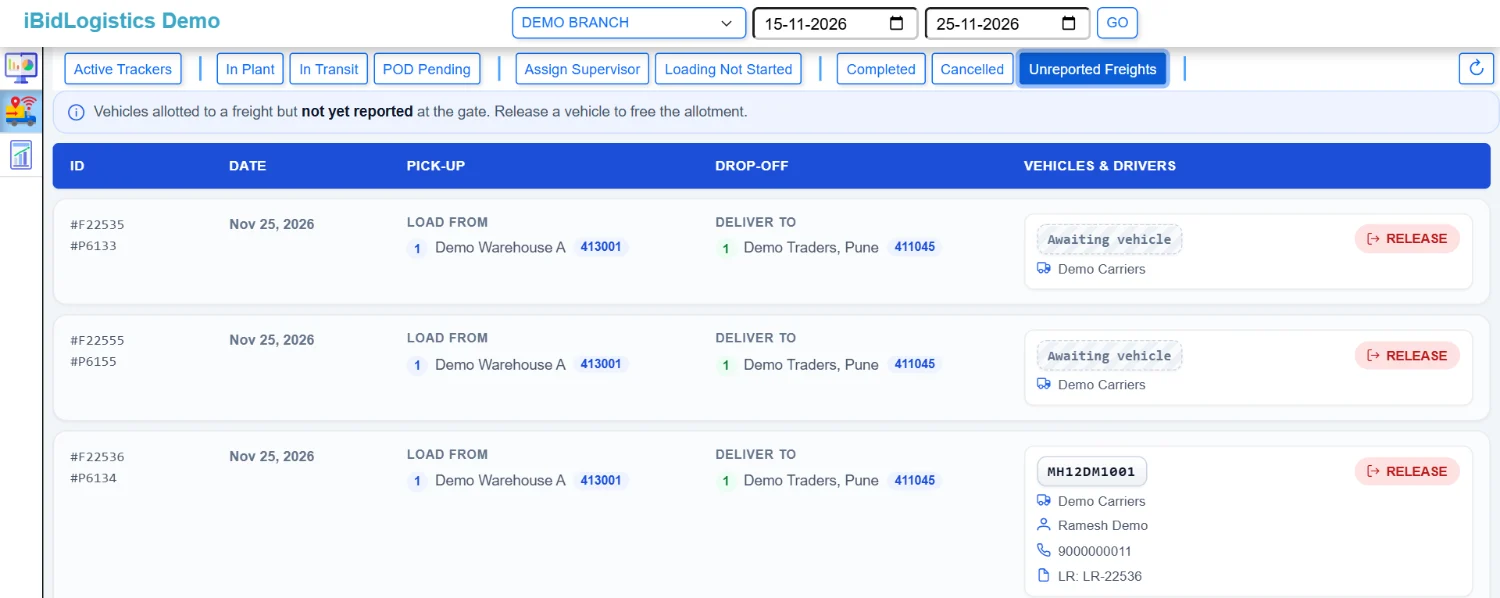
- Unreported Freights: vehicles that did not come.
1. Sign in
- Open ibidlogistics.com/login on the computer, or the iBidLogistics app on the phone.
- Enter your registered mobile number and press Request OTP.
- Enter the OTP that comes by SMS and press Login.
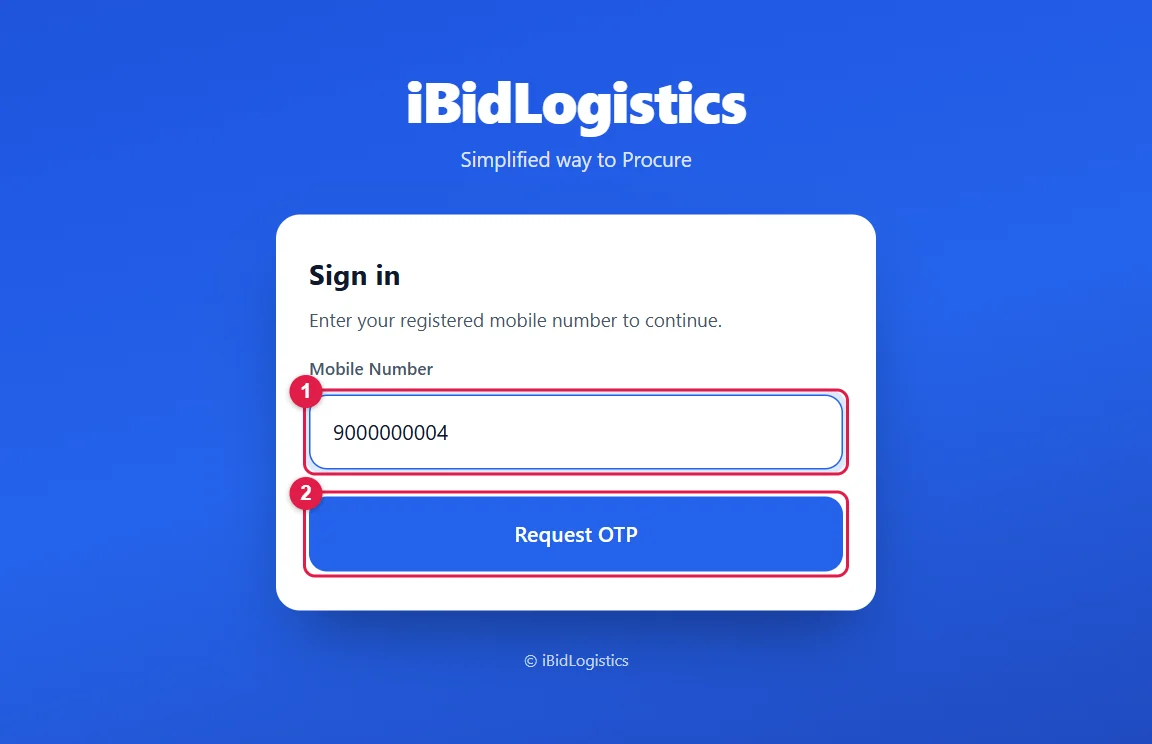
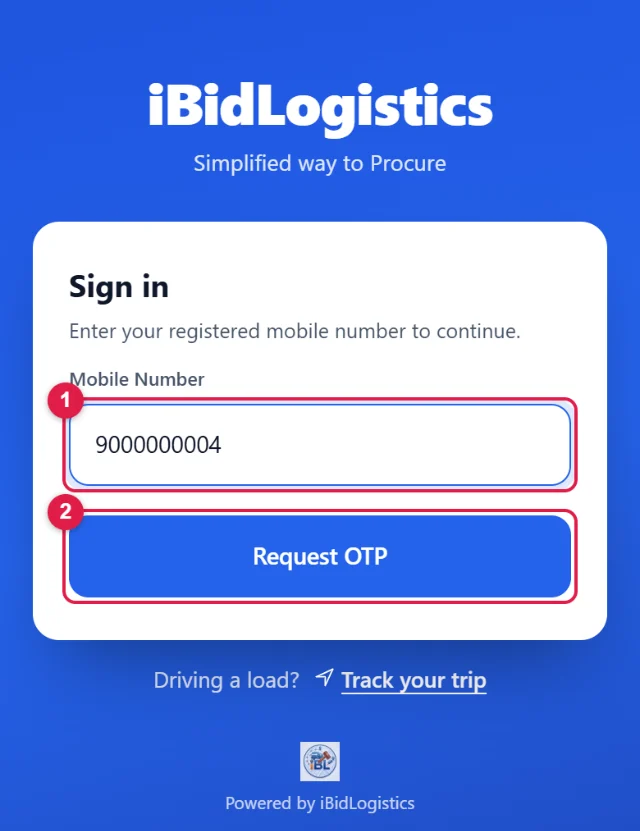
You stay signed in. Do not share your OTP with anyone.
2. Your screen
You land on Freights on the Way. The buttons at the top choose what you see.
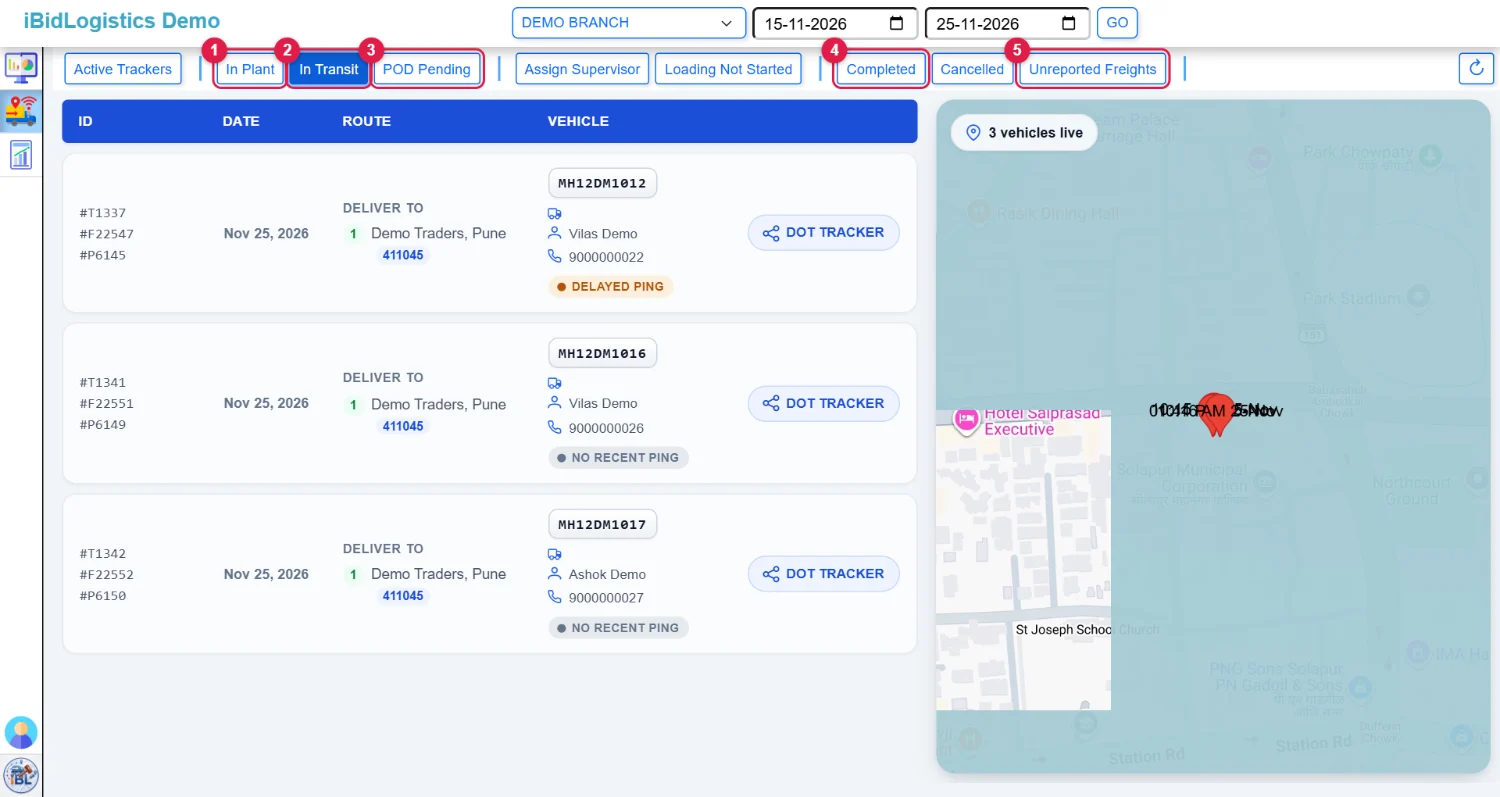
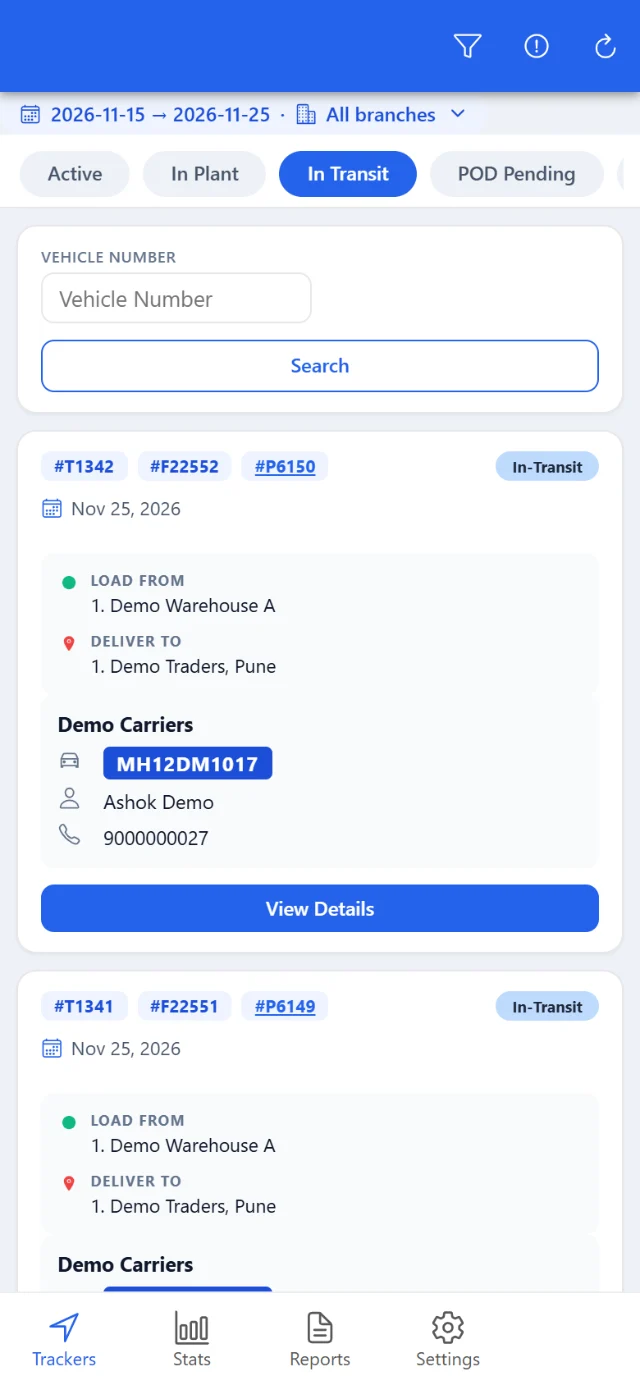
Set the branch and the dates at the top. Type a vehicle number and press Search to find one vehicle.
3. In the plant
Open In Plant and press a vehicle. You see its loading points, its supervisor and what is loaded. You can also change the supervisor.
4. On the road
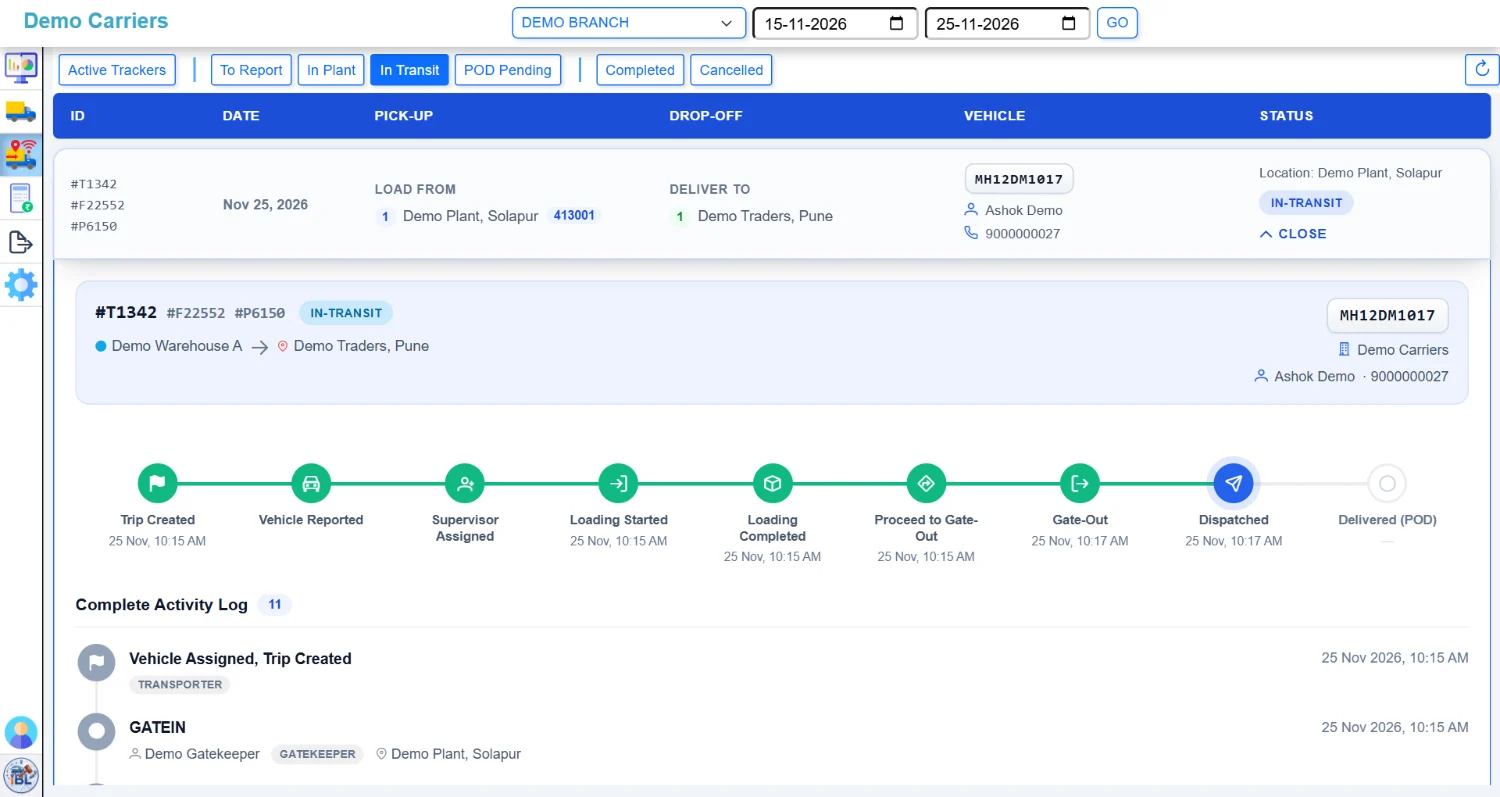
In Transit shows the last position of every vehicle on the map.
- Dot tracker opens the journey, step by step.
- No recent ping or Delayed ping means the driver's phone is not sending its position. Call the driver.
5. Proof of delivery
- Open POD Pending. A yellow label shows a proof that waits for you.
- Press the vehicle and open the photo. Check the signature and the quantities.
- Press Approve, or Reject and write the reason.
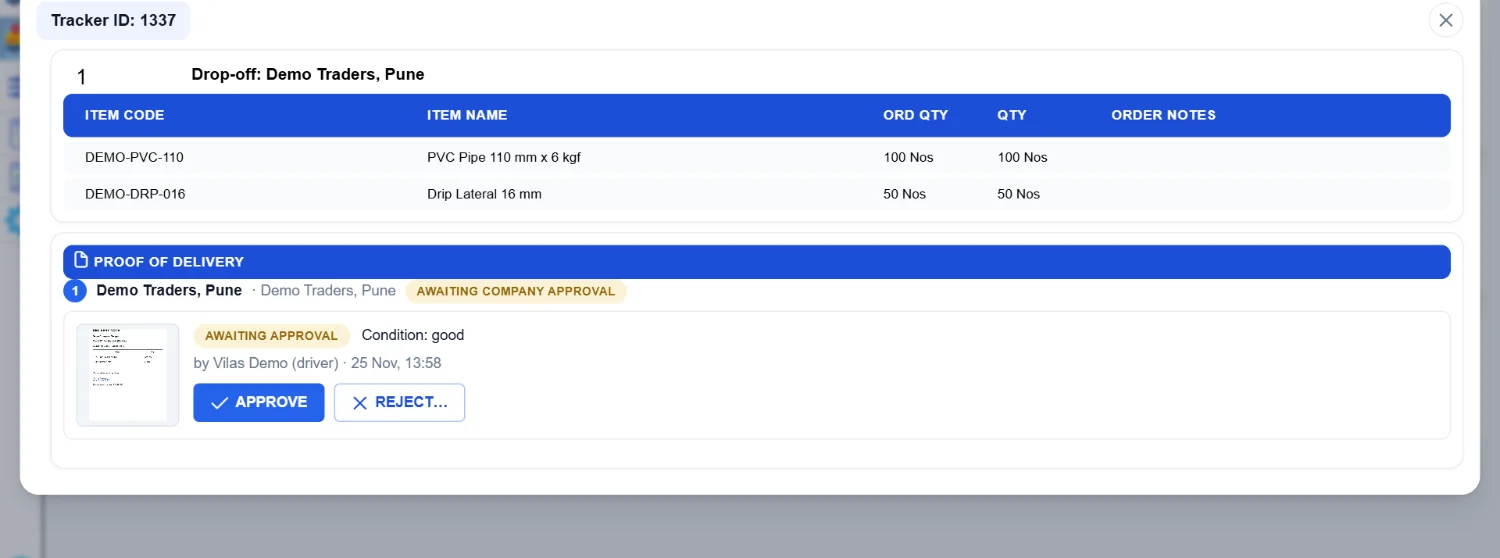
The trip closes only when every drop-off is approved. After that the transporter can raise the invoice.
6. Vehicles that did not come
Unreported Freights lists allotted vehicles that have not reached the gate. Call the transporter. Release frees the freight.
7. Dashboard and reports
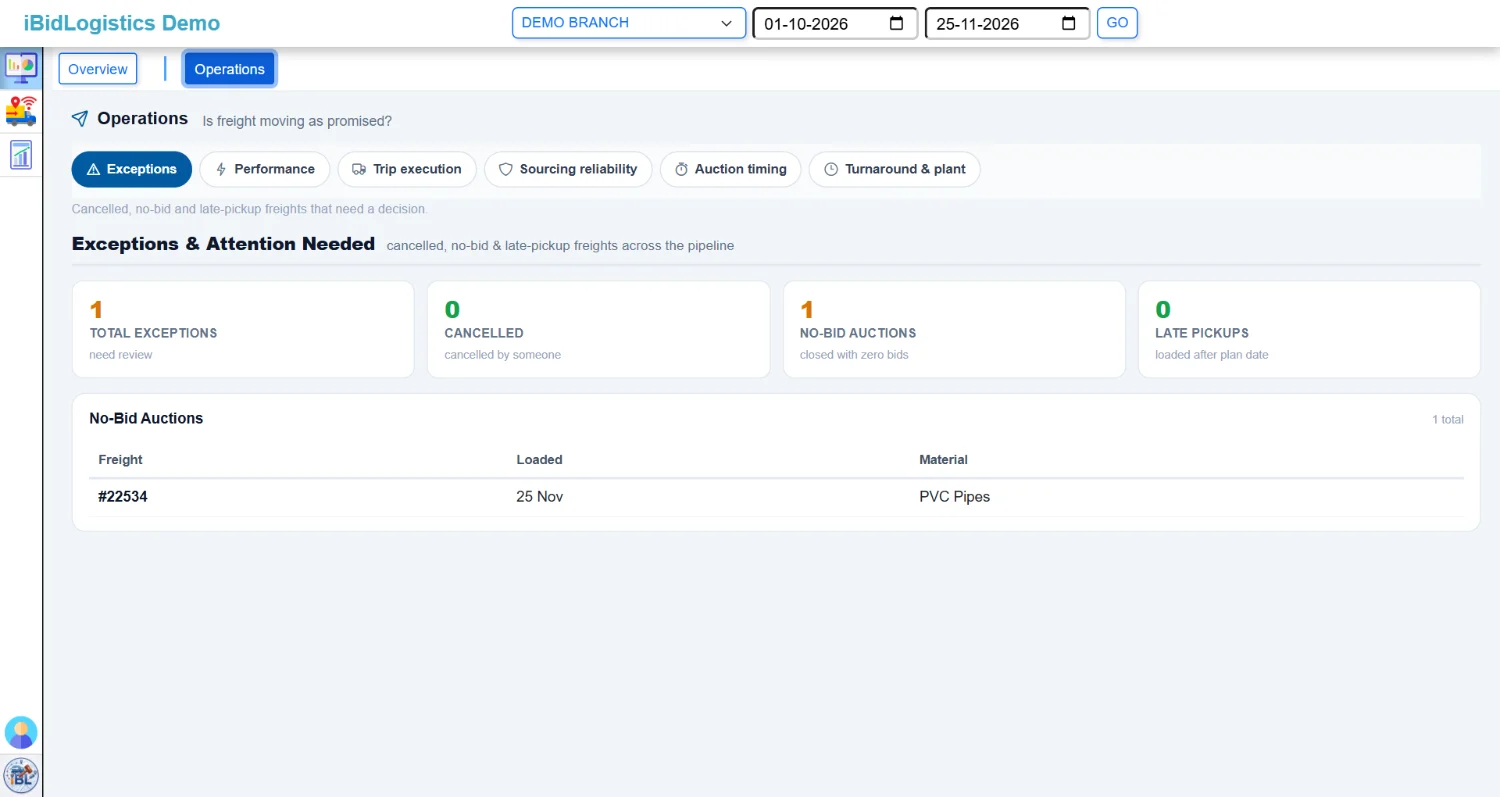
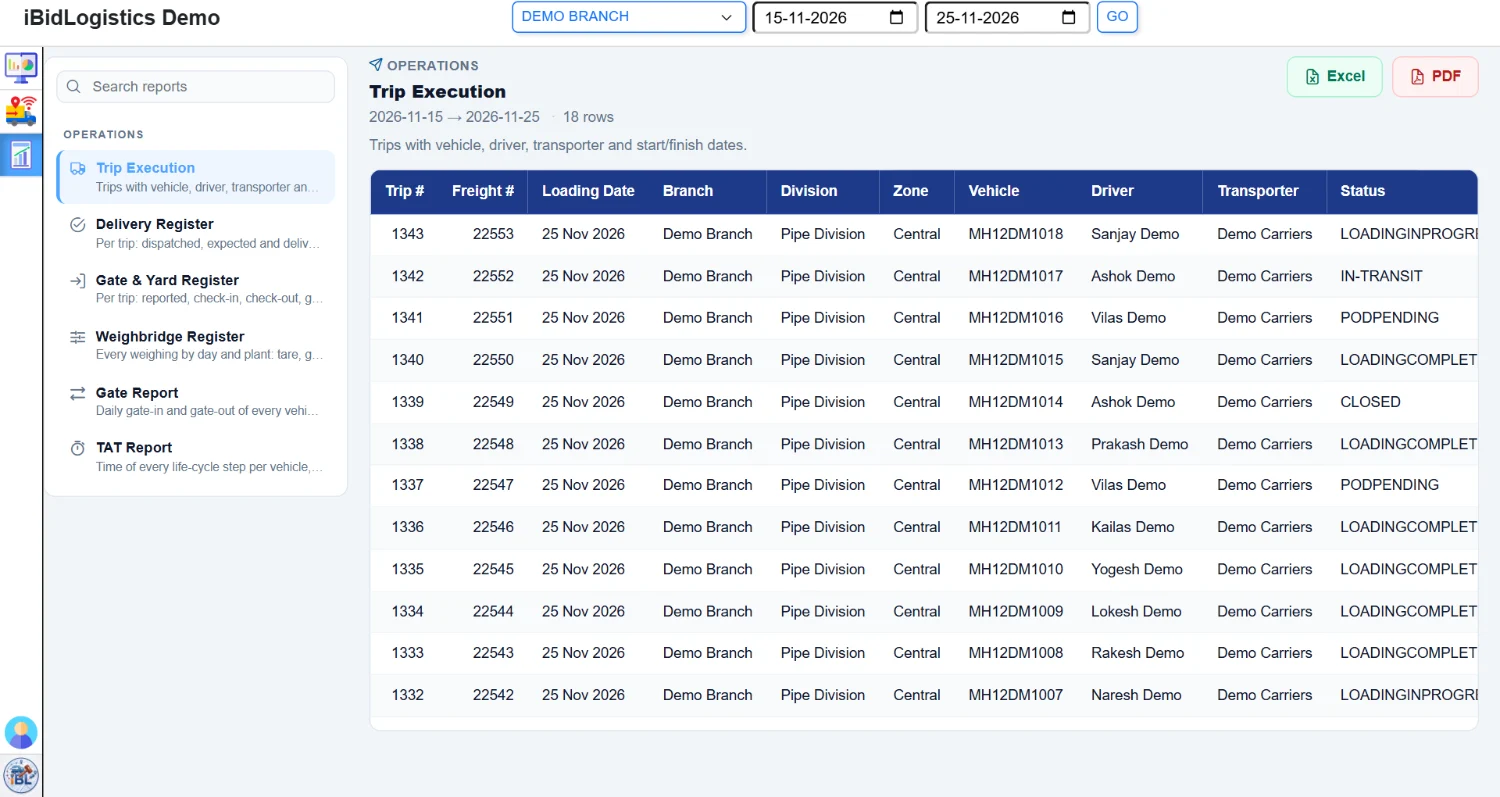
Dashboard shows late, cancelled and active trips. Reports has the trip, delivery, gate and weighbridge registers.
8. Messages and what to do
| Message or problem | What to do |
|---|---|
| A vehicle is not on the map | The driver has not started tracking with the Trip ID. Send the Trip ID again. |
| A trip is not in the list | Check the branch and the dates at the top. |
| Number not registered | Your mobile number is not active. Ask your Admin. |
To sign out: Settings, then Log out.
Need help? Write to info@ibidlogistics.com