
Your work at a glance
- Vehicle assigned: the Head Supervisor gives you a vehicle.
- Check in: start loading.
- Count: scan or type the loaded quantity of every item.
- Checkout: loading at this point is finished.
- Proceed to Gate: send the vehicle to the gate.
1. Sign in
- Open ibidlogistics.com/login on the computer, or the iBidLogistics app on the phone.
- Enter your registered mobile number and press Request OTP.
- Enter the OTP that comes by SMS and press Login.
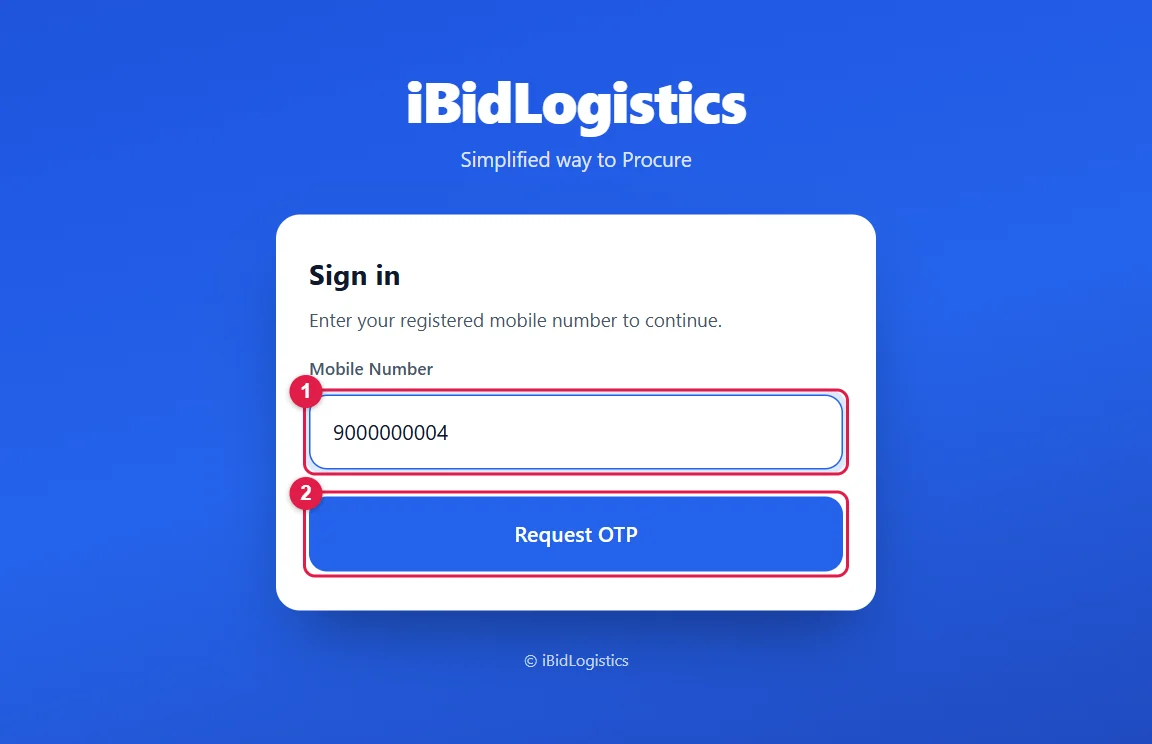
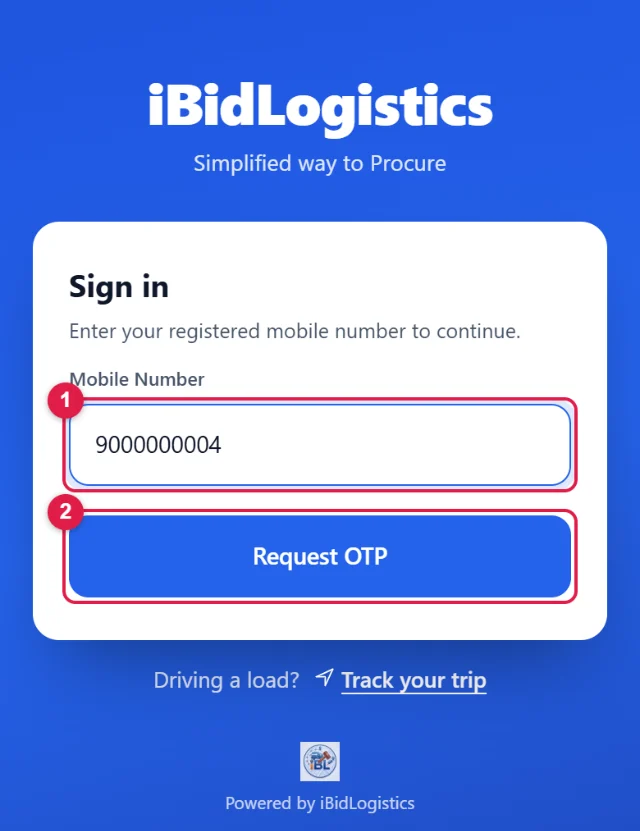
You stay signed in. Do not share your OTP with anyone.
2. Your screen
You see only the vehicles given to you, with the driver, the customer and the items to load.
On the phone, open the Loading tab.
No vehicle on your screen? The Head Supervisor has not given you one yet.
3. Check in
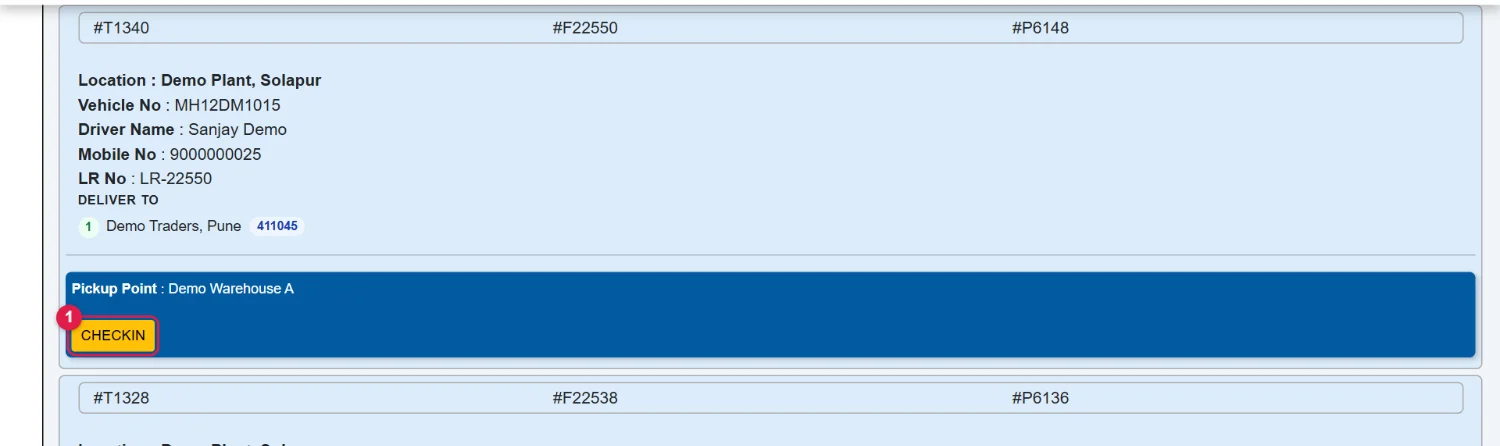
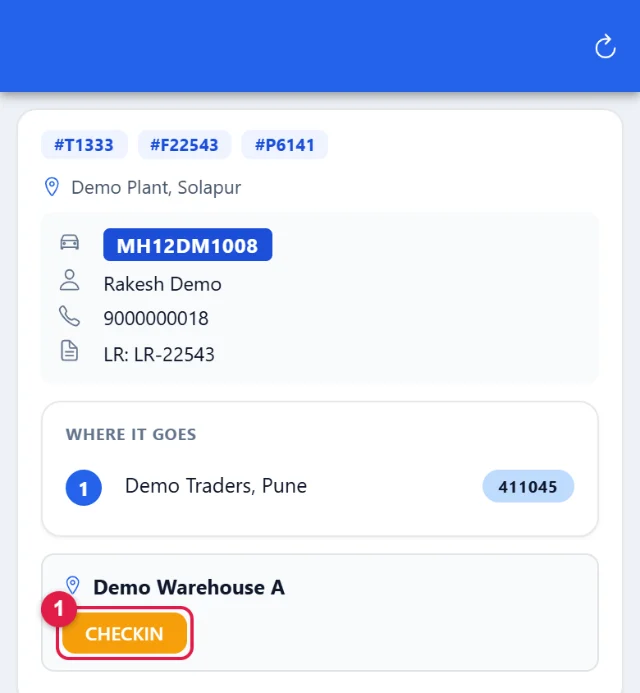
- Match the vehicle number with the vehicle at your loading point.
- Press Checkin. The items to load open.
4. Count the goods
Use any of these three ways. The count is saved at once.
- Scan: scan the item code in the scan box. Every scan adds one.
- +1 and -1: add or remove one piece.
- Loaded Qty: type the full quantity.
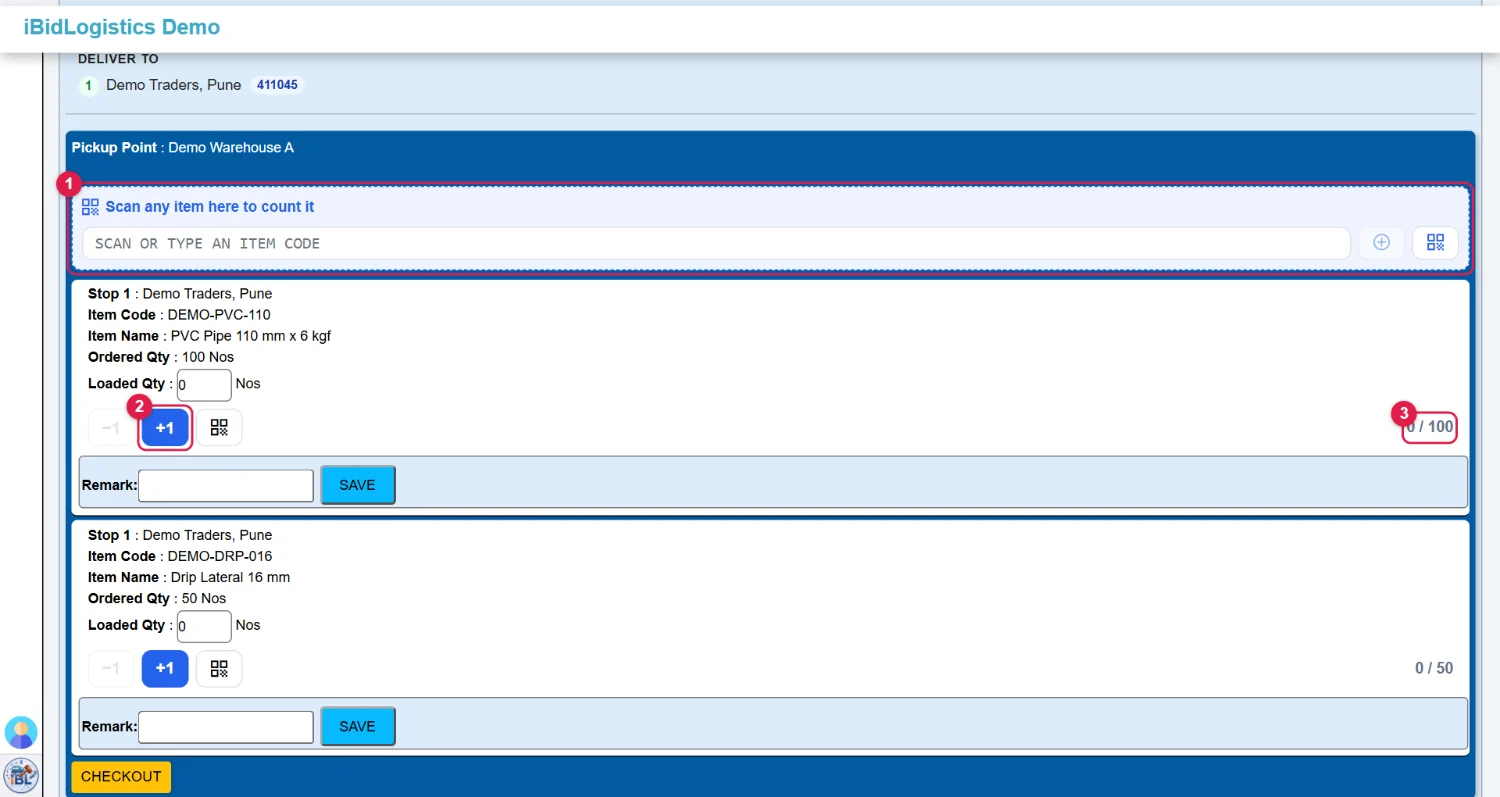
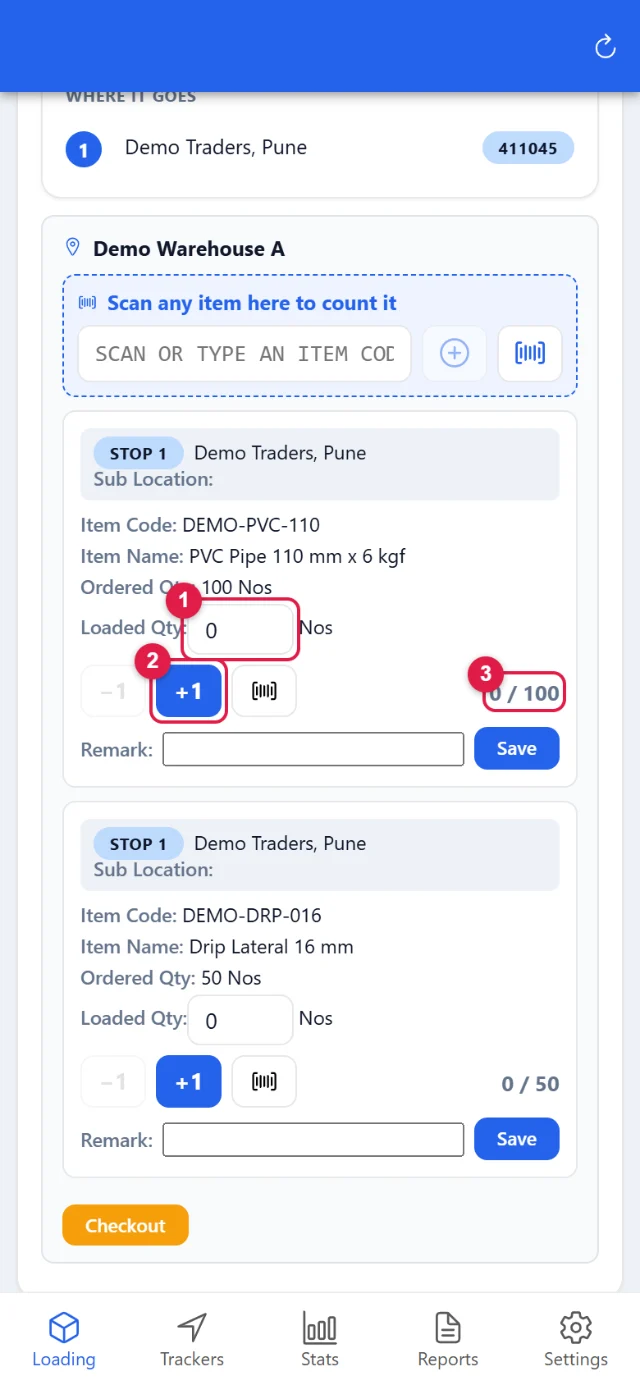
If something is short or damaged, write it in Remark and press Save. The office sees it.
5. Check out
- Check that every quantity is right. Green means complete.
- Press Checkout.
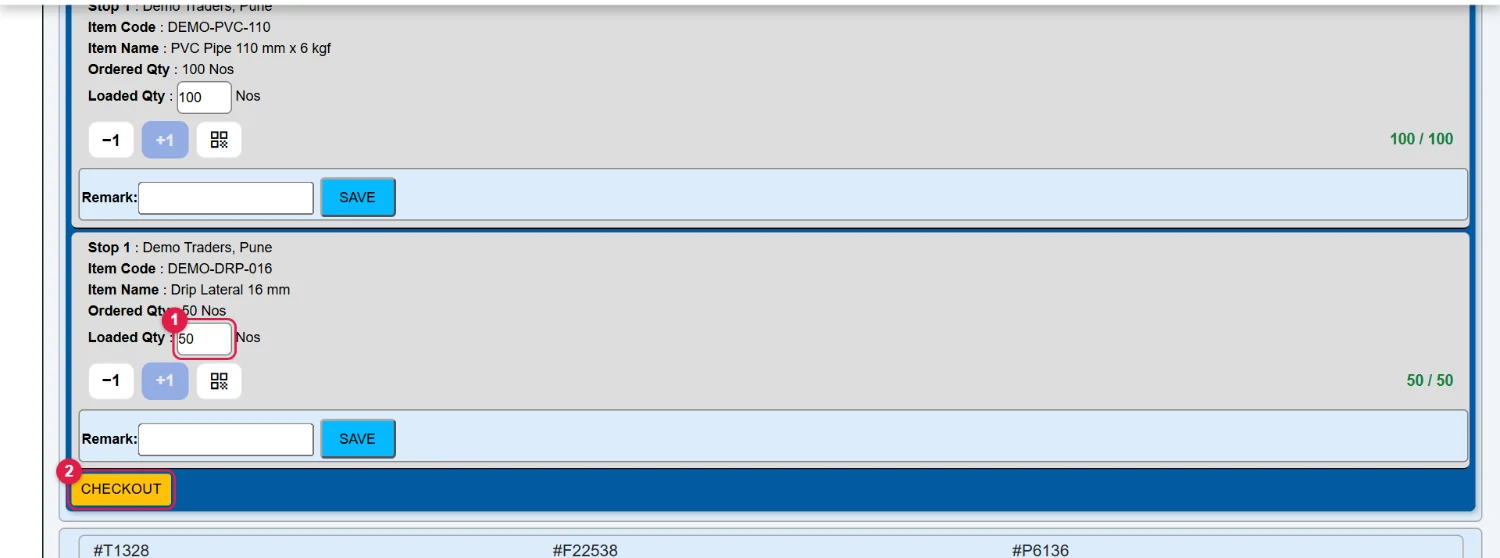
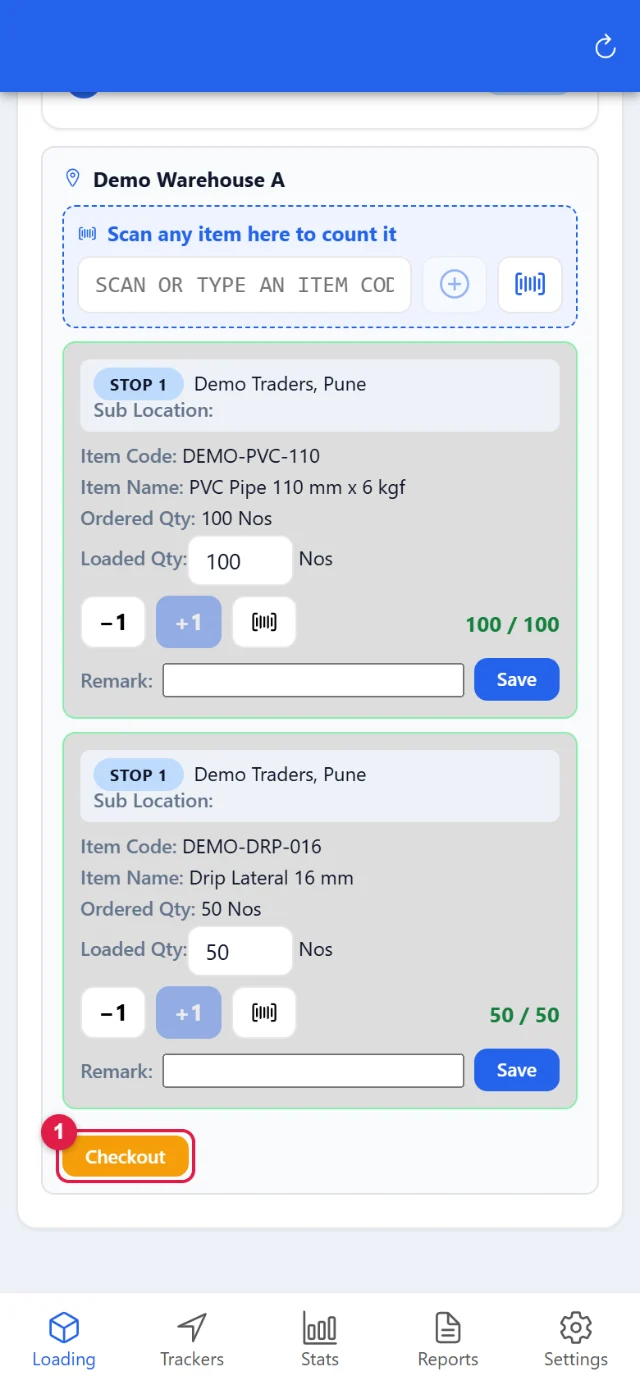
Made a mistake? Press Reopen and correct the quantity.
6. Send the vehicle to the gate
- When all loading points are checked out, press Proceed to Gate.
- The vehicle leaves your list. The Head Supervisor now approves the load.
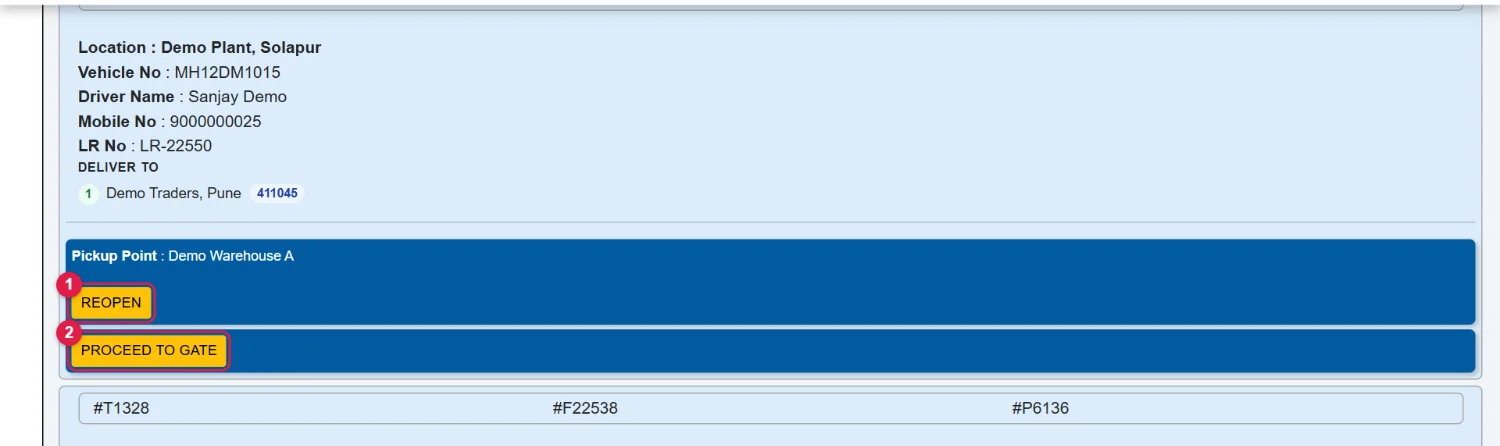
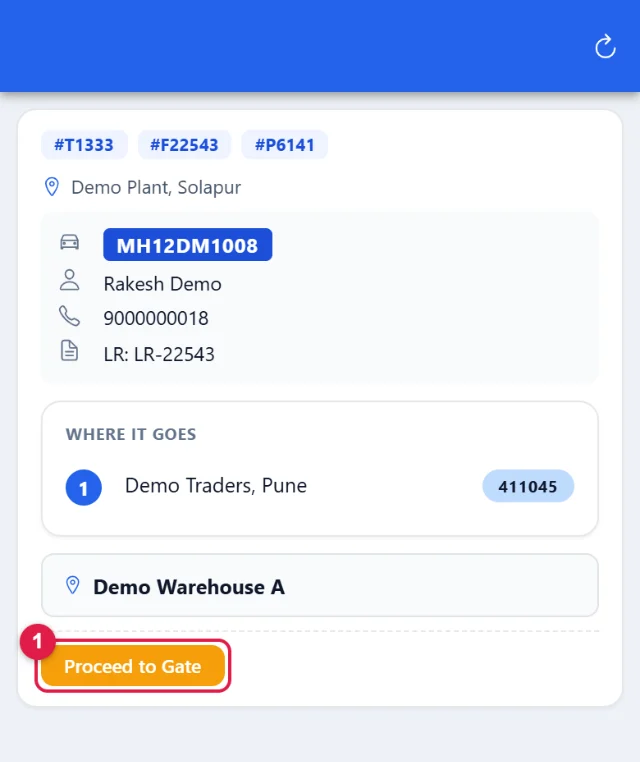
After Proceed to Gate you cannot change the quantities. If goods must be added, tell the Head Supervisor.
7. Messages and what to do
| Message or problem | What to do |
|---|---|
| The vehicle is not on my screen | Ask the Head Supervisor to assign it to you. |
| Proceed to Gate does not appear | Another loading point of this vehicle is not checked out yet. |
| Number not registered | Your mobile number is not active. Ask your Admin. |
To sign out: Settings, then Log out.
Need help? Write to info@ibidlogistics.com