
Your work at a glance
- Dashboard: see what needs attention today.
- Plans: check, change or cancel.
- Freights: raise and follow.
- Trips: follow, change or cancel.
- Proof of delivery: approve or reject.
1. Sign in
- Open ibidlogistics.com/login on the computer, or the iBidLogistics app on the phone.
- Enter your registered mobile number and press Request OTP.
- Enter the OTP that comes by SMS and press Login.
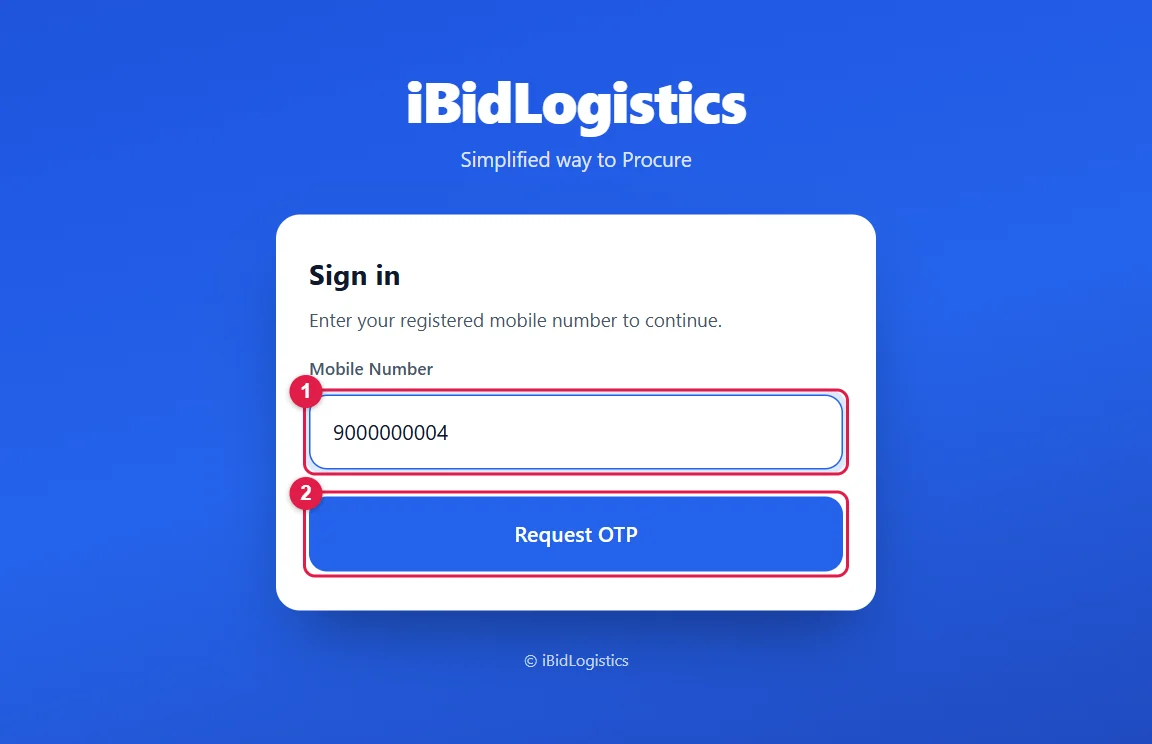
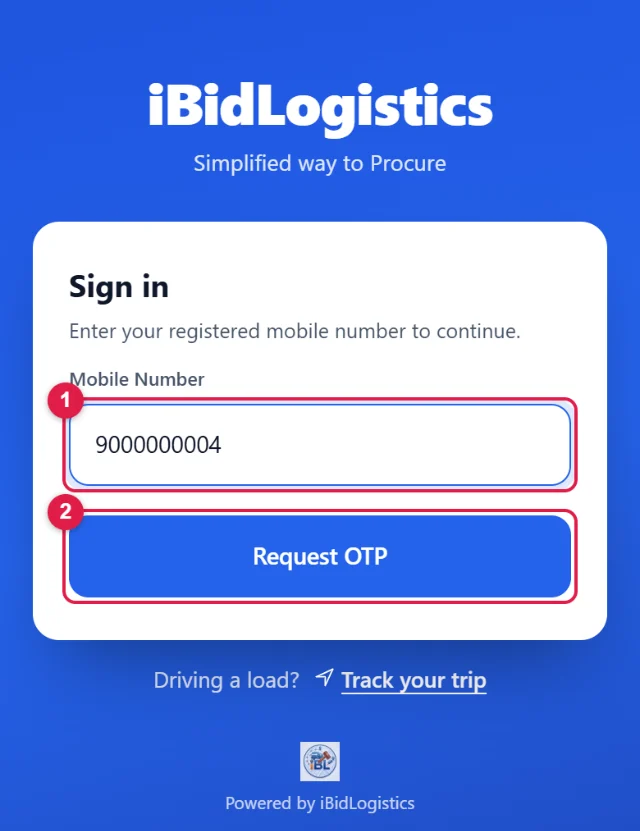
You stay signed in. Do not share your OTP with anyone.
2. Dashboard
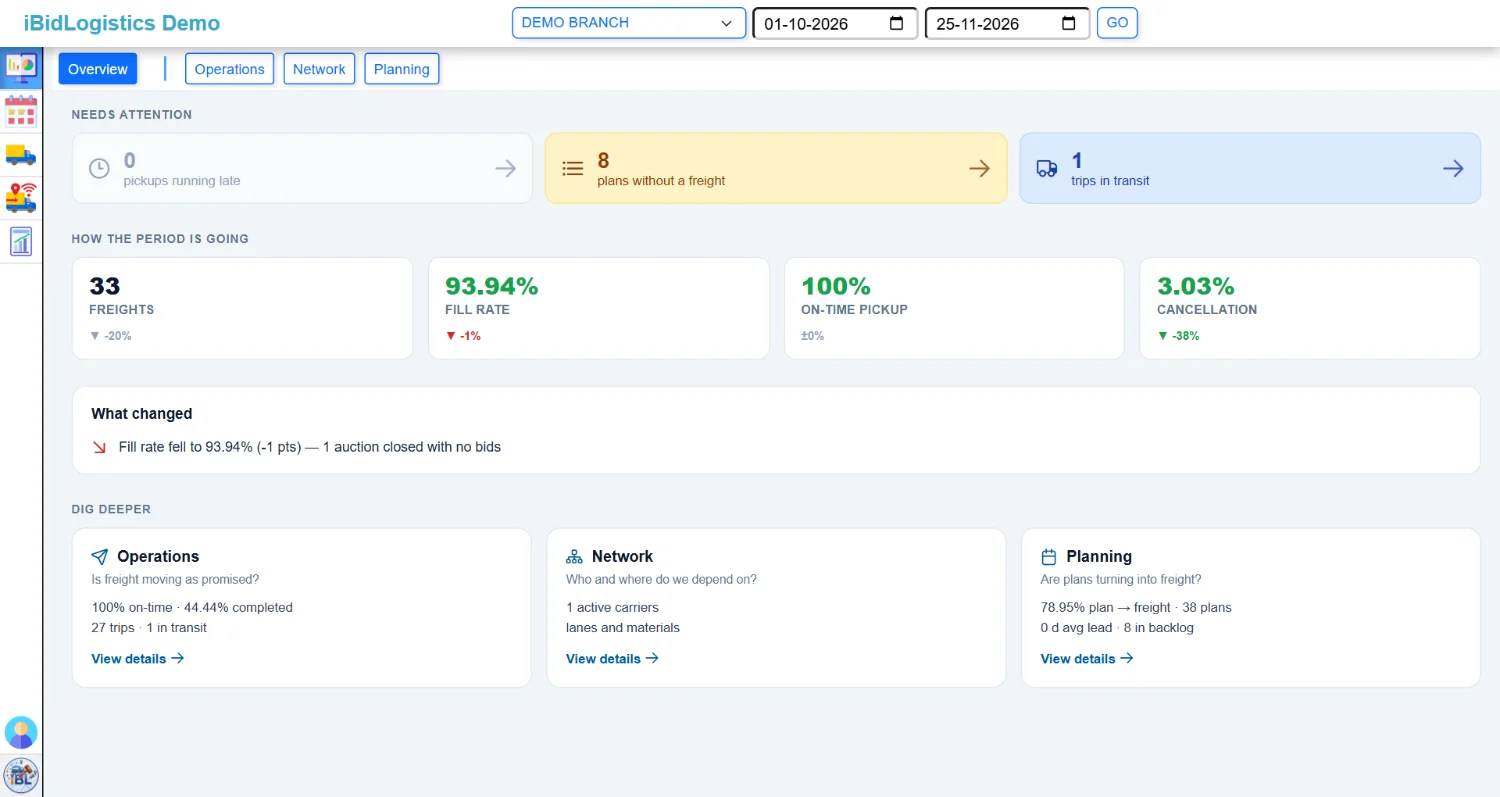
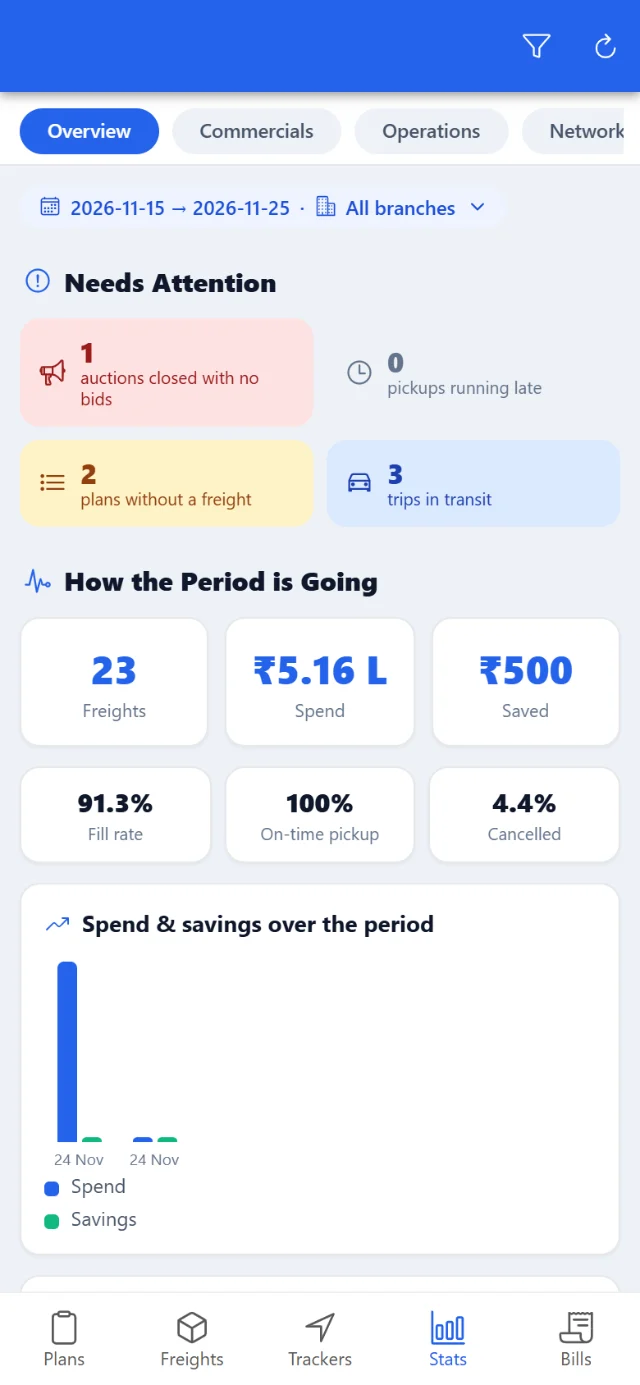
Open Dashboard. The boxes at the top need your attention: press one to open its list.
- Commercials, Operations, Network and Planning open the details.
- Set the branch and the dates at the top, then press Go.
3. Plans
Freight Planner lists the plans of the day. View, Edit or Cancel a plan, or raise its freight with Direct, Live or Future.
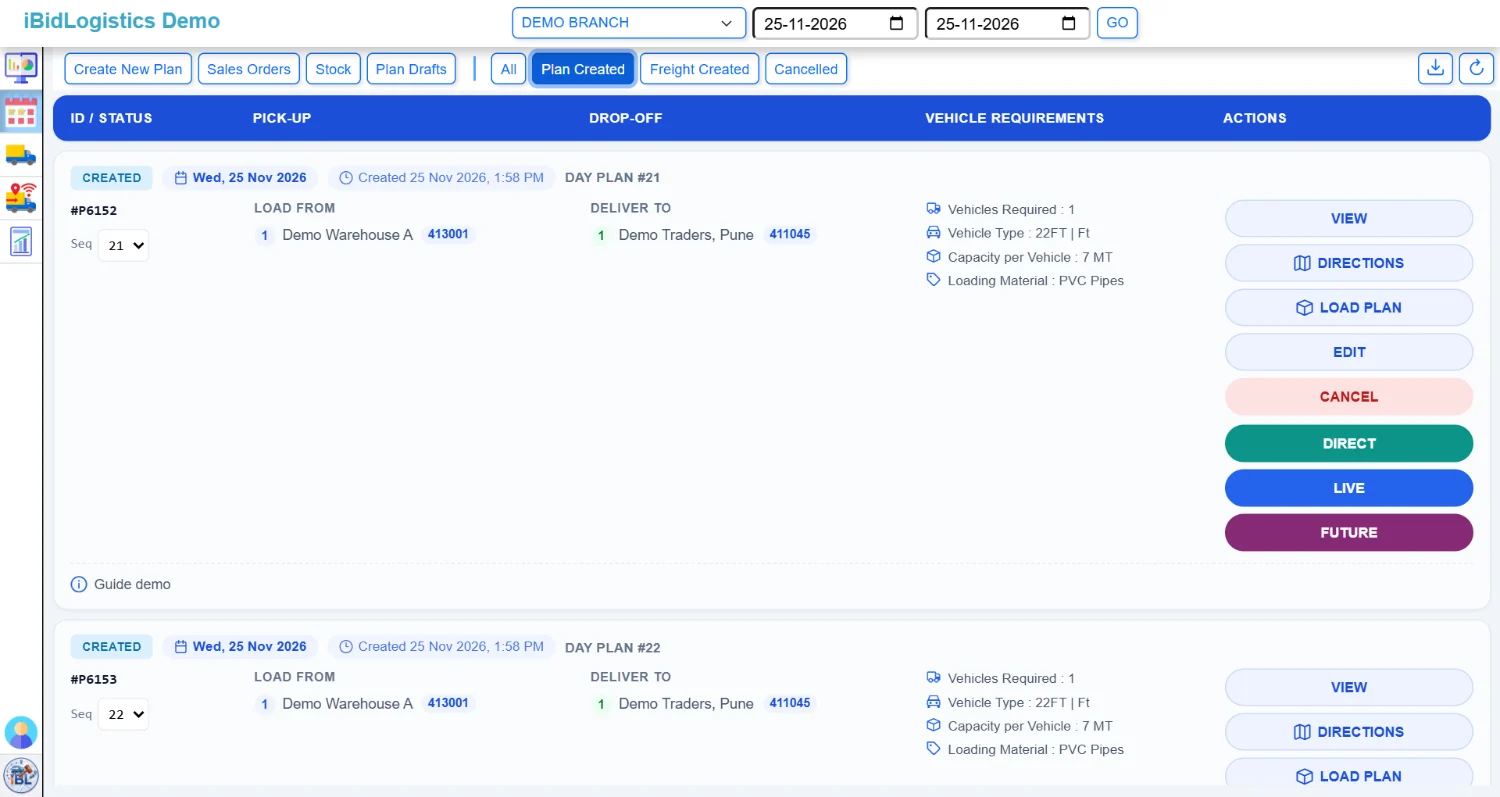
The planner's guide explains how to create a plan, step by step.
4. Freights
Freights shows the auctions in progress, the assigned freights, the future auctions and the cancelled ones.
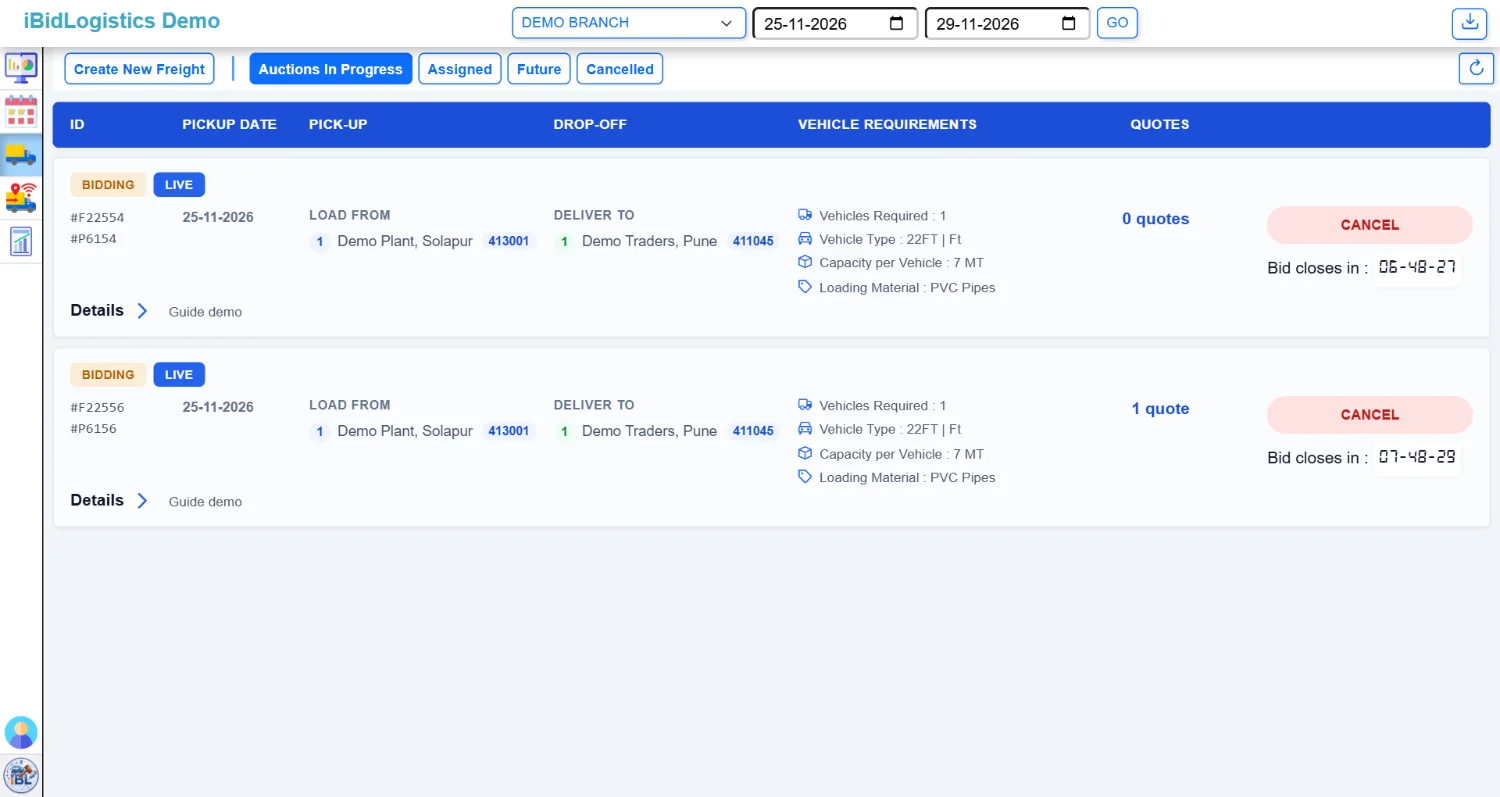
A Manager sees how many quotes came, not the rates. The Freight Manager sees the rates and allots.
5. Trips
Freights on the Way shows every vehicle in the plant and on the road.
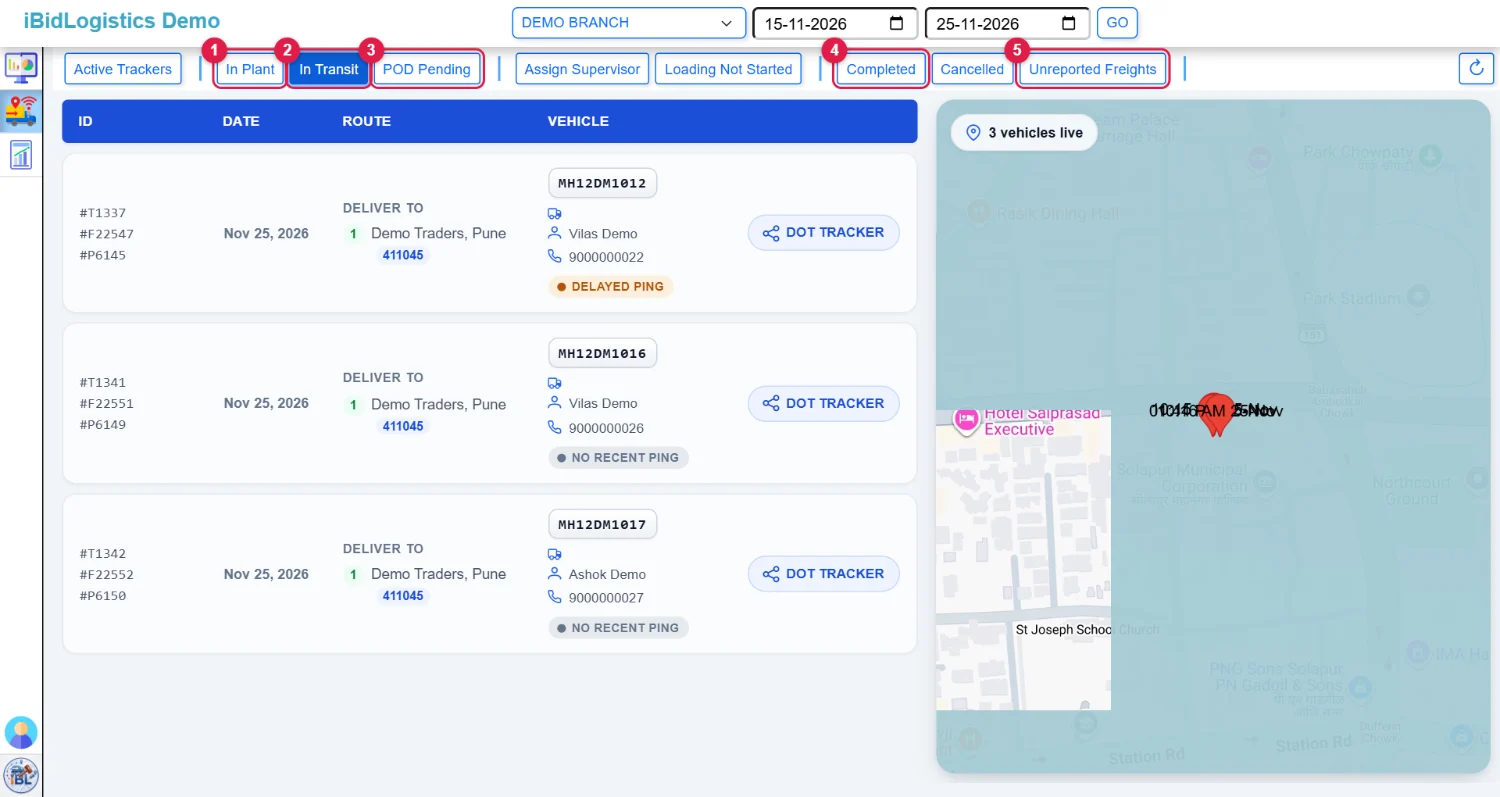
- Add or change load: add goods to a vehicle before it gates out.
- Cancel Trip: cancel a trip that will not go.
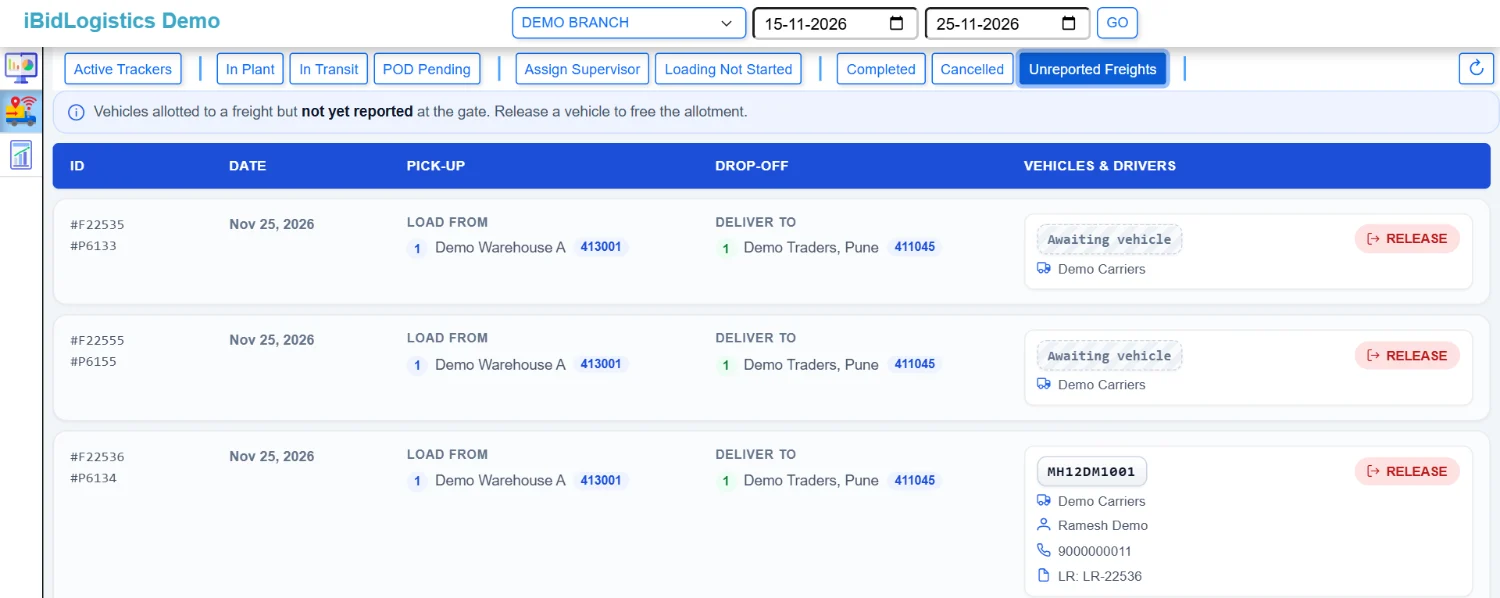
- Release: free a freight whose vehicle did not come.
6. Approve the delivery
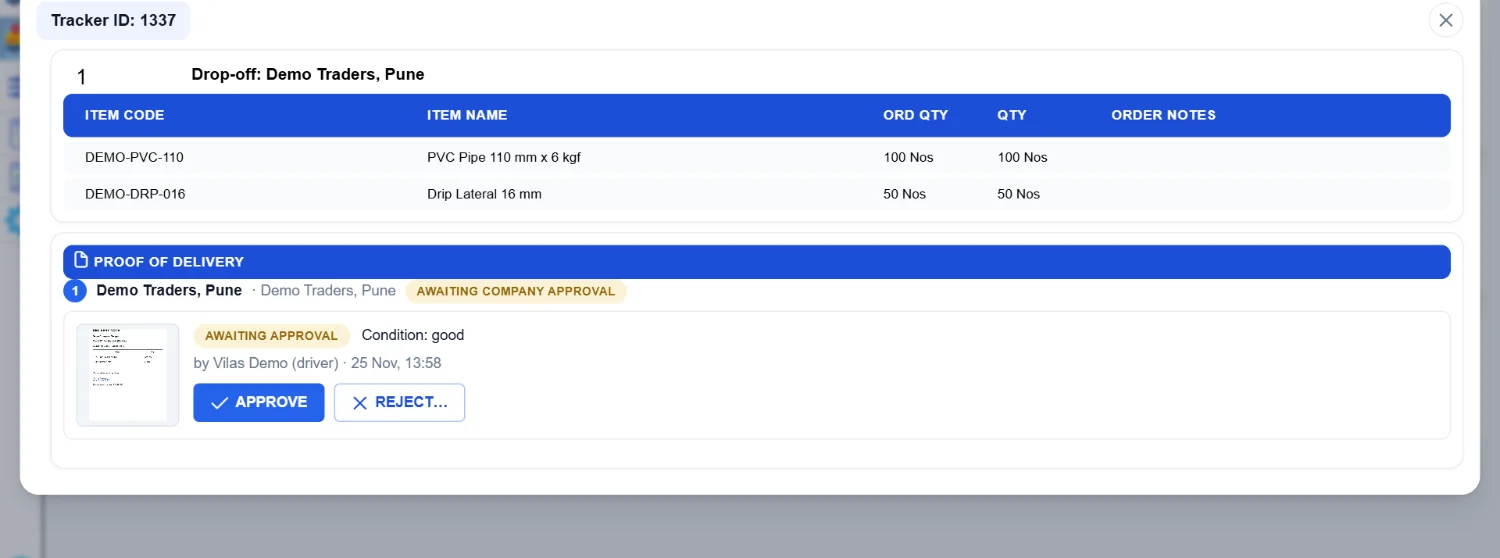
- Open POD Pending and press the vehicle.
- Check the photo of the signed paper.
- Press Approve, or Reject with the reason.
7. Reports
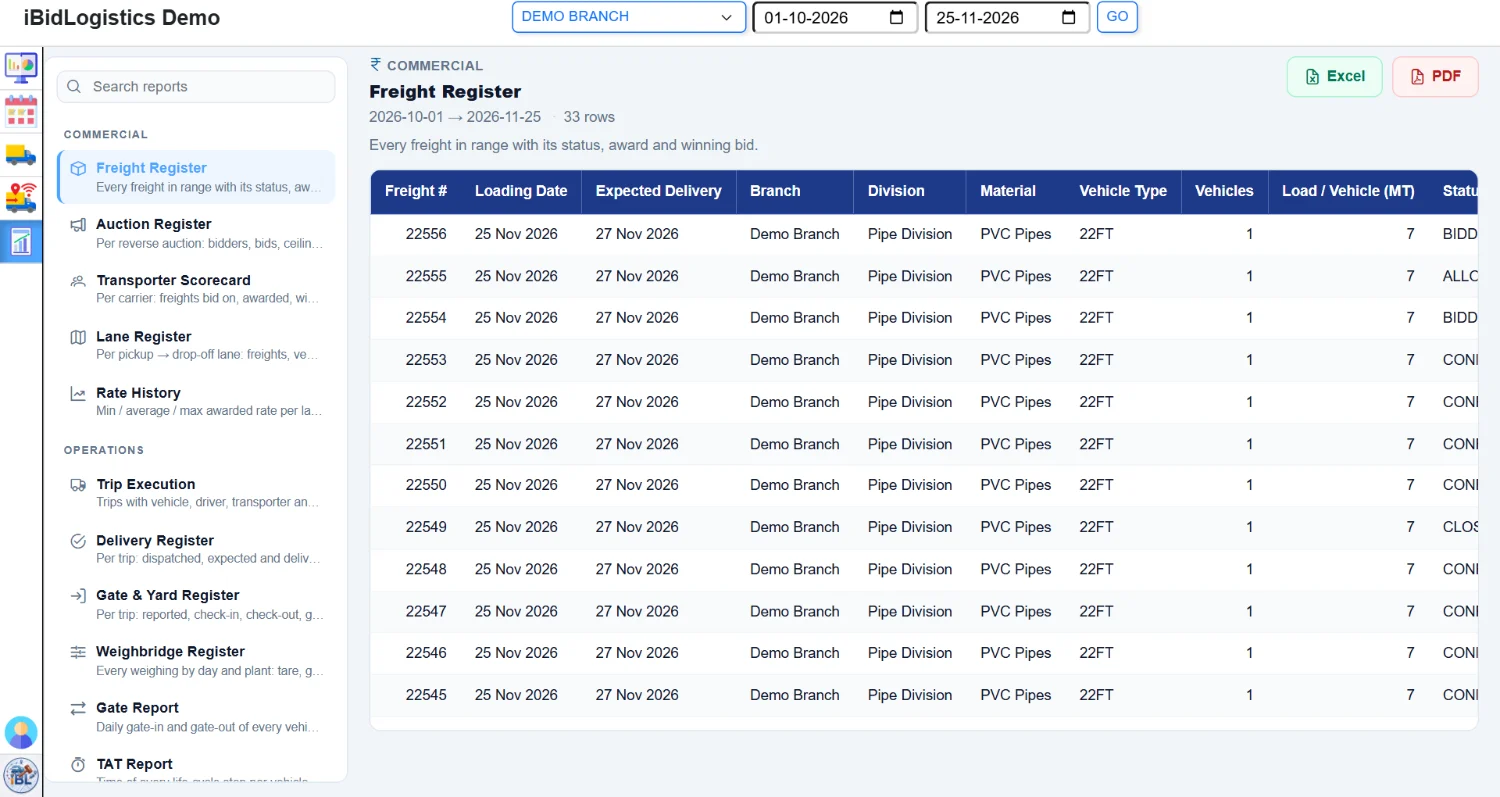
Open Reports, choose a report, set the dates, then press Excel or PDF.
8. Messages and what to do
| Message or problem | What to do |
|---|---|
| A list is empty | Check the branch and the dates at the top. |
| A menu is missing | Your role does not have it. Ask your Admin. |
| Number not registered | Your mobile number is not active. Ask your Admin. |
To sign out: Settings, then Log out.
Need help? Write to info@ibidlogistics.com