
Your work at a glance
- Raise the freight from a plan, or create a new one.
- Direct, Live or Future: choose how to give it.
- Watch the bids in Auctions in Progress.
- Allot the freight to a transporter.
- Check the vehicle: the transporter fills the details.
1. Sign in
- Open ibidlogistics.com/login on the computer, or the iBidLogistics app on the phone.
- Enter your registered mobile number and press Request OTP.
- Enter the OTP that comes by SMS and press Login.
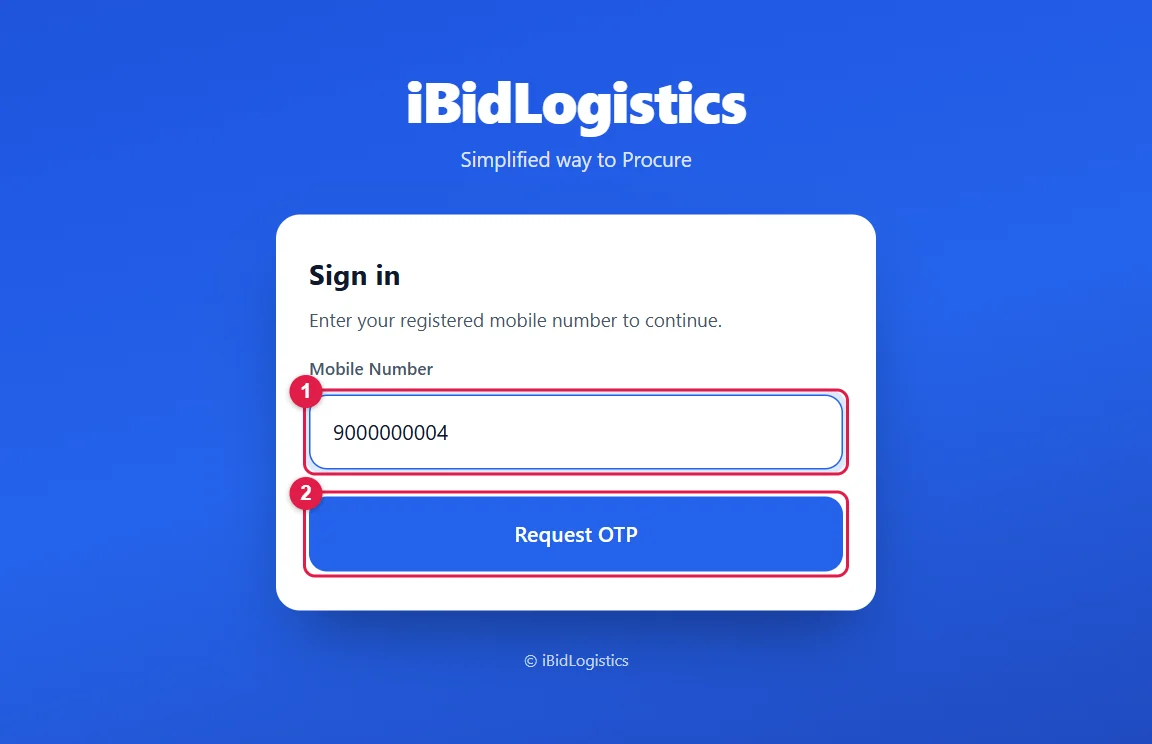
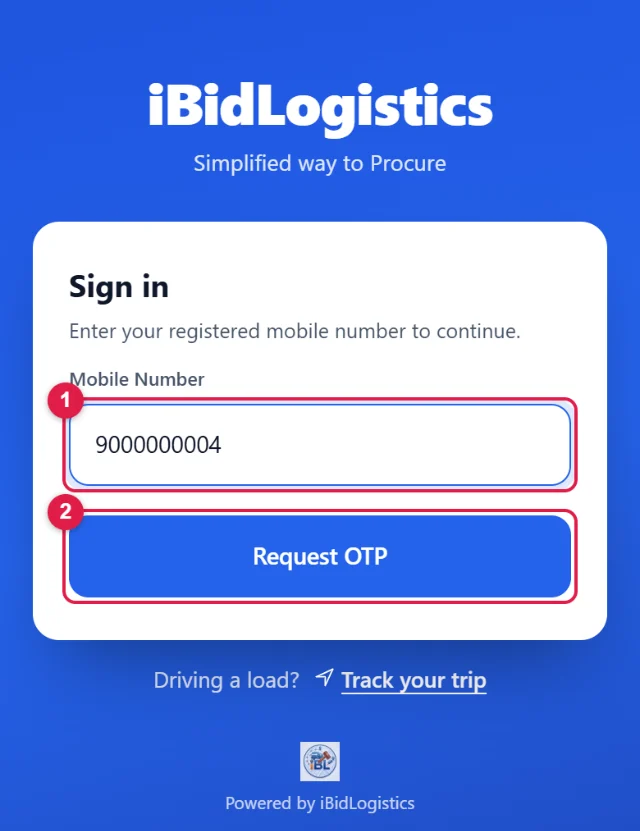
You stay signed in. Do not share your OTP with anyone.
2. Raise a freight from a plan
- Open Freight Planner and choose Plan Created.
- Press one of the three buttons on the plan.
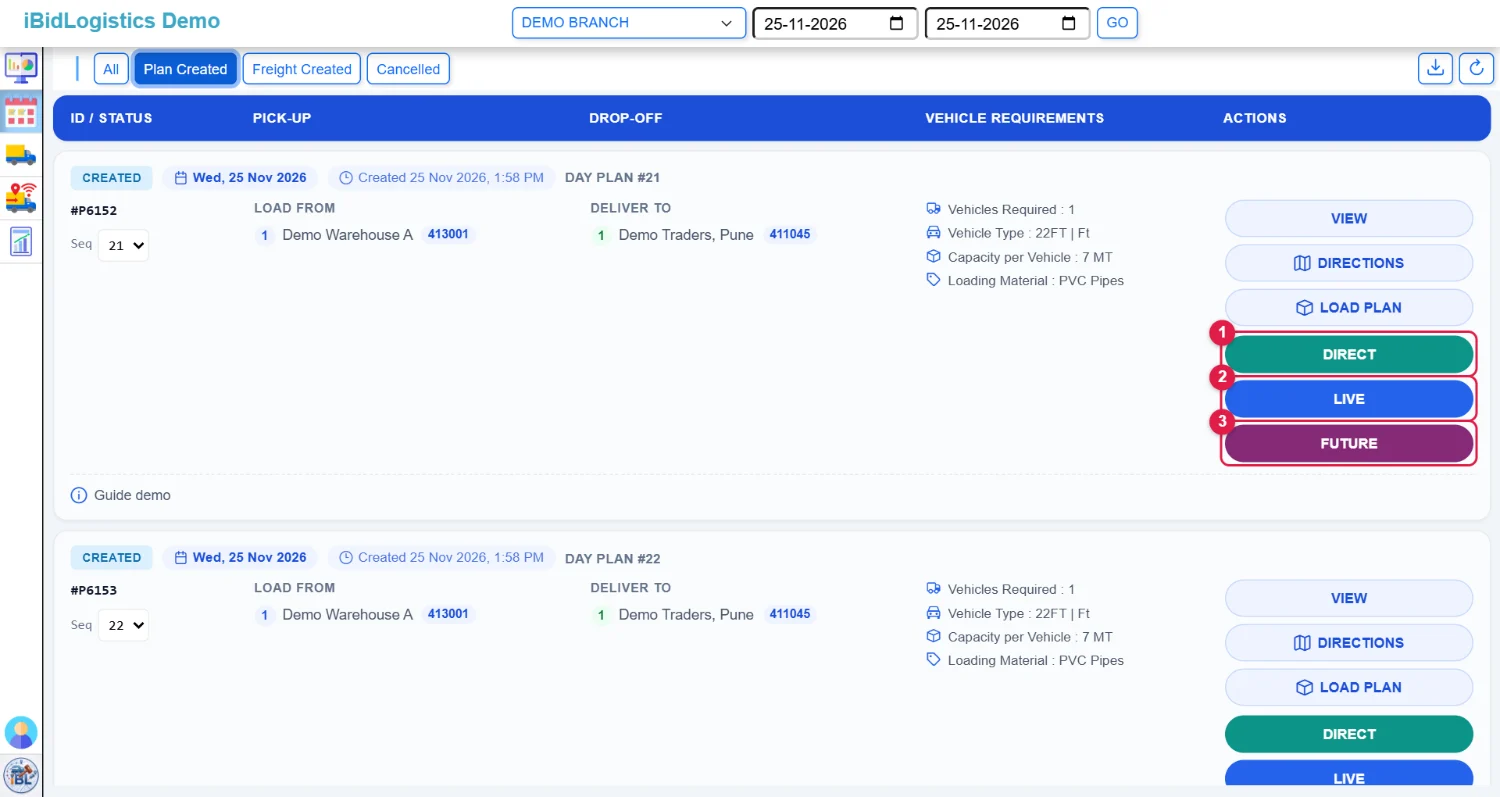
- Direct: give it to one transporter at a fixed rate.
- Live: the auction starts now.
- Future: the auction starts at the time you set.
3. Create a freight without a plan
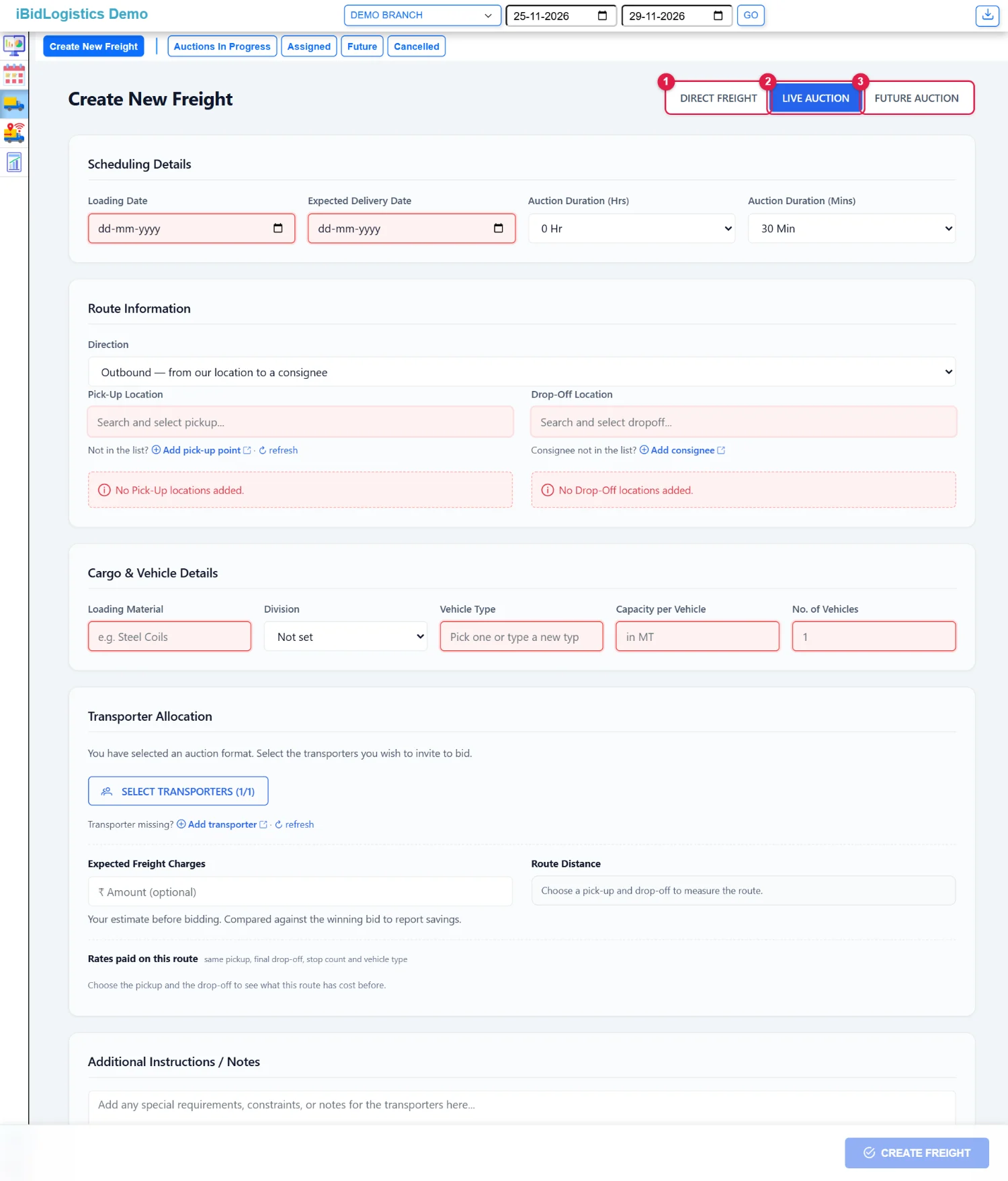
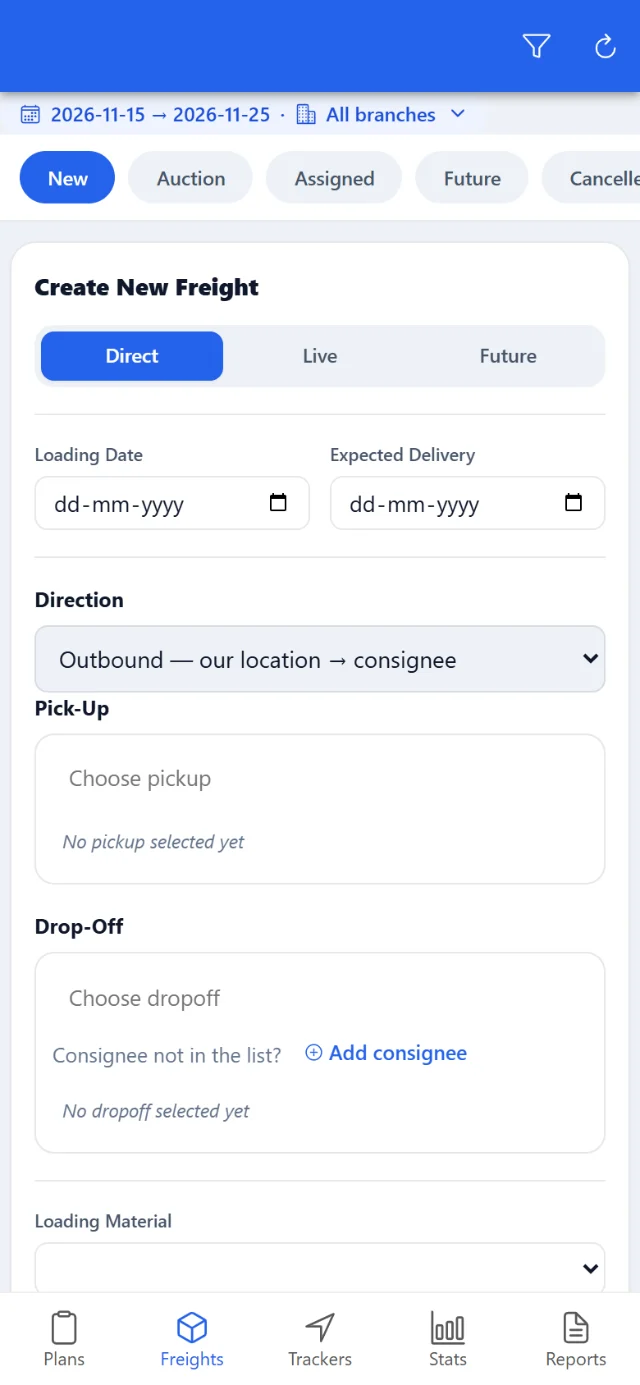
- Open Freights and press Create New Freight. Choose Direct, Live or Future.
- Fill the dates, the pick-up, the drop-off, the material and the vehicle.
- For an auction, set its duration and select the transporters to invite. The expected charges are optional.
- Press Create Freight.
4. Watch the auction
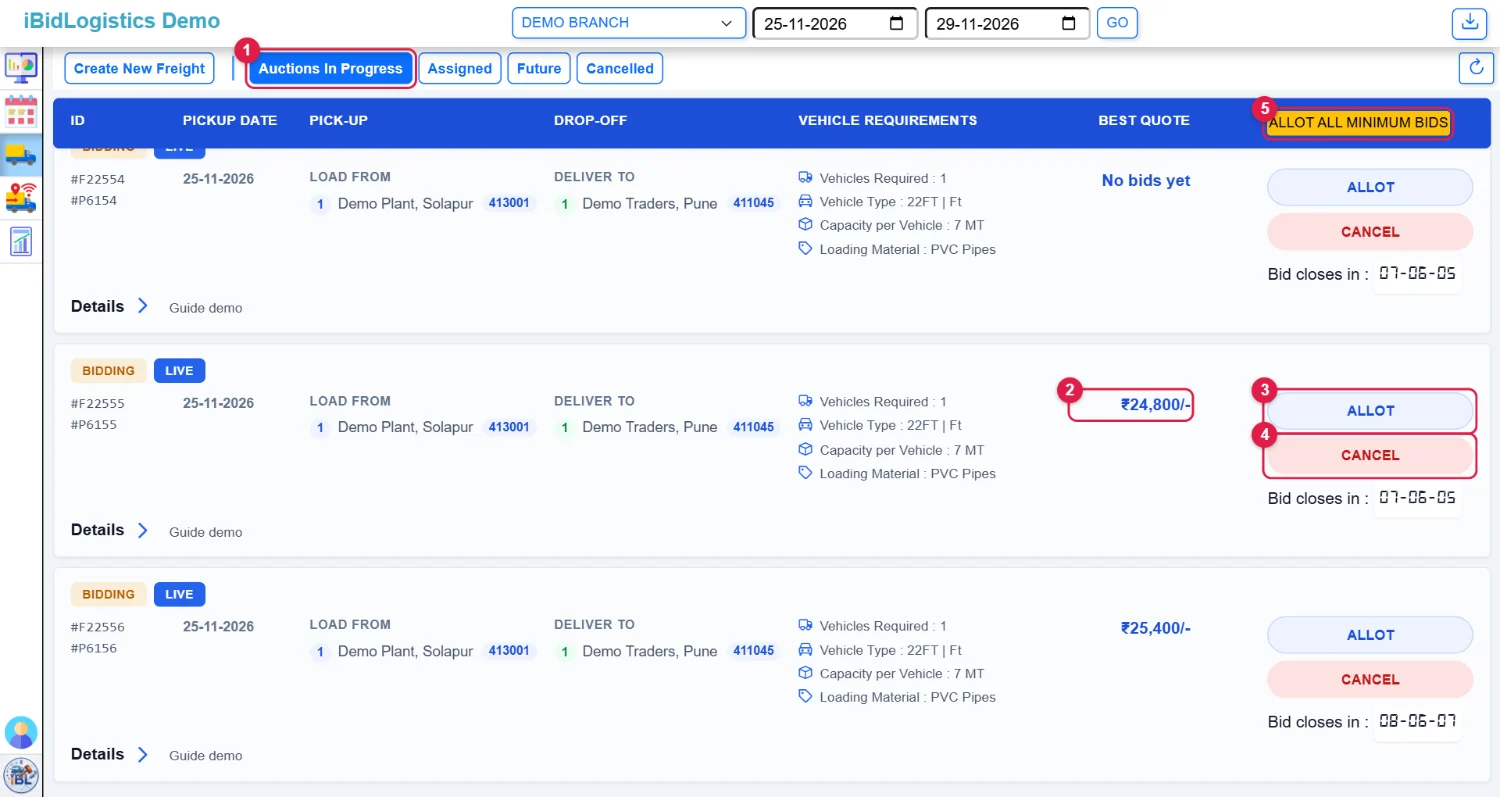
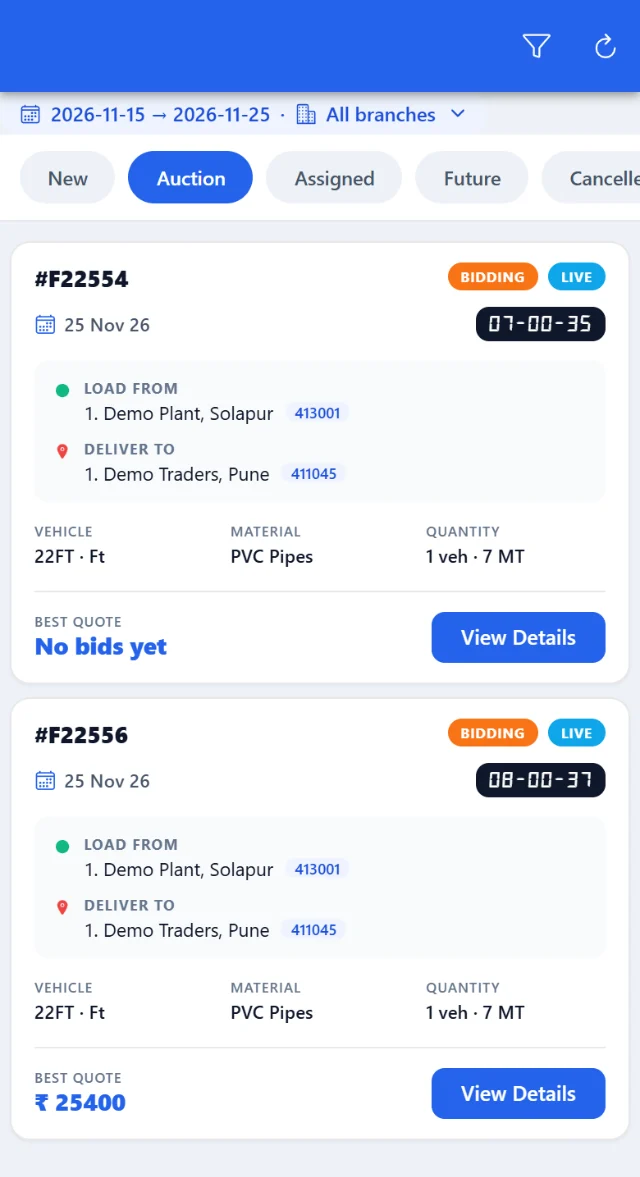
Auctions in Progress updates by itself. You see the best quote and the time left.
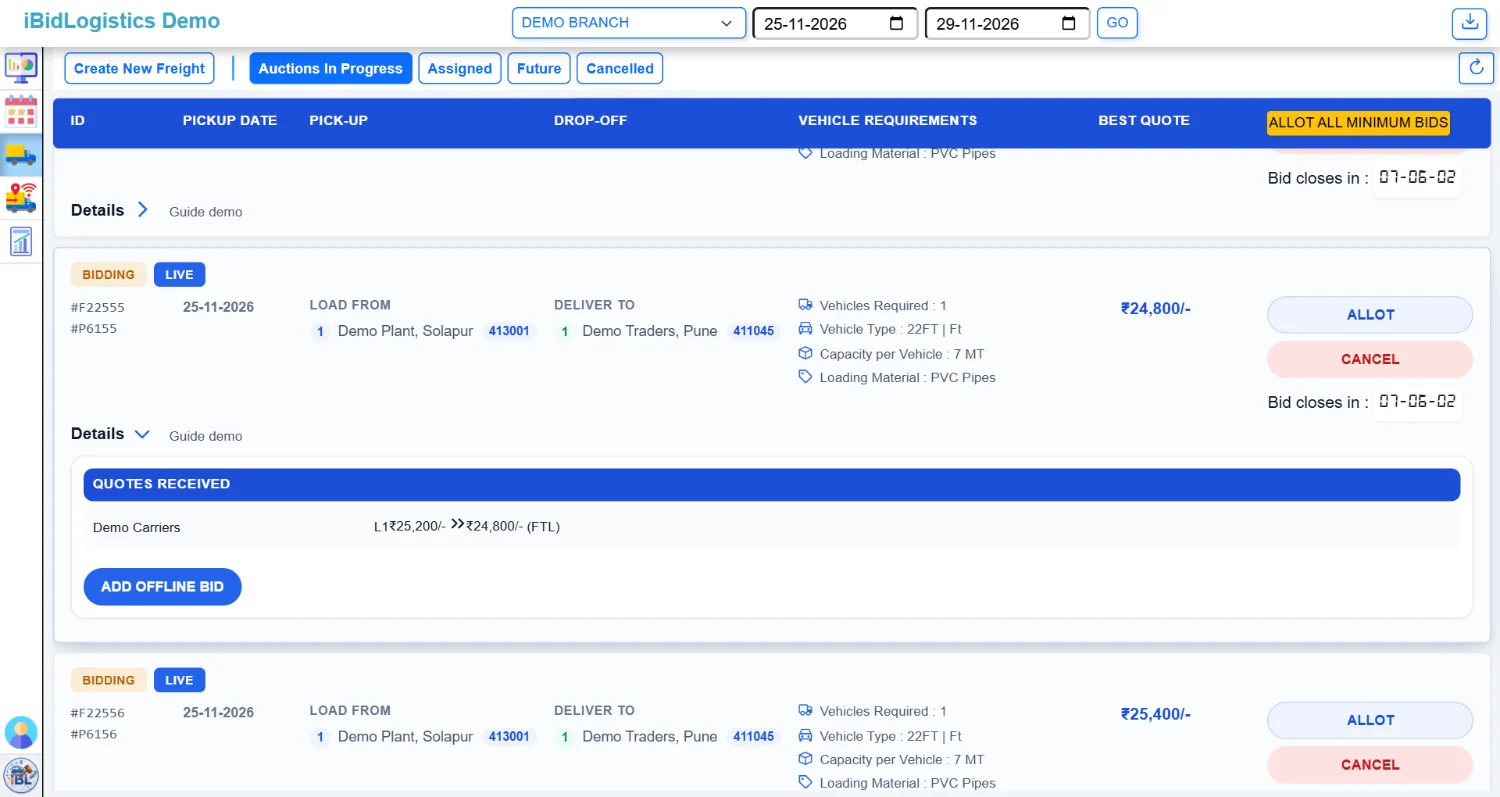
- Press Details to see every transporter's bids.
- A transporter quoted on the phone? Press Add offline bid and enter it.
5. Allot
- Press Allot to give the freight to the lowest bid. You can do it before the time ends.
- Allot all minimum bids allots every freight in the list at once.
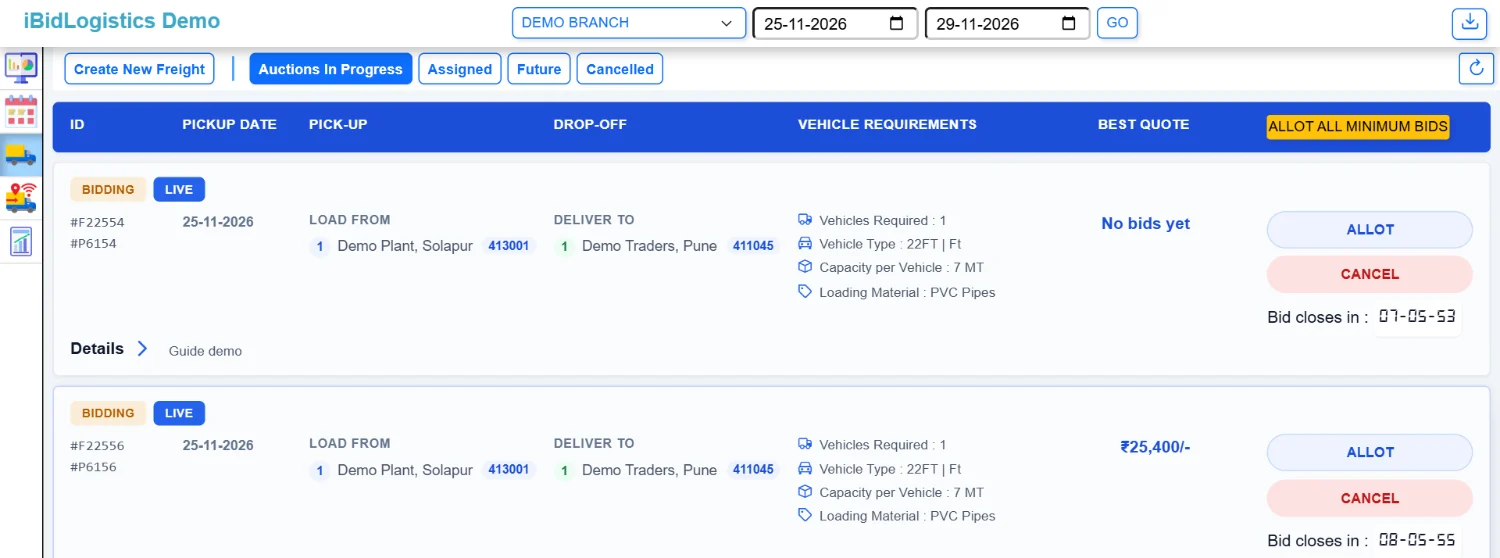
Check the rate before you press Allot. The transporter is informed at once.
6. Vehicle details
Open Assigned. Red means the transporter has not filled the vehicle yet. Driver details are optional.
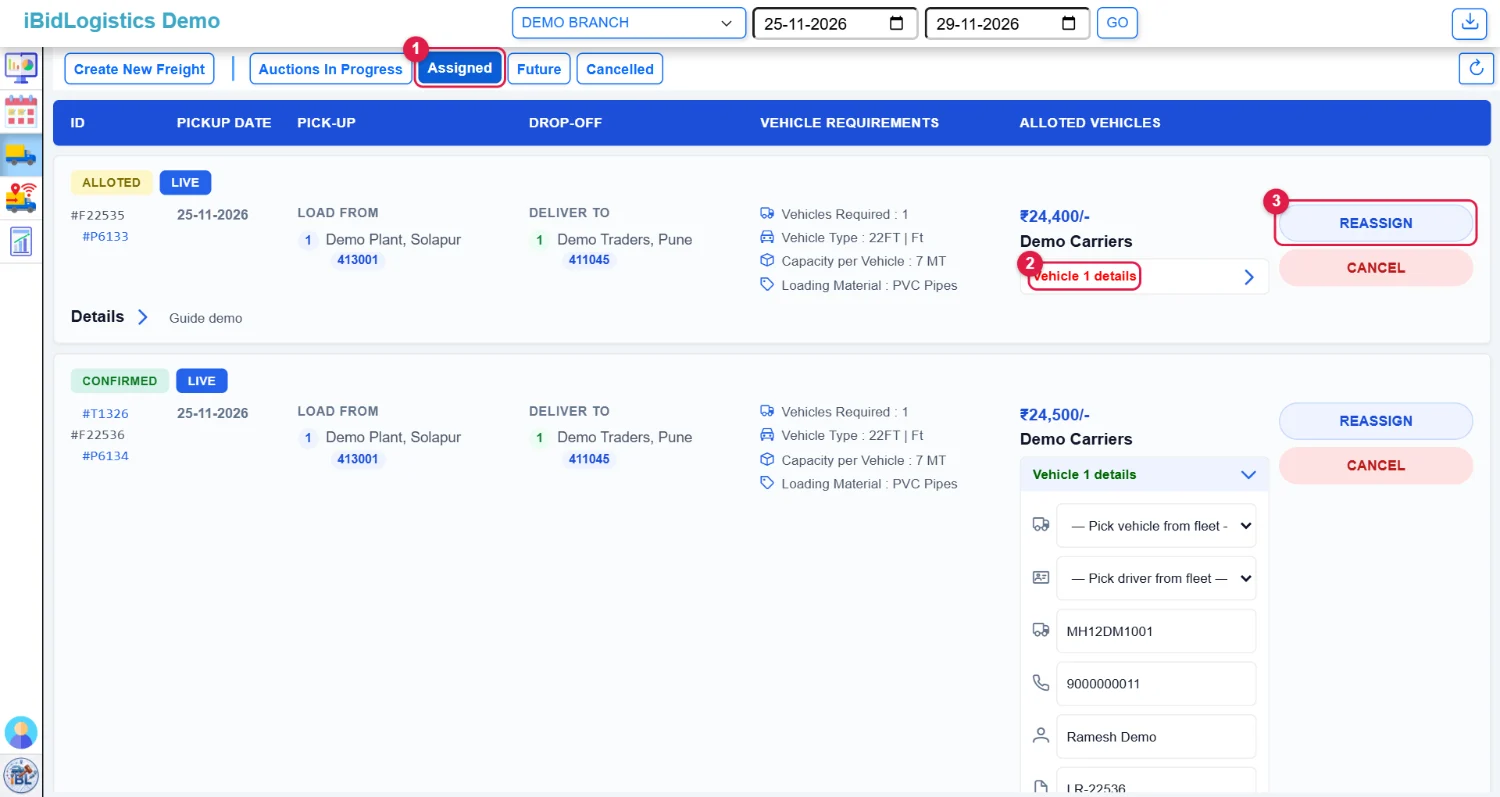
- Reassign gives the freight to another transporter.
- Cancel cancels the freight.
7. Vehicles that did not come
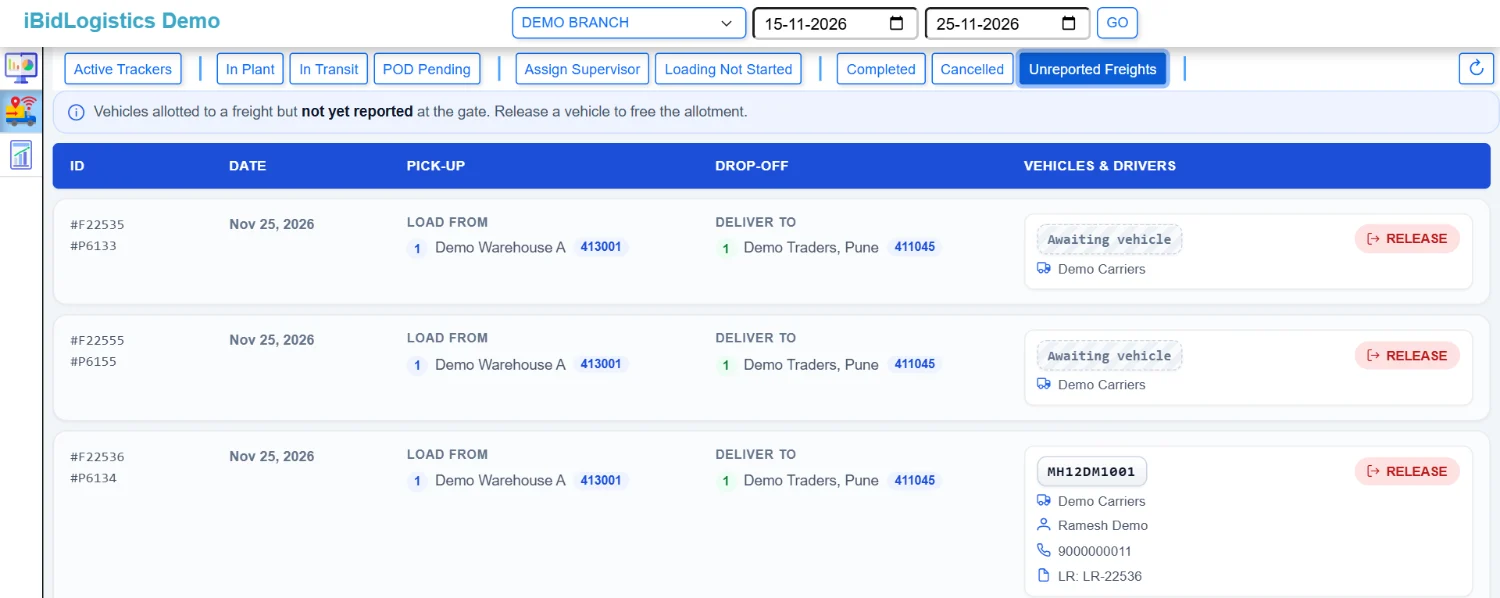
In Freights on the Way, Unreported Freights lists allotted vehicles that have not reached the gate. Release frees the freight so you can give it again.
8. Dashboard and reports
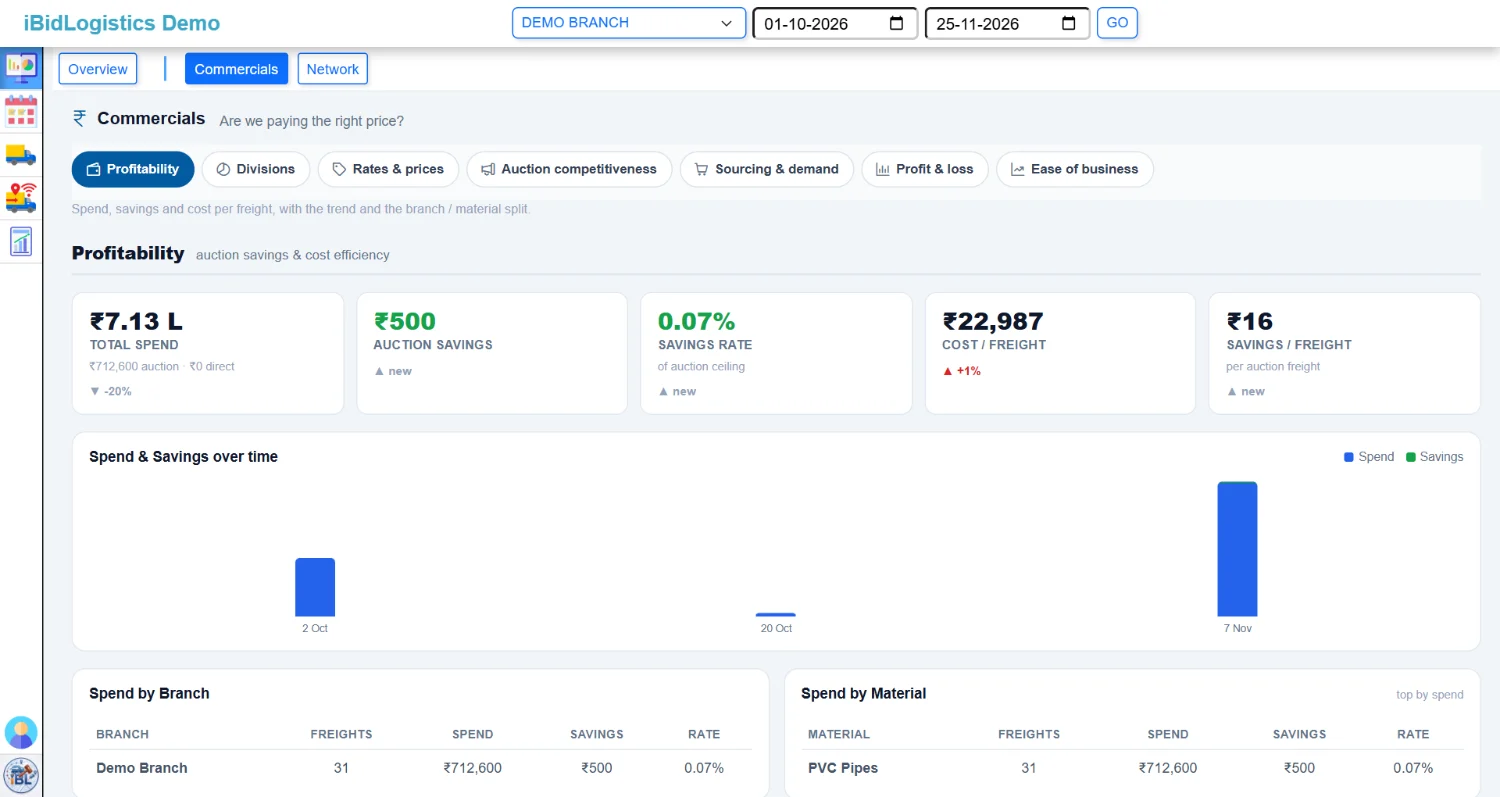
Dashboard shows your spend, your savings and your transporters. Reports has the freight, auction, lane and rate registers.
9. Messages and what to do
| Message or problem | What to do |
|---|---|
| No bids yet | No transporter has quoted. Call them, or add an offline bid. |
| A transporter is not in the list | Ask your Admin to add the transporter to your branch. |
| Number not registered | Your mobile number is not active. Ask your Admin. |
To sign out: Settings, then Log out.
Need help? Write to info@ibidlogistics.com