
Your work at a glance
- Get the Trip ID from your transporter or the gate.
- Start tracking in the iBidLogistics app.
- Drive. You can close the app; tracking continues.
- Unload and take the signature on the delivery note.
- Send the photo of the signed paper.
1. Get the app
- Install iBidLogistics from the Play Store.
- Open the app and tap Track your trip. You do not need to sign in.
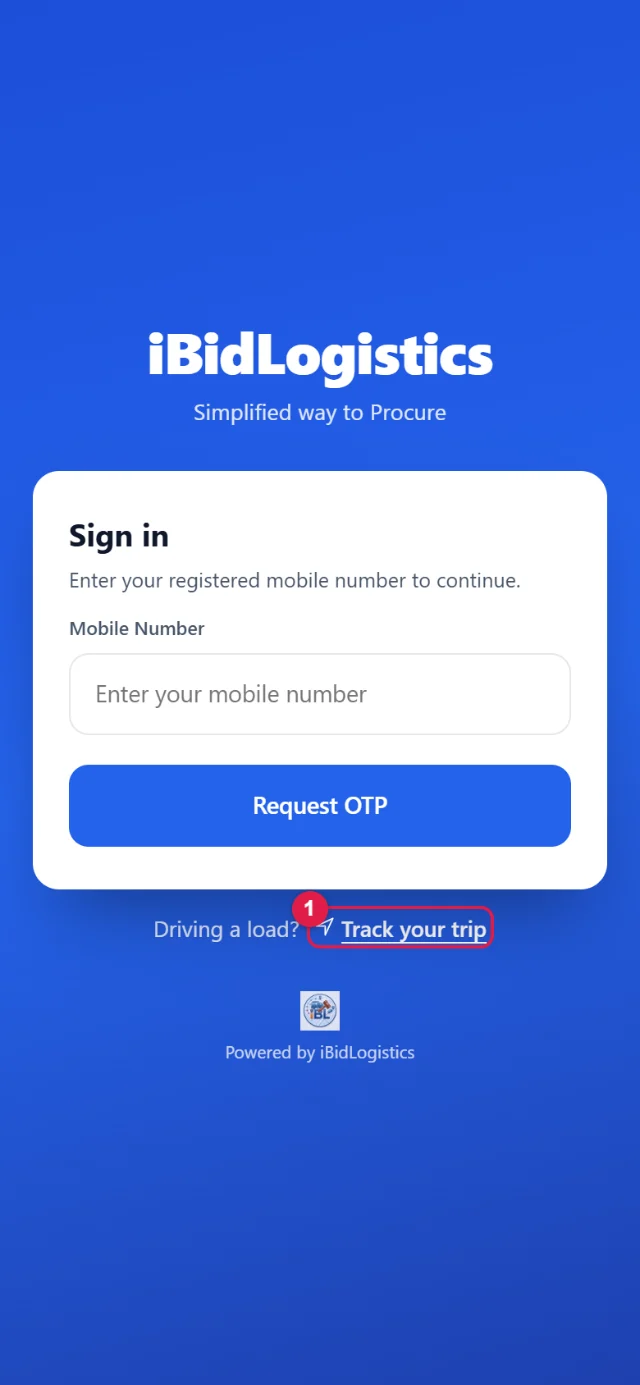
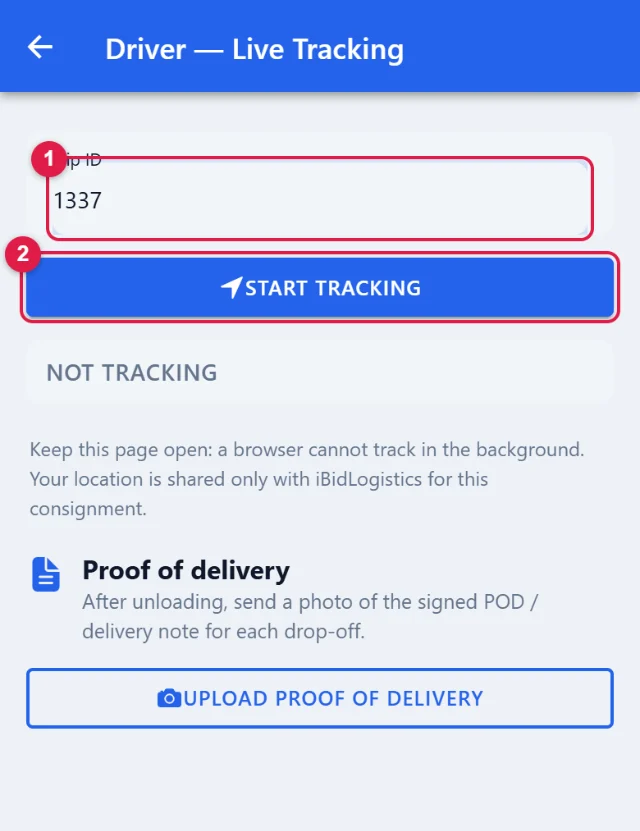
2. Start tracking
- Type the Trip ID, for example 1337.
- Tap Start Tracking.
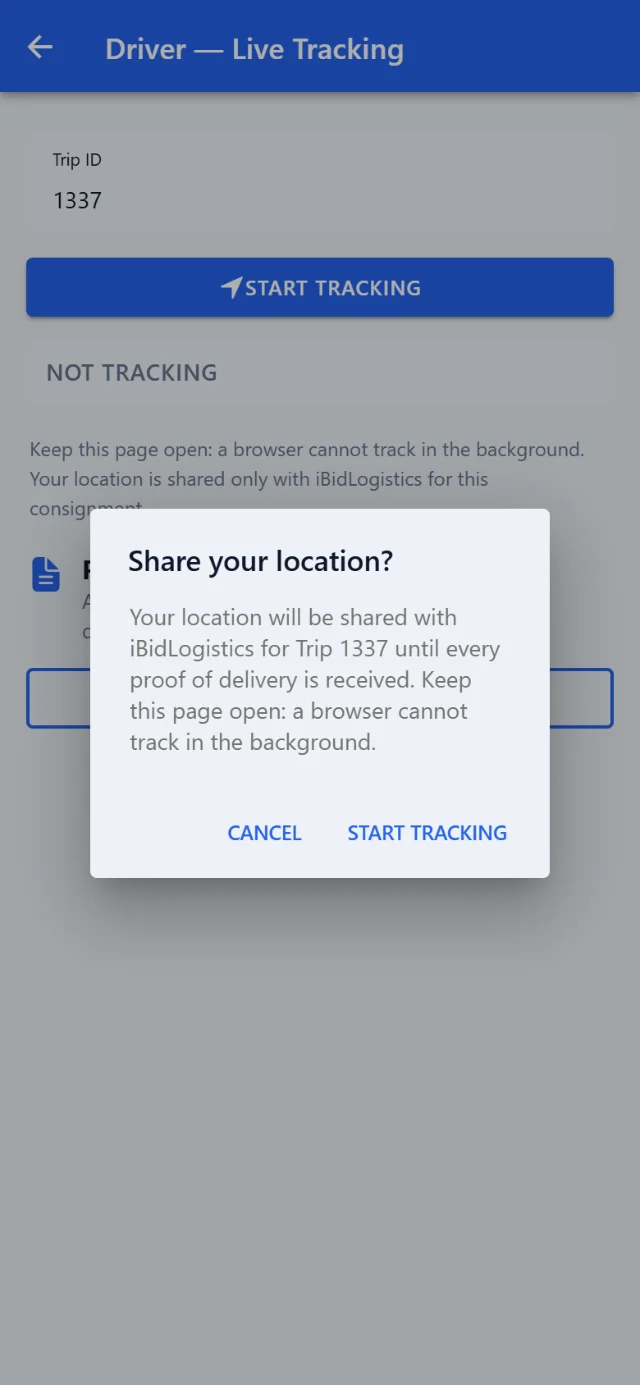
- Tap Start Tracking again in the box, and allow location on your phone.
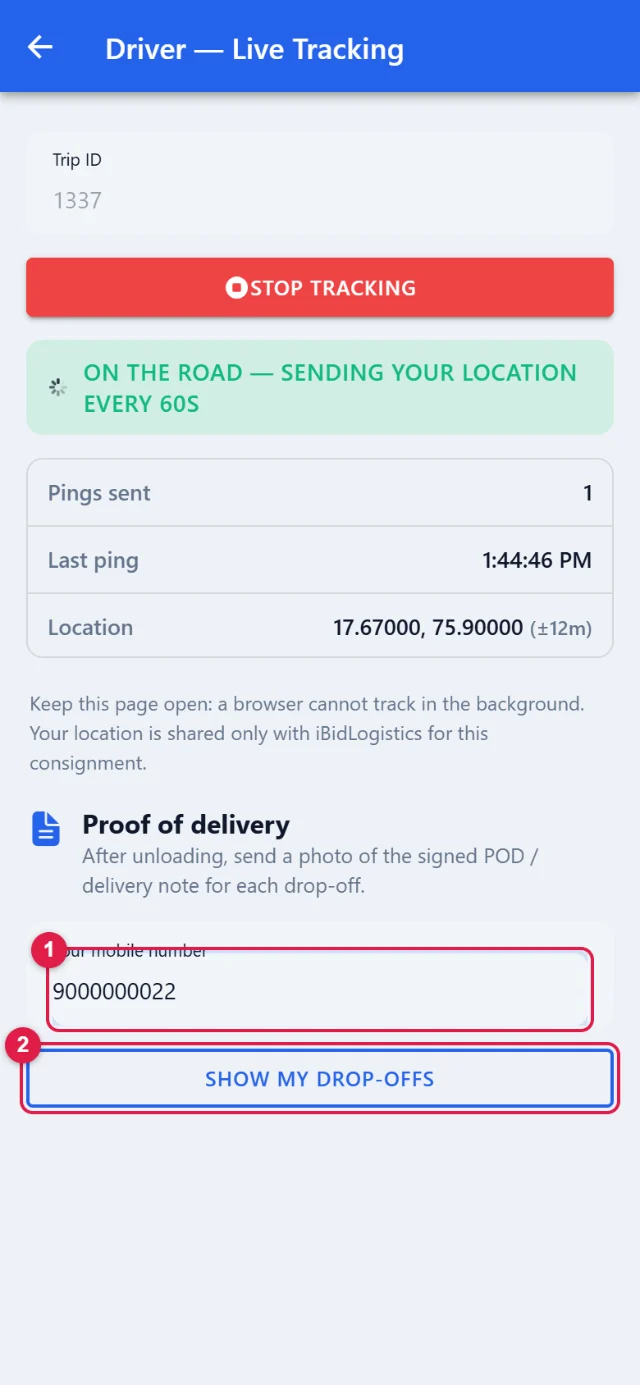
- A green box shows that tracking is on.
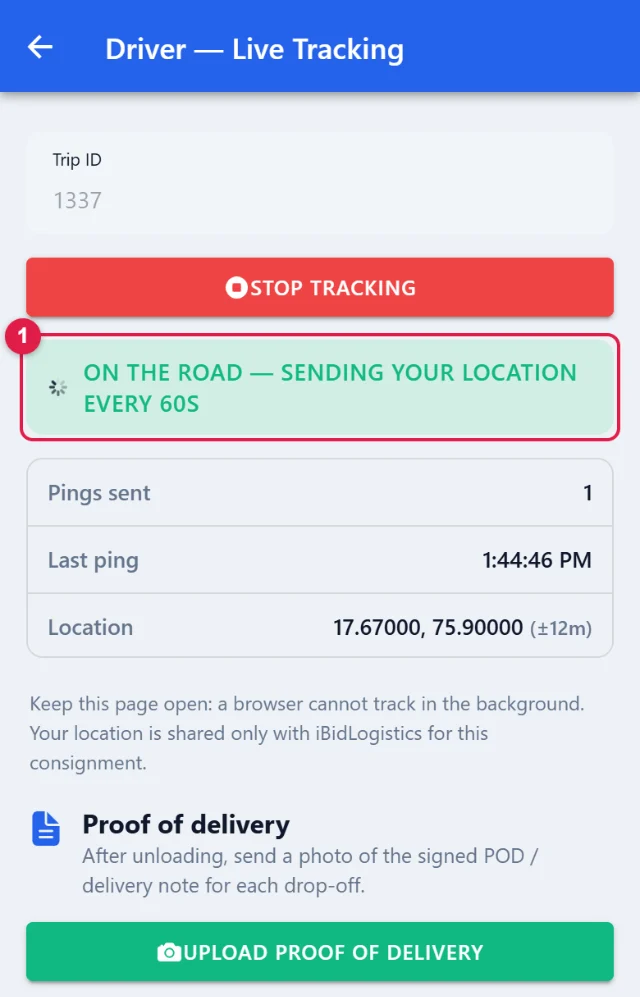
Your location is shared only with iBidLogistics, only for this trip, until every proof of delivery is received.
3. On the road
Keep the phone on and charged, with mobile data and location on. A notification stays on while tracking runs.
Do not press Stop Tracking before the delivery is complete. Do not use the phone while driving.
4. Send the proof of delivery
- After unloading, tap Upload proof of delivery.
- Type the mobile number your transporter gave for this trip and tap Show my drop-offs.
- Tap Take photo of the signed POD and take a clear photo of the signed paper.
- Choose Goods OK. If something was short or damaged, choose Shortage / damage and write what was wrong.
- Tap Send proof of delivery.
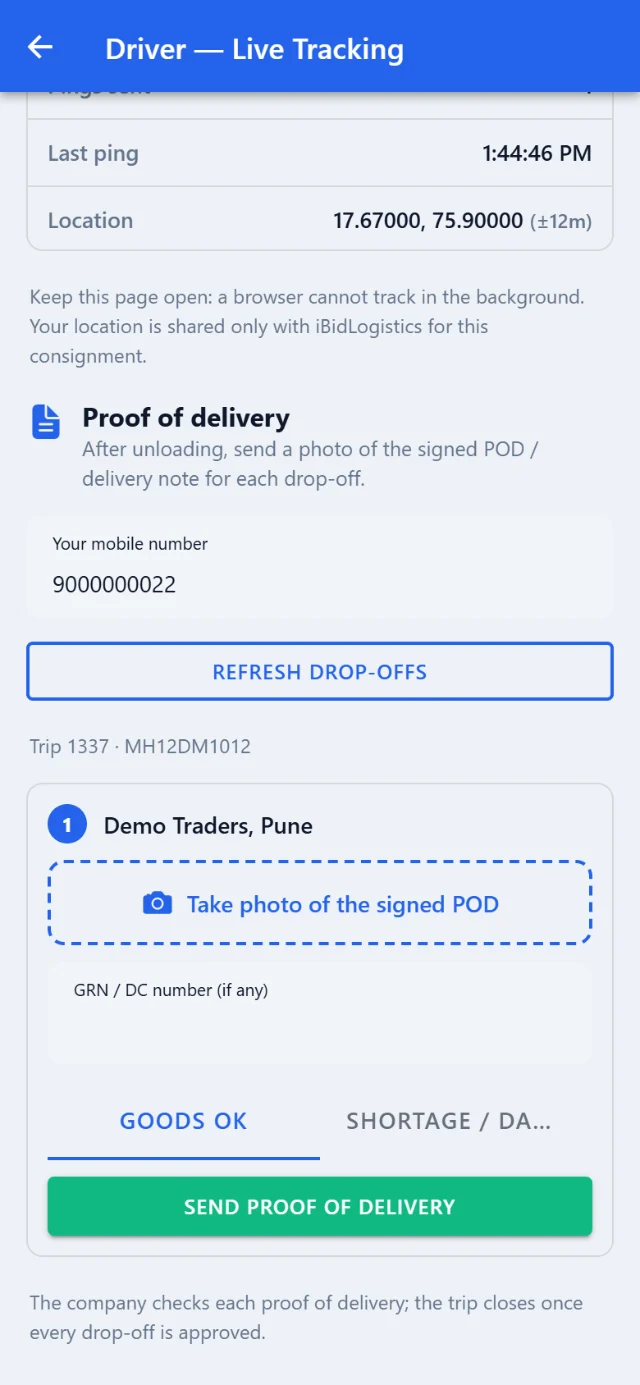
More than one drop-off? Send a photo for each one.
5. After sending
| What you see | What it means |
|---|---|
| Sent · awaiting review | The company is checking your photo. |
| Delivered | Accepted. This drop-off is complete. |
| Rejected | Read the reason and send a new photo. |
6. Problems and what to do
| Message or problem | What to do |
|---|---|
| The Trip ID is not accepted | Check the number with the gate or your transporter. |
| On the way to the plant | You have not reported at the gate yet. Tracking counts from the gate. |
| Tracking error | Turn on location and mobile data, then start again. |
| My drop-offs do not open | Use the same mobile number your transporter entered for this trip. |
Need help? Write to info@ibidlogistics.com